Graphic software for Windows Mac graphic software  
Please enter your email to be kept posted on updates and discounts:
 
  
  Products     Download     Online Store     Tutorial     Support     About Company
en  fr  de  es  pt  it  jp  ru    
 

Tutorial: AKVIS Sketch

Sweet couple


It is not easy to choose a suitable present for the loved ones even when you know their tastes. A good present should be individual and original. What can be better than a hand-made greeting?!

We offer you to create an ideal greeting card - it is funny and exclusive. We used the program Adobe Photoshop with two plug-ins AKVIS Sketch and AKVIS Stamp:

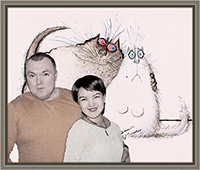
    Framed postcard
    Click the image to open its larger copy in a new window:

    Follow the instructions below to create a postcard:

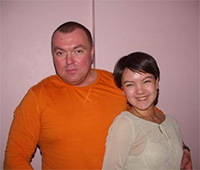
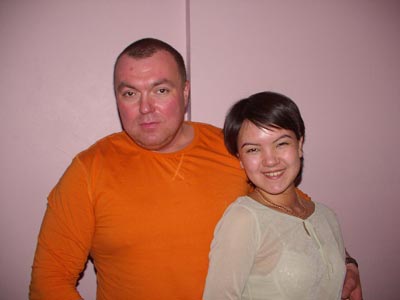
    First we should choose suitable images. Let’s take this photo:
    Original photo of the sweet couple
    Click the image to open its larger copy in a new window

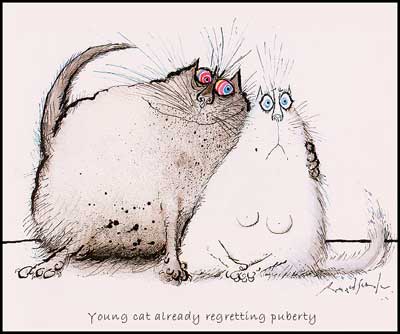
    We have found a cool image with two expressive-looking cats from “Big Fat Cat Book” of Ronald Searle.
    Ronald Searle cats
    Click the image to open its larger copy in a new window.

    These lovely cats remind us of our sweet couple!


    Let’s begin our work:

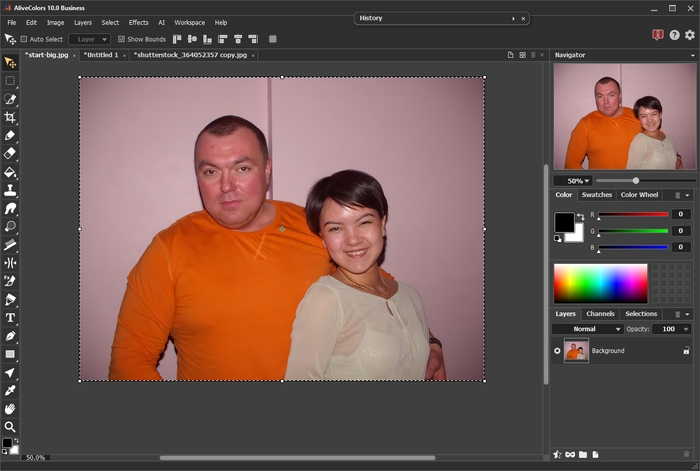
  • Step 1. Open a photo in Adobe Photoshop.
    Original photo of the sweet couple
  • Step 2. We should select the sweet couple using any selection tool (Magnetic Lasso, Lasso, etc). In Adobe Photoshop we can use the Quick Mask mode. Press the button Quick Mask mode on the Toolbox. Then choose Pencil and outline both sweethearts.
    Quick Mask mode
  • Step 3. Now we choose the Paint Bucket tool and fill in the area inside the outline. In this way the figures get selected.
    Quick Mask mode

    Quit the Quick mask mode. Press the button Standard mode.

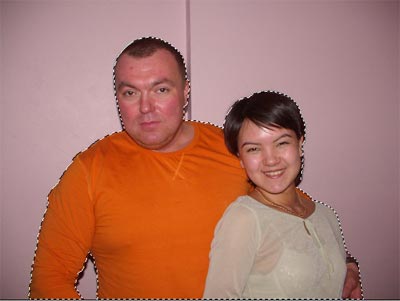
  • Step 4. In the main menu of the photo editor choose Select->Inverse. Here we get the selection:
    Selected area
  • Step 5. Copy the selected image Edit->Copy.
  • Step 6. Now we open the image with the cats.
    Ronald Searle cats

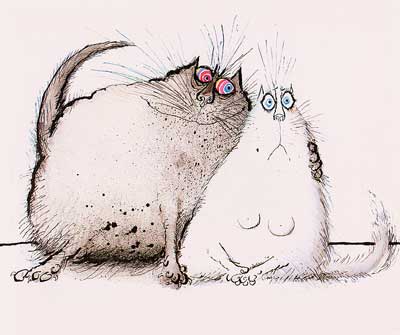
    Erase the black border and the inscription:

  • Step 7. Press the button Сrop in the Toolbox and select the image without the black border.
    Cutting the black border on the image with cats
    Press the button Apply in the Options panel in the upper part of the window.
  • Step 8. Press Set Background Color and then choose Eyedropper and click on the area near the inscription to define the color. Remove the inscription using Eraser.
    Removing the inscription
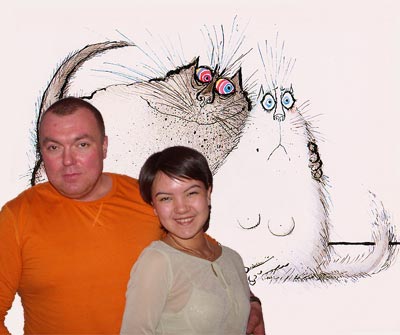
  • Step 9. Paste the selected image Edit->Paste. Then we adjust the position of the couple on the image using the command Edit->Free Transform. Set the size of the picture by changing the value W (Set horizontal scale) and H (Set vertical scale) in the Options panel. Set the same value of the parameters to keep the image proportions.
  • Step 10. Now choose Move to place the pasted image to the appropriate place. The result should be as follows:
    Insert the selected image
  • Step 11. Now let’s call AKVIS Stamp Filters->AKVIS->Stamp to remove the facial shine. Set the source area. For this purpose, keeping the ALT (Option for Macintosh) pressed, left-click on the area that we are going to clone. Deactivate the check box Aligned and adjust the size of the stamp.
    Removing facial shine
  • Step 12. Apply strokes to remove the facial shine. You can choose other source areas for better cloning.
  • Step 13. Press the button Apply to apply the result and close the plugin window.
    Without facial shine
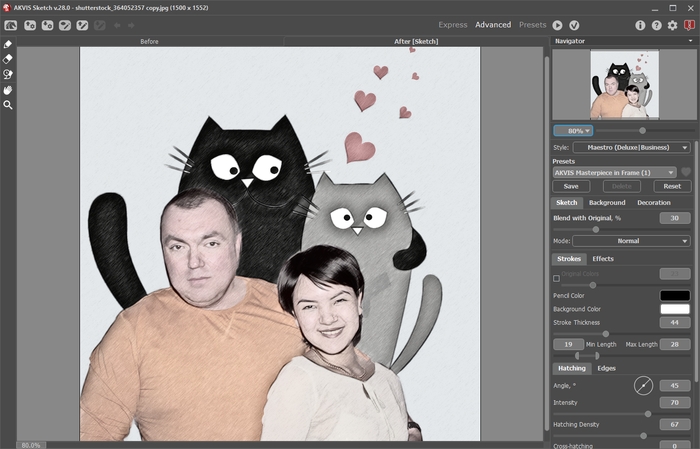
  • Step 14. Now we'll make a sketch from the photo. Call AKVIS Sketch (Filters->AKVIS->Sketch). Set the values of the parameters: Watercolor=1, Charcoal=0, Coloration = 10 at the Effects box. At the Strokes box : Size=7. We won’t change other parameters.
  • Step 15. Press the button Run. The result will be shown in the After tab.
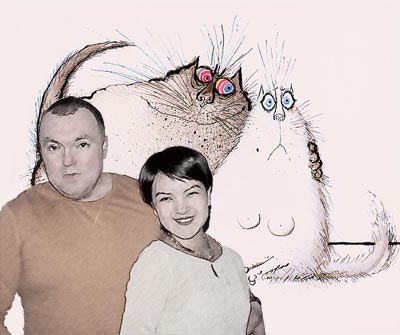
    Sketch from a photo

    Press the button Apply to apply the result and close the plugin window.


    Here is our final result:

    Postcard

    You can frame this image to give it the final touch:

    Framed postcard
  • You can draw a frame yourself, but it is better to use AKVIS Frame Suite.

 
How It Works How It Works
   — AKVIS Sketch plug-in — AKVIS Sketch plug-in
   — AKVIS Sketch stand-alone — AKVIS Sketch stand-alone
   — Make a Sketch from a Photo — Make a Sketch from a Photo
   — Background Tab — Background Tab
   — Imitate Sketch Drawing on a Canvas — Imitate Sketch Drawing on a Canvas
Examples Examples
   — Pencil Sketch: Let's Draw a Tulip — Pencil Sketch: Let's Draw a Tulip
   — Color Sketch — Color Sketch
   — Graphite Pencil Portrait — Graphite Pencil Portrait
   — Watercolor Drawing — Watercolor Drawing
   — Artistic Processing — Artistic Processing
   — A Painting out of a Photo — A Painting out of a Photo
   — A watercolor portrait from a photo — A watercolor portrait from a photo
   — Winter Dream — Winter Dream
   — Sketch of a Pet — Sketch of a Pet
   — A Little Girl — A Little Girl
   — Westmuir Street in Glasgow — Westmuir Street in Glasgow
   — A woman in a Tub: a real work of art — A woman in a Tub: a real work of art
   — Postcard on a Pencil Drawing — Postcard on a Pencil Drawing
   — Baseball Photo to Color Drawing — Baseball Photo to Color Drawing
   — A Wolf: make a Sketch from a Photo — A Wolf: make a Sketch from a Photo
   — Pastel Drawing Technique — Pastel Drawing Technique
   — Motorshow: a Pencil Drawing — Motorshow: a Pencil Drawing
   — Watercolor of a Wolf — Watercolor of a Wolf
   — A Hand Draws a Hand — A Hand Draws a Hand
   — Transform a Video into a Cartoon — Transform a Video into a Cartoon
   — Convert Vector Drawing to Sketch — Convert Vector Drawing to Sketch
   — Portrait out of a Newspaper Clipping — Portrait out of a Newspaper Clipping
   — Quiet Harbor — Quiet Harbor
   — Sweet Couple — Sweet Couple
   — Black&White Image in Photo Frame — Black&White Image in Photo Frame
   — Dream to Reality — Dream to Reality
   — Christmas Card from a Photo — Christmas Card from a Photo
   — Artist at Work — Artist at Work


   Privacy Policy | Site Map | Search | English  | Français  | Deutsch  | Español  | Português  | Italiano  | 日本語  | Pусский  | © 2004-2008, AKVIS Software Inc. All rights reserved.