How It Works
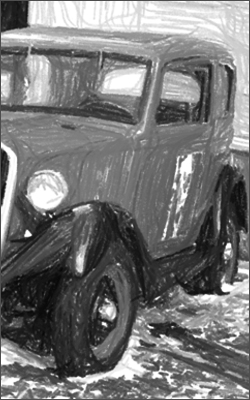
AKVIS Sketch converts photos into pencil sketches, the software allows creating realistic color and black and white drawings. The software can be used independently as a standalone program or as a plugin filter in a photo editor.
In order to turn a photo into a pencil sketch follow the instructions:
- Step 1. Open an image.
- If you work with the standalone edition:
Double-click in the empty workspace or use
 . You can also drag an image into the program workspace.
The Standalone edition of AKVIS Sketch supports RAW, JPEG, WEBP, PNG, BMP, and TIFF file formats.
- If you work with the plugin:
Open an image in your photo editor and call the AKVIS Sketch plugin in the Filter/Effects menu:
In AliveColors: Effects -> AKVIS -> Sketch;
in Adobe Photoshop: Filter -> AKVIS -> Sketch;
in Corel PaintShop Pro: Effects -> Plugins -> AKVIS -> Sketch;
in Corel Photo-Paint: Effects -> AKVIS -> Sketch.The workspace will be arranged according to the interface mode chosen in the Control Panel: Express, Advanced, or Presets.
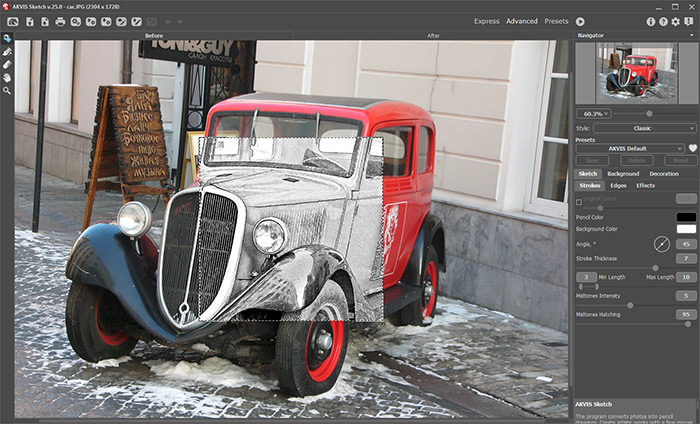
AKVIS Sketch Workspace, Advanced Mode - Step 2. Select the photo-to-sketch conversion style - Classic, Artistic, Maestro, or Multistyle; and adjust its parameters.
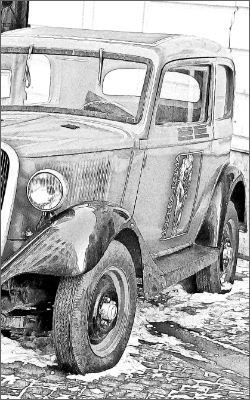
- The Classic style lets you create color and B&W drawings with well-defined contour lines. A characteristic feature of this style is its accuracy: the image looks as if it was primarily created by contour lines with the addition of hatching. Though this mode is versatile and good for many purposes, it is the most suitable for technical illustration, architectural images, and other pictures where you would like to attain good detail.
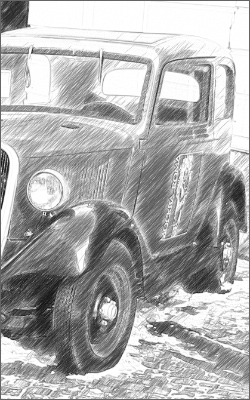
- The Artistic style is designed to create expressive drawings that look like the handmade work of a real artist. In this style, it is easy to create both a quick sketch and a carefully drawn and shaded pencil drawing. The main advantage of this style is the ability to play with hatching and to vary the number of shadings and shadows to get natural tonal transitions.
- The Maestro style is intended to solve artistic tasks. It creates vivid and expressive works of art with masterly hatching, clear and natural contours, and without excessive detail, less photographic and more like drawings. This style harmoniously combines exquisite technique and artistry. It is available only for the Deluxe/Business licenses.
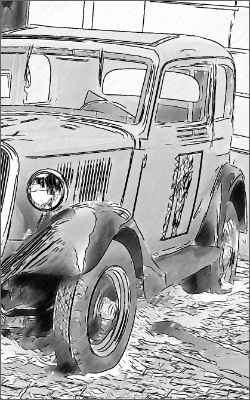
- The Multistyle is a complex drawing style that allows you to make the effects of pastels, felt-tip pens, oil pencils, wax crayons, and much more. It is available only for the Deluxe/Business licenses.
- Step 3. Once the program is open, part of the image will be automatically converted to a pencil drawing. The result will be shown in the quick preview area in the Before tab.
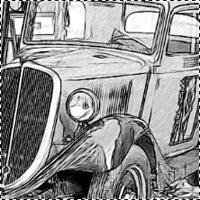
Quick Preview - Step 4. Click
 to convert the photo into a pencil drawing with the new settings.
Note: You can observe the processing in real-time. It's possible to stop photo-to-sketch rendering and save the semi-processed drawing as a result. To interrupt the process, use the Stop button right to the progress bar.
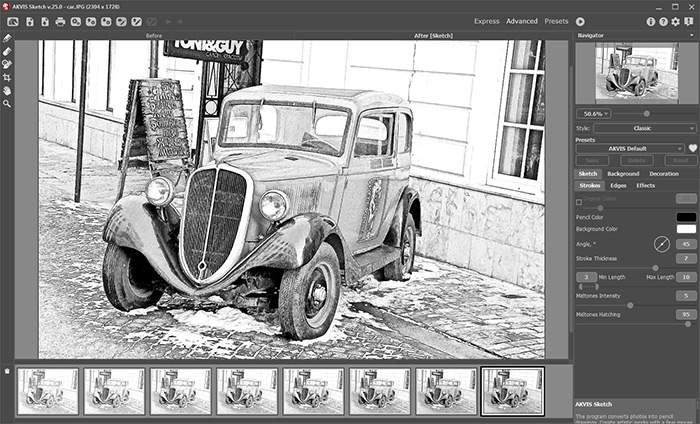
Default Settings - Step 5. Optionally, in the Classic and Maestro styles and in the Multistyle, you can use a special tool that lets you change the direction of the applied pencil strokes. The Stroke Direction tool
 gives you full control over how hatching is drawn on an image. Using this technique you can achieve a truly realistic drawing with patterns and textures going in the right direction.
Note: This feature is only available for the Home Deluxe and Business licenses.
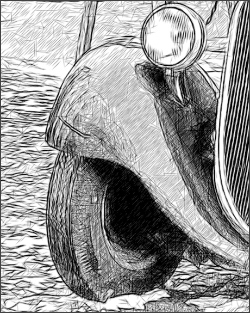
Automatic Strokes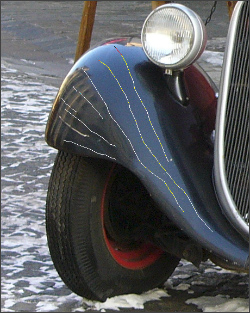
Guiding Lines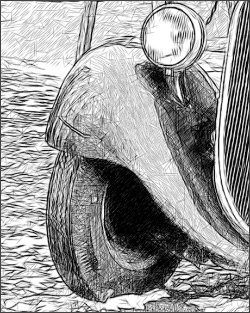
Reoriented Strokes - Step 6. You can also adjust the settings on the Background tab and use Decoration options: Canvas, Frame, and Text. Click to start processing the image.
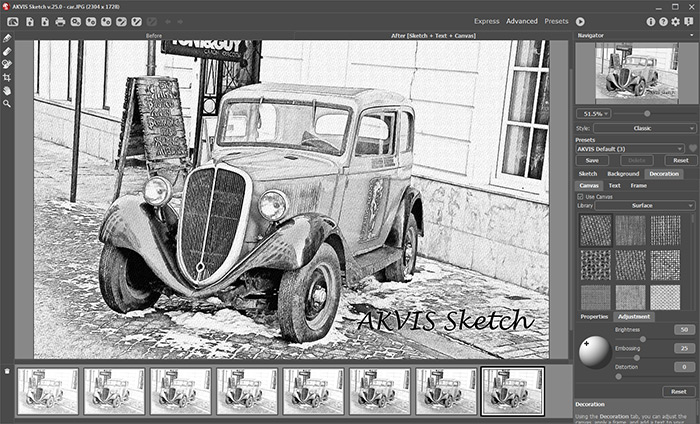
Sketch Drawing + Canvas + Text- Step 7. It is possible to save the settings you like as a Preset and use them in the future. A preset contains the settings of the Sketch and Decoration tabs.
Click a heart icon
 /
/ near the preset name field to add the preset to Favorites or to remove it from this group of presets.
- Step 8. The Timeline feature allows you get variations of your drawing without adjusting the settings. If you like some semi-processed image more than your final result, choose it with a click. The shot will be shown in the After tab.
If you want to get back to your final result, click the last shot in the Timeline list.
Note: This feature is only available for the Home Deluxe and Business licenses.

Timeline ShotsYou can set the number of the shots in the Preferences dialog box.
- Step 9. You can edit the result and put the finishing touches to your drawing with the post-processing tools: Pencil
 , Eraser
  , and History Brush
  in the After tab.
Note: The post-processing tools are only available for the Home Deluxe and Business licenses.
Hint: Use these tools at the final step! If you run the processing
again, the changes made with the tools will be lost.
- Step 10. In the standalone version, you can cut off unwanted areas of the result and improve its composition with the Crop tool
 . If you use the plugin, you can do this in your image editor.
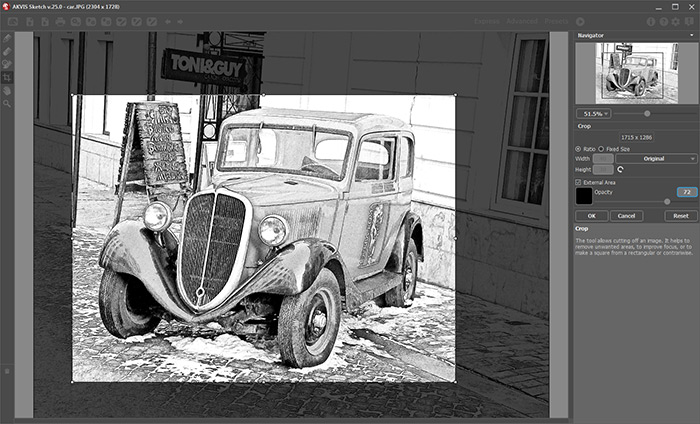
Crop Tool- Step 11. In the standalone version, you can also print your result using
 .
.
- Step 12. Save the processed image.
- If you work with the standalone program:
Click
 , enter a name for the file, choose the format (TIFF, BMP, WEBP, JPEG or PNG), and select a folder.
- If you work with the plugin:
Click
 to apply the result. The plugin will close and the image will appear in the workspace of the graphics editor. Save the image in the graphics editor.
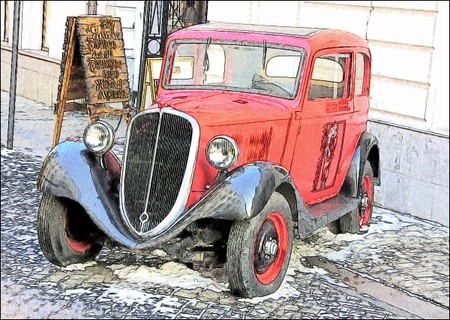
Pencil Sketch - Step 7. It is possible to save the settings you like as a Preset and use them in the future. A preset contains the settings of the Sketch and Decoration tabs.
Sketch v. 28.1 - Free 10-day Trial
