Graphic software for Windows Mac graphic software
Please enter your email to be kept posted on updates and discounts:
 
  
  Products     Download     Online Store     Tutorial     Support     Company
en  fr  de  es  pt  it  jp  ru    
 

Tutorial: AKVIS Sketch

Orchid: a Drawing in Watercolor Pencil


The author of this tutorial is Tatyana Fedorova.

This tutorial is created in Adobe Photoshop, but you can do the same in any other photo editor compatible with AKVIS Sketch plugin. The author also used the same image ("Orchid") in a tutorial for AKVIS ArtWork.


Tatyana writes:

AKVIS plugins give one a fantastic opportunity to get a phenomenal mixture of art and photography multiplied by the power of the computer and the intelligence of software. For my first experience with AKVIS I choose the AKVIS Sketch and AKVIS ArtWork plug-ins. Everything is so quick and easy. Keep up your excellent work!

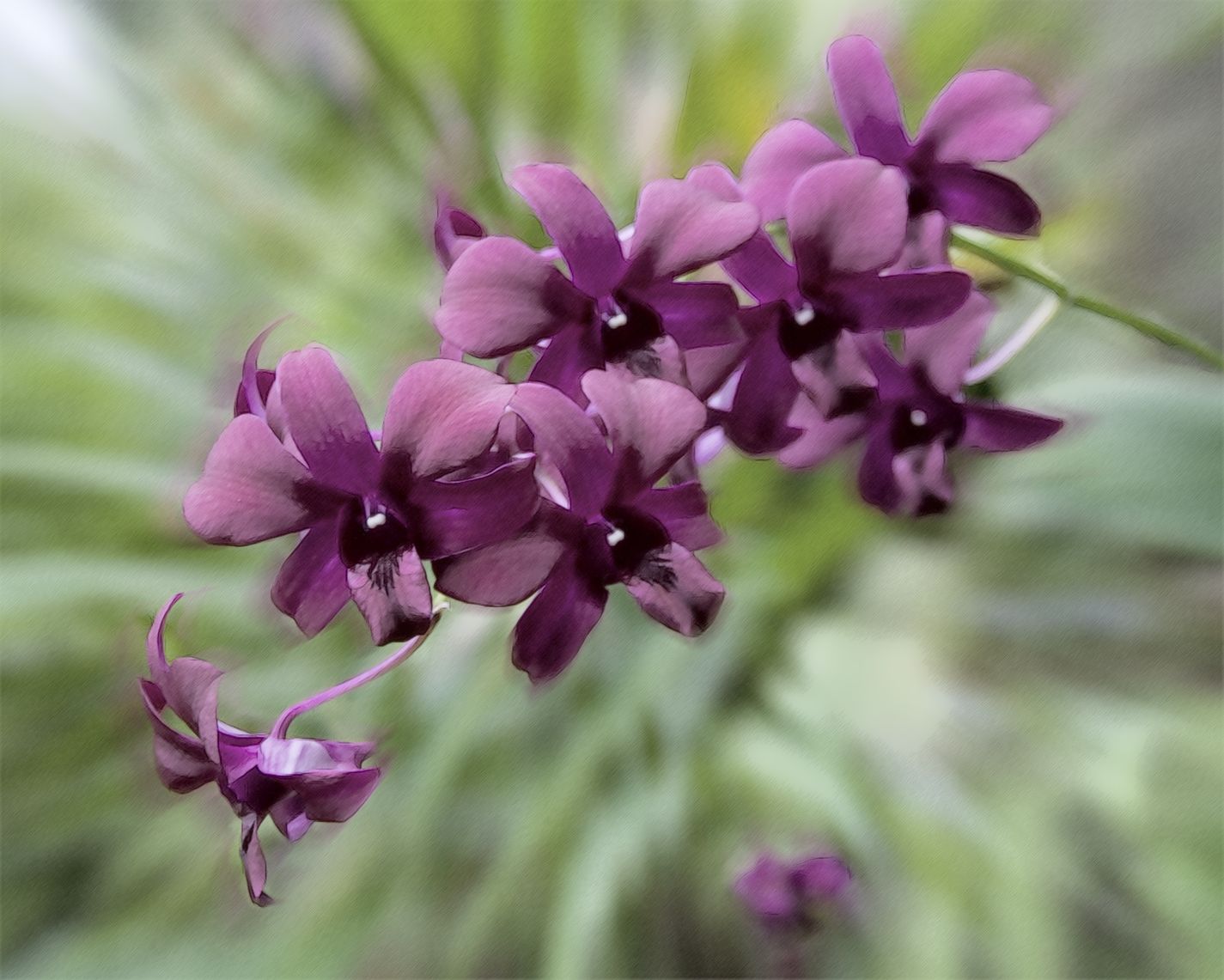
    Original photo Result
  • Step 1. Open original image in photo editor with the command File -> Open.
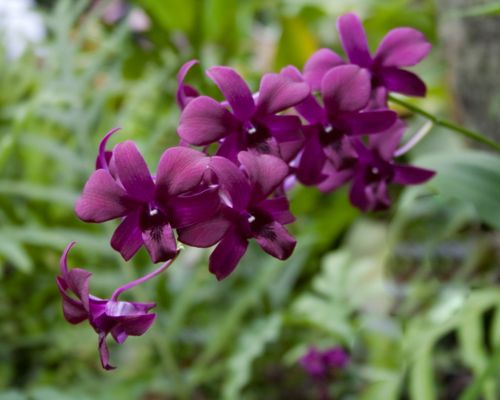
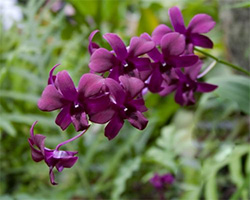
    Original photo
    Original photo
  • Step 2. Call the AKVIS Sketch plugin using the menu item Filter -> AKVIS -> Sketch.
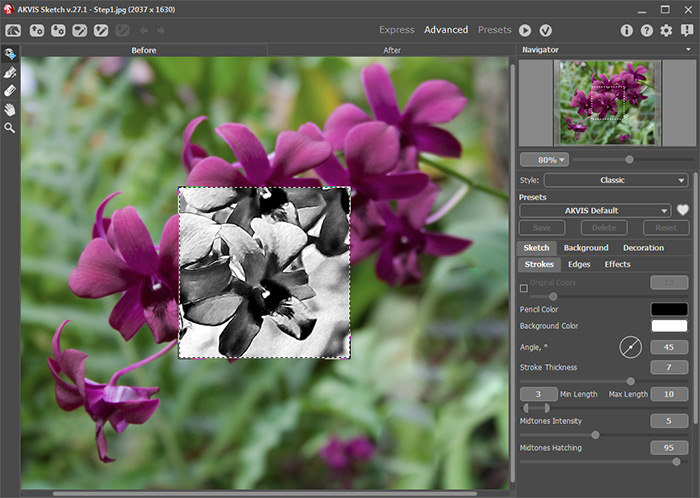
    Workspace of AKVIS Sketch
    Workspace of AKVIS Sketch
  • Step 3. A sample of the image processed with the current preset is shown in the Preview Window. Adjust the values of the Sketch parameters in the Settings Panel to achieve the desired result on the flower. We are not interested in how the background looks at this stage.
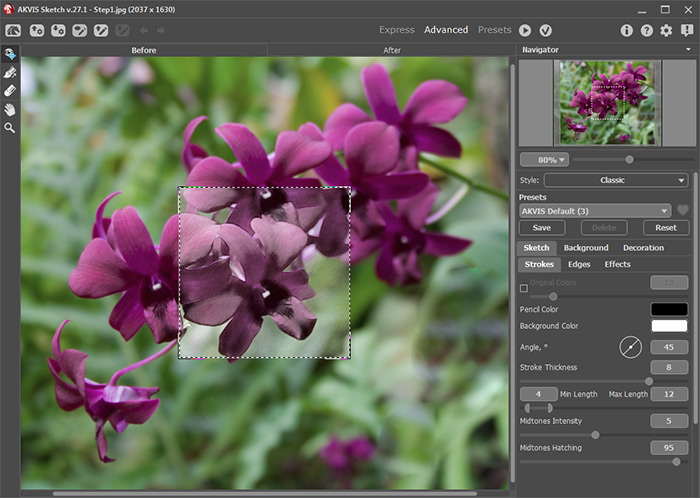
    Settings
    Settings
  • Step 4. Click on the button to start the process. The result will be shown in the After tab.
  • Step 5. To use a blur effect for the background, click on the Background tab, choose Sketch & Blur mode from the drop-down menu, the Drawing on Blur processing order, and blur method Radial Zoom.

    Use the blue pencil (Effect Area Tool) to mark areas in the image that will remain unchanged. Use the green pencil (Blur Area Tool) to indicate the area to be blurred. Click on the button to process the photo with the new settings.
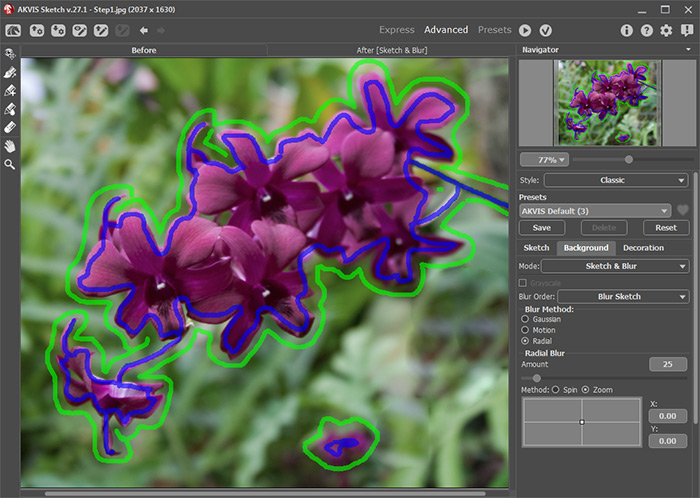
    Drawn strokes
    Drawn strokes
  • Step 6. Click on to apply the changes. This closes the AKVIS Sketch plugin to reveal Photoshop’s workspace containing the processed sketch image with its watercolor effect.
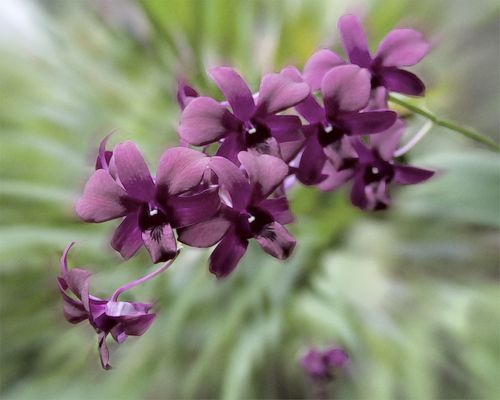
    Result
    Orchid (click on the image to enlarge)
 
How It Works How It Works
   — Workspace — Workspace
   — How To Use The Program — How To Use The Program
   — Make a Sketch from a Photo — Make a Sketch from a Photo
   — Background Effects — Background Effects
   — Add Text/Signature — Add Text/Signature
   — Imitate Sketch Drawing on a Canvas — Imitate Sketch Drawing on a Canvas
   — Working with the Presets — Working with the Presets
   — Preferences — Preferences
Examples Examples
   — Pencil Sketch: Let's Draw a Tulip — Pencil Sketch: Let's Draw a Tulip
   — Convert a Photo to a Color Sketch — Convert a Photo to a Color Sketch
   — Transform a Video into a Cartoon — Transform a Video into a Cartoon
   — Pastel Drawing Technique — Pastel Drawing Technique
   — Graphite Pencil Portrait — Graphite Pencil Portrait
   — Watercolor Drawing — Watercolor Drawing
   — Artistic Processing — Artistic Processing
   — Watercolor Painting out of Photo — Watercolor Painting out of Photo
   — Winter Dream: Fairy-Tale Forest — Winter Dream: Fairy-Tale Forest
   — A Woman in a Tub: a Real Work of Art — A Woman in a Tub: a Real Work of Art
   — Watercolor Portrait — Watercolor Portrait
   — Pencil Sketch of a Pet — Pencil Sketch of a Pet
   — Postcard Framed in Pencil Drawing — Postcard Framed in Pencil Drawing
   — Baseball Photo to Color Drawing — Baseball Photo to Color Drawing
   — Make a Sketch from a Wolf Photo — Make a Sketch from a Wolf Photo
   — Motorshow: a Pencil Drawing — Motorshow: a Pencil Drawing
   — A Little Girl: B&W Pencil Sketch — A Little Girl: B&W Pencil Sketch
   — Westmuir Street in Glasgow — Westmuir Street in Glasgow
   — Wild Beast of Prey: Watercolor — Wild Beast of Prey: Watercolor
   — A Hand Draws a Hand — A Hand Draws a Hand
   — Convert Vector Drawing to Sketch — Convert Vector Drawing to Sketch
   — Portrait out of a Newspaper Clipping — Portrait out of a Newspaper Clipping
   — Quiet Harbor:  a Watercolor Painting — Quiet Harbor: a Watercolor Painting
   — Sweet Couple: Create a Postcard — Sweet Couple: Create a Postcard
   — Black-and-White Image in Photo Frame — Black-and-White Image in Photo Frame
   — Dream to Reality: How to Blend... — Dream to Reality: How to Blend...
   — Christmas Card from a Photo — Christmas Card from a Photo
   — Artist at Work — Artist at Work
   — Romantic Mood Without Photoshop — Romantic Mood Without Photoshop
   — Stop the Moment! (Sketch&Blur) — Stop the Moment! (Sketch&Blur)
   — Versailles: Traveling to the Past — Versailles: Traveling to the Past
   — Drawing on Aged Paper — Drawing on Aged Paper
   — Self-Expression: Sketch in a Minute — Self-Expression: Sketch in a Minute
   — Two Beloved Dogs — Two Beloved Dogs
   — Orchid: Drawing in Watercolor Pencil — Orchid: Drawing in Watercolor Pencil
   — Shiny Apple: An Artist's Touch — Shiny Apple: An Artist's Touch


   Privacy Policy | Site Map | Search | English  |Français  |Deutsch  |Español  |Português  |Italiano  |日本語  |Pусский  | © 2004-2009, AKVIS Software Inc. All rights reserved.