Orquídea: un dibujo en lápiz acuarela
La autora de este tutorial es Tatyana Fedorova. Este tutorial fue creado en AliveColors, pero se puede hacer lo mismo en cualquier otro editor de imágenes compatible con AKVIS Sketch. El autor también utiliza la misma imagen en un tutorial de AKVIS ArtWork.
Tatyana escribe: "Los plugins de AKVIS brindan una oportunidad fantástica para obtener una mezcla fenomenal de arte y fotografía con la potencia del ordenador y la inteligencia del software. Para mis primeras experiencias con AKVIS elijo los plugins AKVIS Sketch y AKVIS ArtWork. Todo es tan rápido y fácil. Su trabajo lucirá excelente!"
-
Paso 1. Abra la imagen original en el editor de fotos con el comando Archivo -> Abrir.
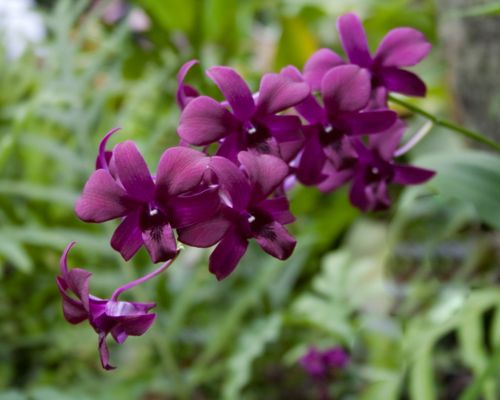
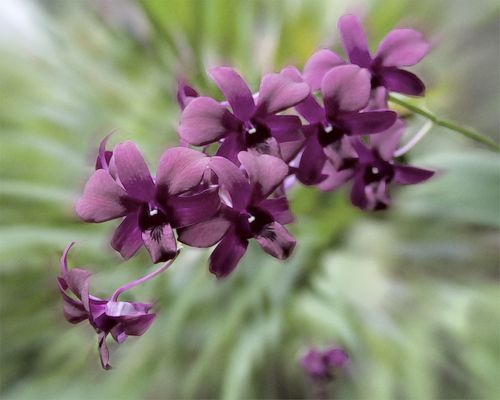
Foto original -
Paso 2. Abra el plugin AKVIS Sketch usando el comando Effects -> AKVIS -> Sketch.
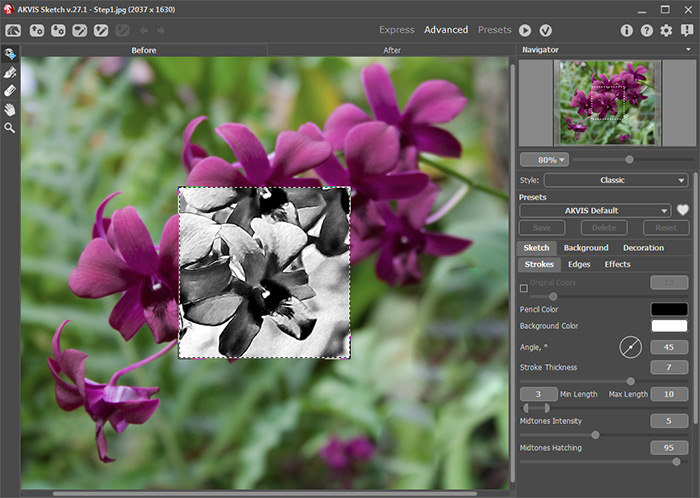
Área de trabajo de AKVIS Sketch -
Paso 3. Una muestra de la imagen procesada con el preset actual se mostrará en la ventana de Vista previa. Ajuste los valores de los parámetros de Boceto en el Panel de ajustes para lograr el resultado deseado en la flor. En esta etapa no estamos interesados en cómo se ve el fondo de la imagen.
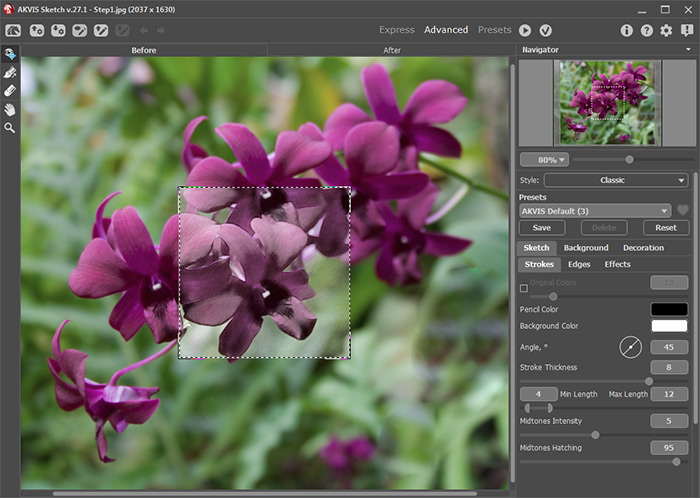
Configuración -
Paso 4. Para utilizar un efecto de desenfoque del fondo, haga clic en la pestaña Fondo, seleccione el modo Dibujo y desenfoque en el menú desplegable, ordene el procesamiento de Desenfoqar dibujo y el método de desenfoque Radial Zoom.
Utilice el lápiz azul (la herramienta Zona de efecto)
 para marcar las zonas de la imagen que se mantendrá sin cambios. Utilice el lápiz verde (la herramienta Zona de desenfoque)
  para indicar el área que desea borrosa. Haga clic en el botón
  para procesar la foto con la nueva configuración.
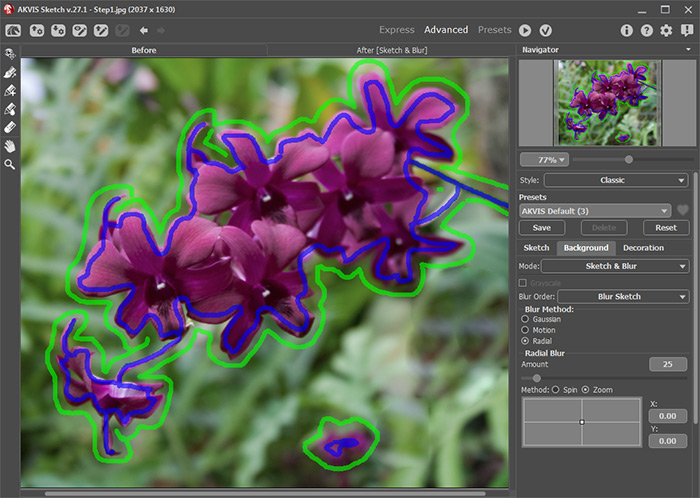
Zonas de desenfoque -
Paso 5. Haga clic en
 para aplicar los cambios. Esto cierra el plugin AKVIS Sketch y muestra el área de trabajo de AliveColors que contiene la imagen de boceto procesada con el efecto de acuarela.
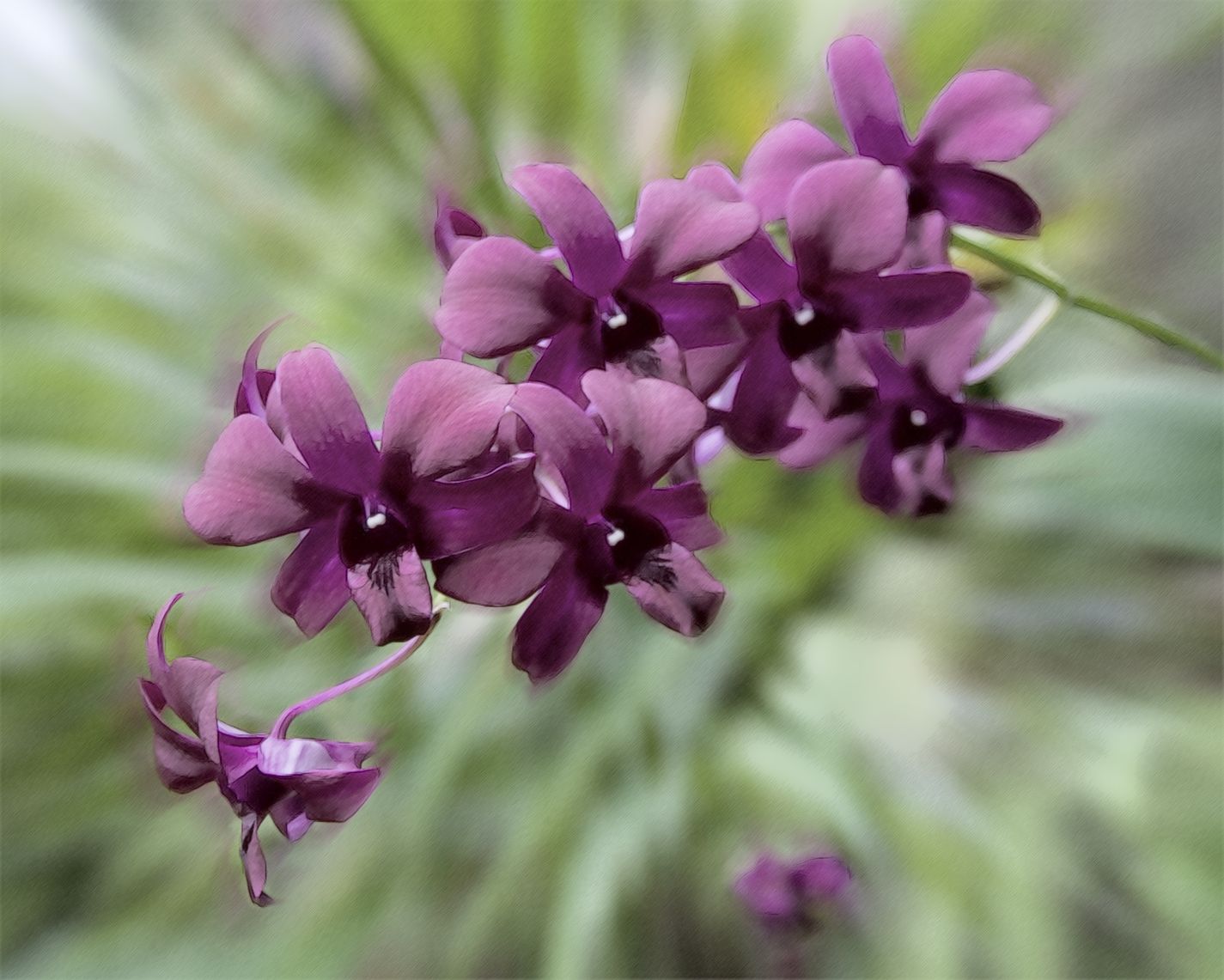
Orquídea (haga clic en la imagen para agrandar)
Sketch v. 28.1 - Prueba gratuita de 10 días
