Retrato a lápiz de una mascota
Este breve tutorial de David Kelly explica cómo utilizó AKVIS Sketch junto con Paint Shop Pro 9 para crear un dibujo de color de apariencia realista de una fotografía existente con fondo difuminado.
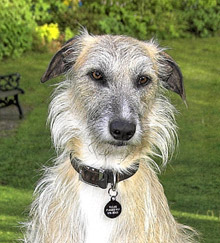
Imagen original
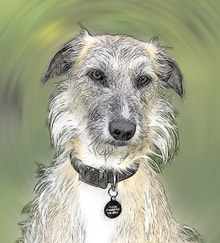
Resultado
El autor escribe: "Aunque en este ejemplo se creó con el plugin de AKVIS Sketch lo utilicé junto con Corel Paint Shop Pro 9. Otros resultados similares se pueden obtener con los paquetes de software de edición de imágenes compatibles. Descargue AKVIS Sketch de prueba gratuita sin restricciones durante diez días y, compruebe Sketch por ti mismo. ¡No serás decepcionado!"
Nota: AKVIS Sketch permite lograr ese resultado sin necesidad de un editor de fotos. El uso de los ajustes de la ficha Fondo puede desenfocar algunas partes de la imagen y de imitar una mezcla de la foto original y el dibujo. Puedes trabajar con la versión independiente (standalone), así como con la versión plugin.
Vamos a seguir los pasos que David describe:
-
Paso 1. Abrimos la foto original con PSP9 (Paint Shop Pro 9).
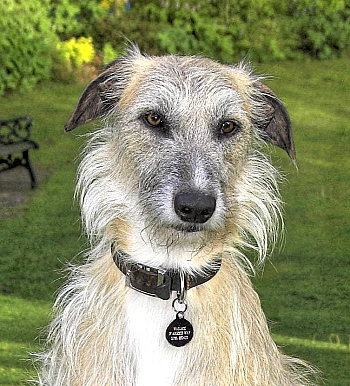
Fotografía original - Paso 2. Luego usé la herramienta de selección Mano alzada "punto a punto" para seleccionar al perro.
- Paso 3. Guardé la selección en un canal alfa; Selecciones - Cargar / Guardar selección - Guardar selección en canal alfa - nombre y guarde. Guardar una selección hace que sea más fácil de recordar sin tener que volver a dibujar la selección si comete un error.
- Paso 4. Con un nombre guardamos la imagen como un archivo en Paint Shop Pro image.
-
Paso 5. Invertida la selección, Ctrl+Mayús+I. Se transfiere la misma del perro al área de fondo y nos permite ser editado por separado de la imagen en primer plano, es decir, al perro. A continuación, un efecto de desenfoque radial aplicamos al fondo.
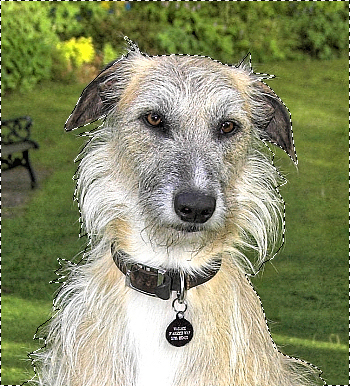
Selección -
Paso 6. Seleccionamos Ajustar -> Desenfocar -> Desenfoque radial, luego entro en esta configuración:
- Tipo de desenfoque = Giro.
- Fuerza de desenfoque (%) = 21, más Selección elíptica.
- Centro: Desplazamiento horizontal (%) = 0, Desplazamiento vertical (%) = 0, Centro de protección (%) = 19.Con nombre, y guardado los ajustes desenfoque radial como preset, luego hacemos clic en OK para aplicar el efecto de desenfoque radial al fondo de la imagen y volver al área de trabajo de PSP9.
-
Paso 7. Eliminamos la selección con Ctrl+D.
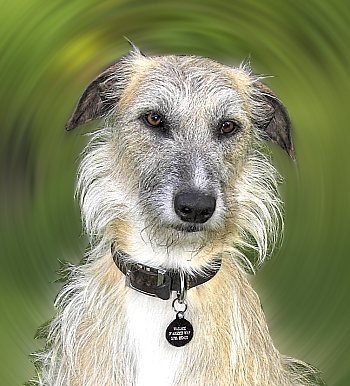
Desenfocado - Paso 8. Llamamos a AKVIS Sketch desde dentro de PSP9: Efectos -> Plugins -> AKVIS -> Sketch.
-
Paso 9. Hacemos clic con el botón izquierdo para ejecutar Sketch
 y para aplicar inicialmente la configuración predeterminada.
-
Paso 10. Ajustamos los controles deslizantes de Efectos y Trazos de Sketch de manera individual.
Estos ajustes producen los valores de los parámetros finales que vemos a continuación:
- Acuarela = 10,
- Carboncillo = 2,
- Coloración = 100,
- Ángulo = 45,
- Espesor = 6,
- Min longitud/Max longitud = 3/10,
- Intensidad de tonos medios = 1,
- Sombreado de tonos medios = 4. -
Paso 11. Una vez satisfecho con el resultado final haga clic en el botón izquierdo para aplicar de Sketch
 . Cerrado Sketch revelará en el espacio de trabajo de PSP9 que contiene la imagen del bosquejo acabado color, como puede verse debajo.
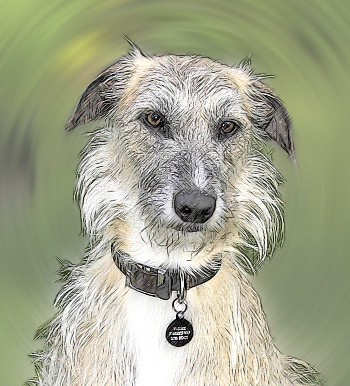
Sketch a color - Paso 12. Nombrar y guardar el boceto completo a color y como un archivo de imagen TIFF.
Sketch v. 28.1 - Prueba gratuita de 10 días
