Graphic plugins for Windows Mac graphic plugins  
Ingrese su email para suscribirse a la lista de AKVIS.
 
  
  Productos     Descargar     Tienda Online     Tutorial     Apoyo técnico     Compañia
en  fr  de  es  pt  it  jp  ru    
 

Tutorial: AKVIS Sketch

Canvas


Esta información está disponible solamente en inglés. La version española aparecerá pronto.

AKVIS Sketch does not only offer photo-to-sketch conversion, but it also allows imitatating a drawing on a canvas or any other uneven surface, such as corrugated paper, brick wall, metallic or ceramic coating, etc.

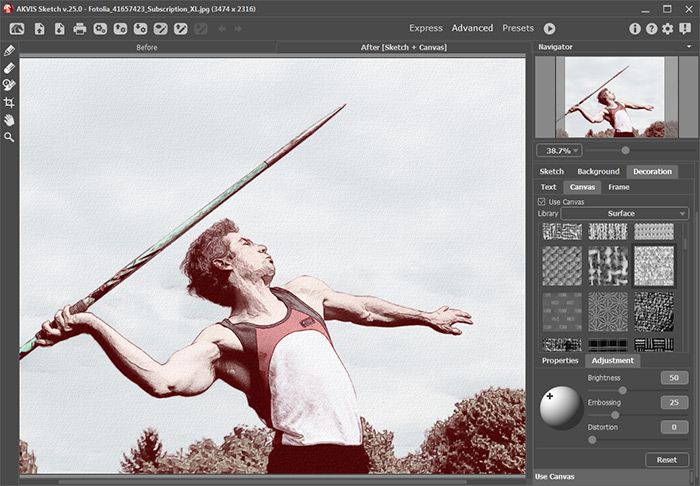
To use this option, adjust the settings in the Canvas tab.

By default the parameters of the tab are disabled and the sketch comes out as drawn on plain paper. To activate the parameters of the Canvas tab, select the check-box Use Canvas.

Sketch  drawn on plain paper
the check-box "Use Canvas" is disabled

Change canvas
the check-box "Use Canvas" is enabled


The canvas is generated by reproduction of the chosen texture. There are the following parameters of texture generation and application:

Adjustment of Texture Properties:

  • Texture. Select a texture from the Texture Library. To open the Texture Library, double click with the left mouse button on the square box with a sample texture.

    Sample texture

    Select a texture with a double-click of the mouse.

    It is possible to use your own texture. For this purpose create and save a pattern into a folder on your computer. The pattern can be square or rectangular and must be saved as a jpg, bmp or png file.

    To load a texture into AKVIS Sketch, open the Texture Library , click on and select a texture in the Select user texture dialog box.

    To return to the Texture Library without selecting any texture click on .

  •  
  • Scale. The parameter sets the size of the repetitive pattern. By default the Scale is set to 100%. The higher the value of the parameter, the larger is the pattern.
    Reduce the scale Increase the scale
    Scale = 70% Scale = 150%

  • There are the following options that define the way the canvas is generated:

      Repetition. When this option is selected, the canvas is generated by simple repetition of the given pattern.

      Repetition of the given pattern
      the check-box "Repetition" is enabled

      Reflection. When this option is selected, the canvas is generated by repetition of the given pattern.The difference from the Repetition mode is that the ends of the patterns are joined at mirror reflection.

      The ends of the pattersn are joined at mirror reflection
      the check-box "Reflection" is enabled

      Alignment. Use this option when the original texture is irregular and the texture joins are visible on the final image. This option allows aligning the patterns for a smoother transition.
      Align the patterns Pattern repetition
      the check-box "Alignment" is enabled other check-box is enabled


Adjust the parameters of texture application:

  • Light Source. Use the dagger on the ball to set the probable light source during the shooting. The position of the light source influences the texture wrapping. To change the position of the light source, left-click on the required point of the ball.

    Light Source
  • Brightness. The parameter allows changing the texture brightness. The values of the parameter vary between 0 and 150. The brightness of the original texture is 90. The higher the value of the parameter, the lighter is the texture. As a result, the output image gets lighter.

  • Reduce Brightness Increase Brightness
    Brightness = 10 Brightness = 90
  • Embossment. The parameter allows embossing the texture. The values of the parameter vary between 0 and 150. At 0, the texture is flat. As you increase the value of the parameter, the texture gets more prominent.

  • Reduce Embossment Increase Embossment
    Embossment = 25 Embossment = 150
  • Reveal Texture. The parameter defines to what extent the canvas is shown through the image. The values of the parameter vary between 0 and 40. The higher the value, the more distinct is the texture and the less visible is the original image. A higher value of the parameter also increases the influence of the Brightness parameter and the texture contrast.

  • Reduce Reveal Texture Increase Reveal Texture
    Reveal Texture = 20 Reveal Texture = 35
  • Distortion. The parameter defines the distortion of the resulting image. The values of the parameter vary between 0 and 50. The higher the value of the parameter, the more distorted and blurred is the image.
    Without Distortion Distortion = 30
    Distortion = 0 Distortion = 30

 
¿Cómo funciona? ¿Cómo funciona?
   — AKVIS Sketch plug-in — AKVIS Sketch plug-in
   — AKVIS Sketch stand-alone — AKVIS Sketch stand-alone
   — Convertir fotografías en dibujo a lápiz — Convertir fotografías en dibujo a lápiz
   — Fondo — Fondo
   — Crear un lienzo para su dibujo — Crear un lienzo para su dibujo
Ejemplos Ejemplos
   — Dibujo a lápiz — Dibujo a lápiz
   — Dibujo a color — Dibujo a color
   — Retrato a lápiz de grafito — Retrato a lápiz de grafito
   — Dibujo Acuarela — Dibujo Acuarela
   — Sueño de Navidad — Sueño de Navidad
   — La mujer en el baño — La mujer en el baño
   — Acuarela de un lobo — Acuarela de un lobo
   — Dulce pareja — Dulce pareja
   — Del sueño a realidad — Del sueño a realidad


   Política de privacidad | Mapa Web | Buscar | English  | Français  | Deutsch  | Español  | Português  | Italiano  | 日本語  | Pусский  | © 2004-2008, AKVIS LLC. Todos los derechos reservados.