Pájaro Cardenal: Una escena a partir de la naturaleza
La autora de este tutorial es Nancy Knadler.
Ella escribe:
"Este tutorial está inspirado en una tarjeta de Navidad que mi jefe recibió en el trabajo. Era un dibujo de un pájaro cardenal con una escena de invierno. La mascota de nuestra escuela es un pájaro cardenal así que me puse a buscar una foto de un cardenal para usarla como imagen inicial".
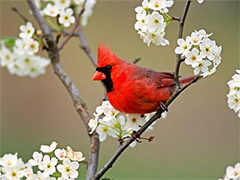
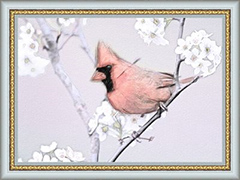
Nancy describe cómo hacer una bonita imagen:
-
Paso 1. Abrí la imagen en Adobe Photoshop (pero se puede utilizar el editor de imágenes de su elección).
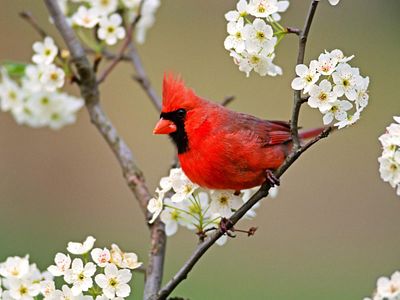
Fotografía original -
Paso 2. Tomé la foto en AKVIS Sketch haciendo clic en Efectos en el menú y seleccionar AKVIS –> Sketch. La imagen se abre en la ventana principal.
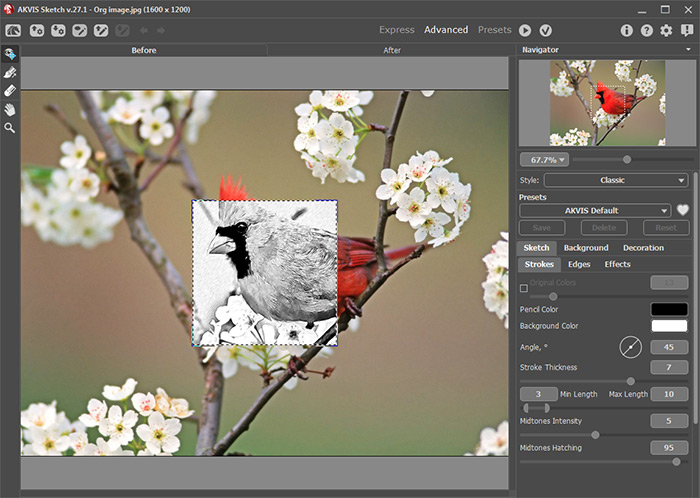
AKVIS SketchPara crear un cuadro con acuarela en Sketch, usé estos ajustes:
En el grupo de los Trazos:
Min./Max. Longitud = 10/20;
Intensidad de tonos medios = 3;
Sombreado de todos medios = 77.En el grupo de Bordes:
Intensidad de los bordes = 100;
Sensibilidad = 70;
Ancho del borde = 40.En el grupo de Efectos:
Acuarela = 50;
Coloración = 61;Después de presionar el botón de ejecutar
 , me gustó lo que vi y pulsé el botón
  para volver a mi editor de fotos.
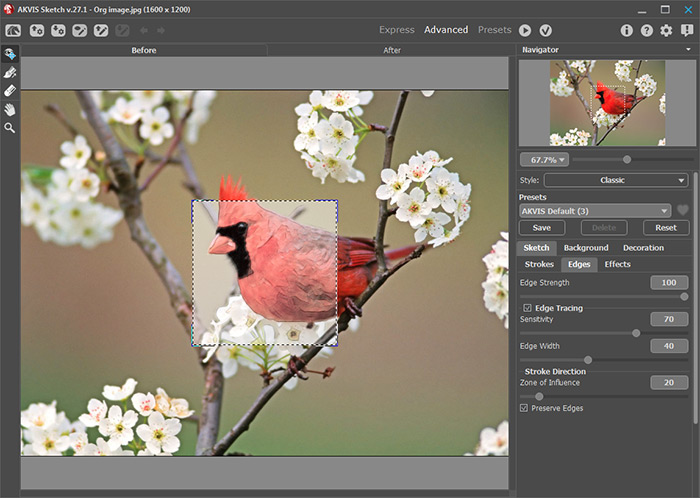
Foto en acuarela -
Paso 3. Volví a ejecutar el plugin de AKVIS Sketch en capa de acuarela, esta vez elegí el efecto carboncillo utilizando los siguientes parámetros:
En el grupo de Trazos:
Ángulo = 60;
Min./Max. Longitud = 13/20;
Intensidad de tonos medios = 1;
Sombreado de tonos medios = 1.En el grupo de Bordes:
Intensidad de los bordes = 80;
Sensibilidad = 23;
Ancho del borde = 95. -
Paso 4. Antes de volver a AliveColors, decidí añadir una textura a mi foto para sazonarla un poco. Hice clic en la pestaña Lienzo y al mismo tiempo con AKVIS Sketch elegí una textura con los siguientes parámetros:
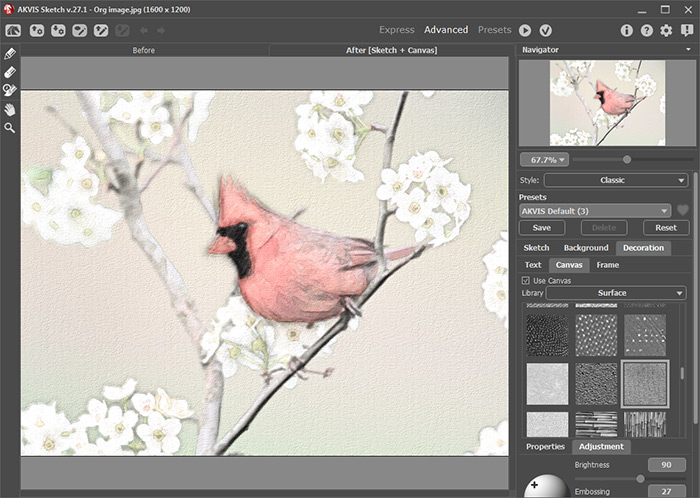
Boceto de carboncillo sobre lienzoHacemos clic en
para procesar la imagen con la nueva configuración de pintura.
Pulsamos el botón
para volver a AliveColors.
-
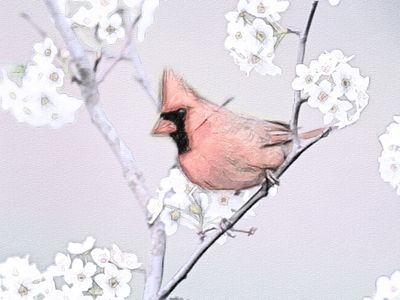
Paso 5. Para completar la imagen, he coloreado el fondo con AliveColors con azul claro.
Primero debes seleccionar el objeto más simple: el pájaro (por ejemplo con el Lazo
 ).
).
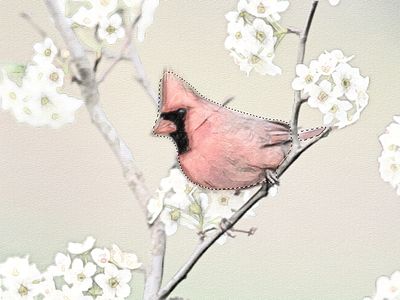
Luego invierta la selección eligiendo Invertir desde el menú Seleccionar, de manera que se selecciona el fondo, pero no el pájaro:
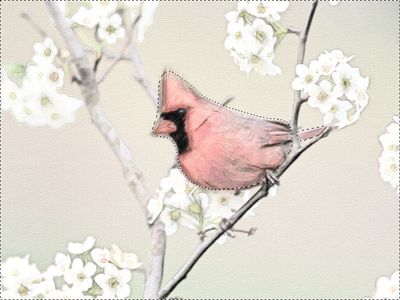
Aplicamos Filtro de fotografía para la selección eligiendo: Imagen -> Ajuste -> Filtro de foto.
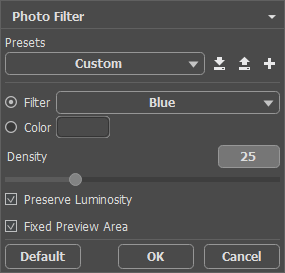
El resultado mostramos en el siguiente dibujo:
-
Paso 6. En este punto, quería establecer la foto entera, así que abrí mi imagen en AKVIS ArtSuite para enmarcarla. Tras experimentar con diferentes estilos de marcos en ArtSuite elegí un Marco clásico, marcando la casilla Brillo promedio y moviendo el control deslizante Brillo de la textura a 135%. Creo que añadí un toque perfecto para enmarcar mi imagen.
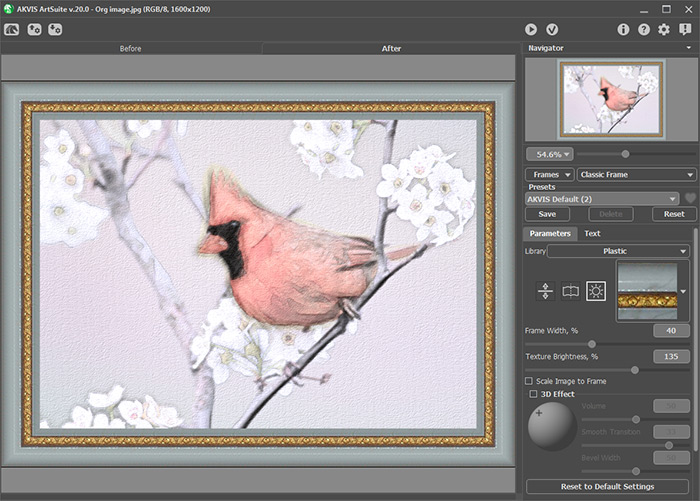
AKVIS ArtSuiteAquí está mi pintura enmarcada:
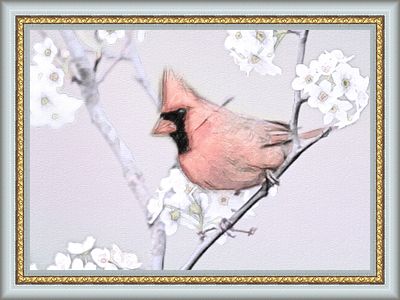
Imagen del pájaro cardenal enmarcado (haga clic para agrandar)
En el grupo de Efectos:
Acuarela = 0;
Carboncillo = 10;
Coloración = 100.

Sketch v. 28.1 - Prueba gratuita de 10 días
