Motorshow: un dibujo a lapiz de una foto
El autor de este ejemplo es Alexey Pasko. El ejemplo se realiza por medio de Adobe Photoshop CS.
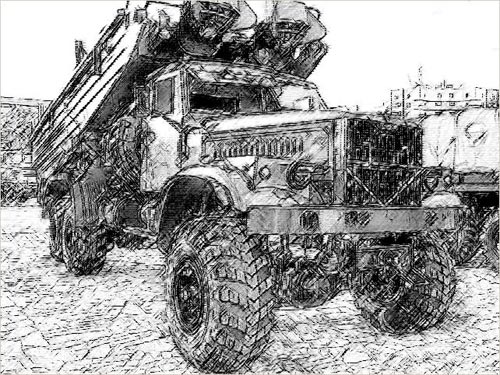
Alexey decidio convertir una de sus fotos hechas en un salón del automóvil en un dibujo a lapiz.
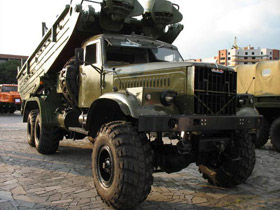
Imagen de origen
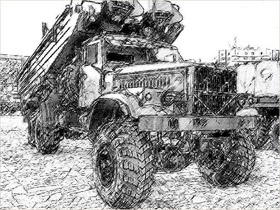
Resultado
-
Paso 1. En primer lugar debemos revelar tantos detalles como sea posible, ya que cuanto mas detalles se encuentran en la foto, mas detallado serà el dibujo a lapiz.
Vamos a crear una copia de la capa de fondo. Llamamos el plugin de AKVIS Enhancer en esta capa. El plugin nos ayuda a aumentar los detalles en las sombras de la foto.
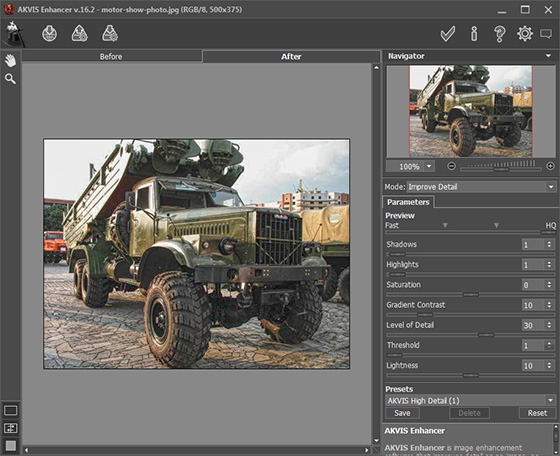
Ahora utilizando el filtro Mascara de Enfoque aumentamos nitidez de la foto para resaltar los detalles aún màs. Aplicar el filtro Mascara de Enfoque con los siguientes valores: Cantidad - 70%, Radio - 0,5 pixeles, Umbral - 0 Niveles.
Después de la corrección de AKVIS Enhancer y aplicación del filtro Màscara de Enfoque de la foto se ve asì:
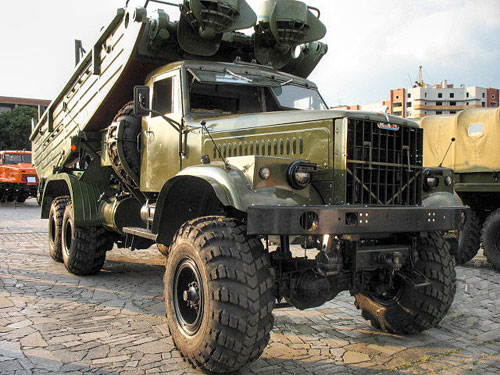
-
Paso 2. Vamos a hacer una copia de la capa de la foto editada, por si acaso. Estando en la llamamos capa nueva de AKVIS Sketch.
Cambiamos paràmetros: disminuimos la Intensidad de tonos medios a 4 y aumentamos la Nitidez hasta 70. Todos los demas ajustes se mantienen de forma predeterminada.
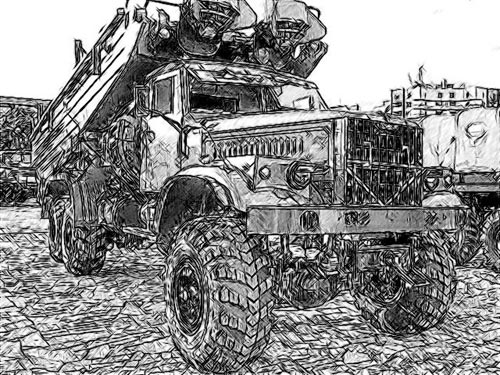
La plaza de la foto es de baldosas y AKVIS Sketch lo dibujo completamente. Pero también muchos de los trazos afean el dibujo y distraen la atención de este tema. Nosotros, por supuesto podemos esfuminar los azulejos antes de aplicar AKVIS Sketch, pero optamos otro variante.
Aplicamos las modificaciones pulsando
 en la esquina superior
derecha de la ventana del plugin.
en la esquina superior
derecha de la ventana del plugin.
-
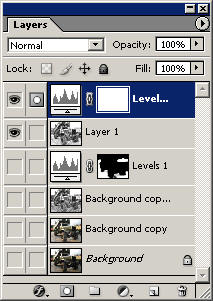
Paso 3. Anadimos una nueva capa de ajuste de Niveles con una mascara y mejoramos las baldosas y el fondo restante.
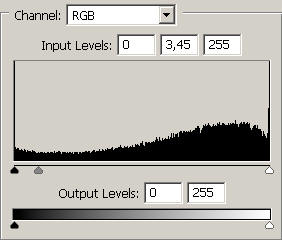
Ahora se ha convertido en menos trazos, pero la nitidez de las baldosas se muestra intacta en gran medida.
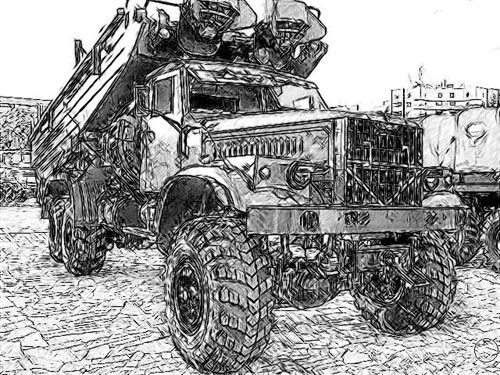
-
Paso 4. Vamos a fusionar la capa de ajuste de niveles y la capa que contiene el dibujo en una sola capa superior, y aplicamos el filtro Trazos pastel de Photoshop. Lo hacemos para que el dibujo no nos sea demasiado "pulido" para anadir textura de papel.
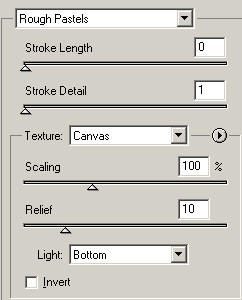
-
Paso 5. El último trazo - con un poco más de niveles para un mejor contraste.
La paleta de Capas en este tramo se ve asì:
Y aquì esta el dibujo resultante a lapiz:
Sketch v. 28.1 - Prueba gratuita de 10 días
