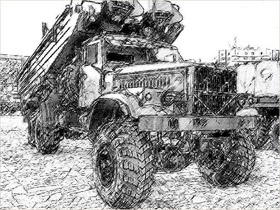
A pencil drawing out of a motorshow photo


Entrez votre e-mail pour souscrire à notre liste de diffusion.
 
 
  Produits     Télécharger     Magasin en ligne     Tutoriel     Support     Compagnie      Compte utilisateur
en  fr  de  es  pt  it  jp  ru    
 

Tutoriel: AKVIS Sketch

Motorshow: a pencil drawing out of a photo


Désolé, à présent cette information n'est disponible qu'en anglais. La version française sera bientôt affichée.

The example author is Alexey Pasko. The example is made by means of Adobe Photoshop CS.


Alexey decided to change one of his photos made on a motorshow into a pencil drawing.
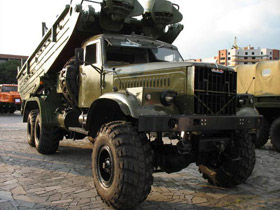
Military machinery - motorshow photo
  • Step 1. First of all we should reveal as many details as possible, because the more detail are on the photo, the more detailed will be the pencil drawing.

    Let's create a background layer copy and call AKVIS Enhancer plug-in on this layer. The plug-in will help us to increase details in the photo's shadows. This can be done by increasing the Shadows parameter to the maximum.
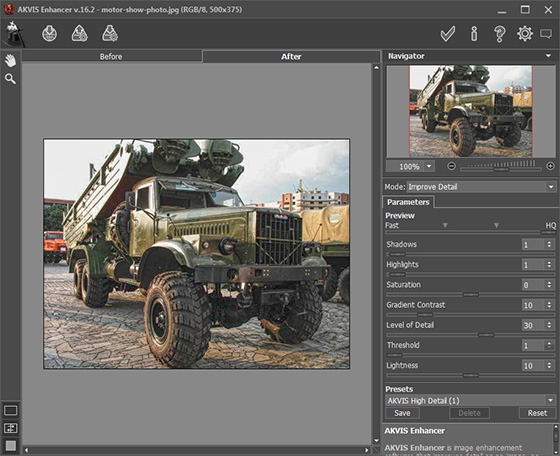
    AKVIS Enhancer window with the parameters

    Now by using Unsharp Mask filter we increase sharpness of the photo to enhance details even more. Apply Unsharp Mask filter with the following settings: Amount - 70%, Radius - 0.5 pixels, Threshold - 0 levels.

    After AKVIS Enhancer correction and application of Unsharp Mask filter the photo looks like this:
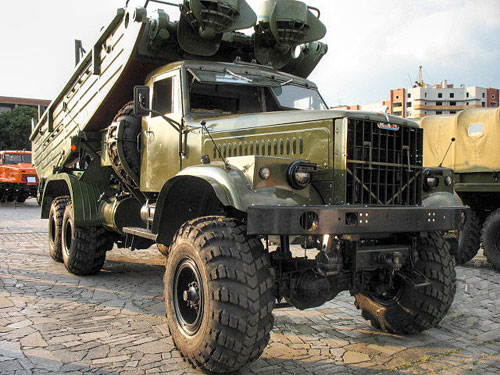
    Photo after application of AKVIS Enhancer and Unsharp Mask
  • Step 2. Lets make a copy of the edited photo layer, just for a case. Being in the new layer call AKVIS Sketch.

    Change settings: decrease Midtones Intensity down to 4 and increase Sharpen up to 70. All other settings remain default.
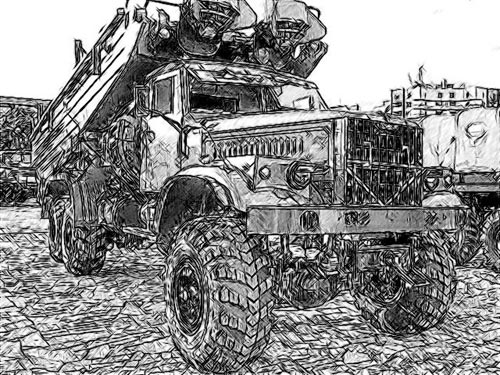
    Pencil drawing

    The square in the photo is tiled and AKVIS Sketch draw it thouroghly. But too many strokes make the drawing dirty and divert attention from the subject. We could of course blur the tiles before applying AKVIS Sketch, but chose another way.

    Apply modifications by pressing Apply the result in the upper right corner of the plug-in window.

  • Step 3. Add a new Levels Adjustment layer with a mask and lighten the tiles and the remaining background.
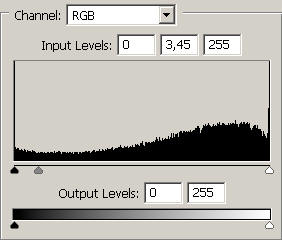
    Levels dialogue window

    There has become fewer strokes, but the sharpness of the tiles is left intact to a large degree.
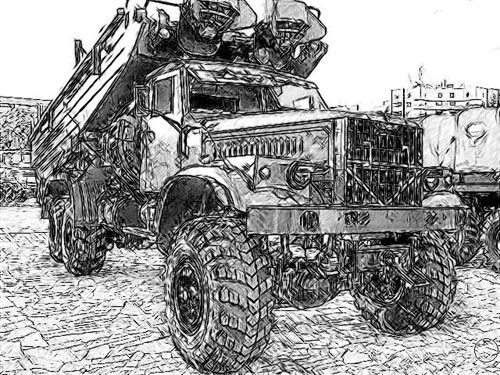
    The drawing after background lightening
  • Step 4. Lets merge the Levels Adjustment layer and the layer containing our drawing into a single upper layer and apply the Photoshop Rough Pastels filter. This is made for the drawing not to be too "slick" and to add paper texture.
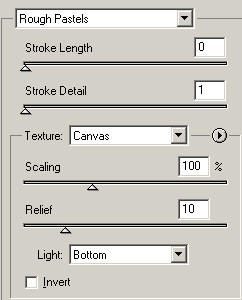
    Rough Pastels filter settings
  • Step 5. The last stroke - a little bit more Levels for better contrast.

    The Layers palette at this stage looks like this:
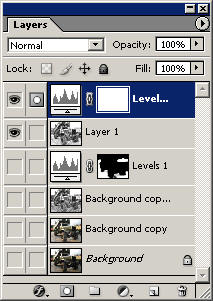
    Layers palette

    And here is the resulted pencil drawing:
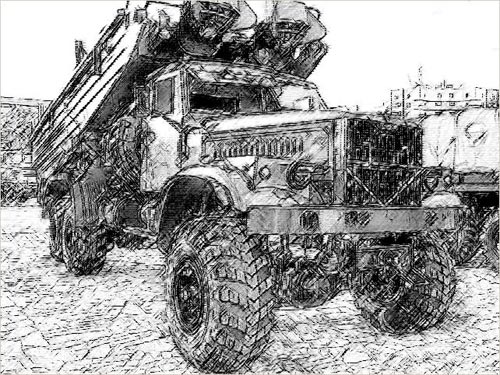
    Pencil drawing on textered paper
 
Comment fonctionne t-il? Comment fonctionne t-il?
   — Espace de travail — Espace de travail
   — Utiliser le logiciel — Utiliser le logiciel
   — Style Classique — Style Classique
   — Style Artistique — Style Artistique
   — Effets sur le fond — Effets sur le fond
   — Ajouter texte — Ajouter texte
   — Dessin sur la toile — Dessin sur la toile
   — Travailler avec presets — Travailler avec presets
   — Préférences — Préférences
   — Traitement par lots — Traitement par lots
Exemples Exemples
   — Dessin d'une tulipe — Dessin d'une tulipe
   — Dessin en couleurs — Dessin en couleurs
   — Une vidéo en dessin animé — Une vidéo en dessin animé
   — Galerie de Sketch — Galerie de Sketch
   — Dessin au pastel — Dessin au pastel
   — Dessins à la mine de plomb — Dessins à la mine de plomb
   — Aquarelle — Aquarelle
   — Le traitement artistique — Le traitement artistique
   — Rêves d'hiver — Rêves d'hiver
   — Photo encadrée sur un dessin — Photo encadrée sur un dessin
   — Aquarelle: loup comme sujet — Aquarelle: loup comme sujet
   — Paysage hollandais — Paysage hollandais
   — Un couple charmant — Un couple charmant
   — Instant! Arrête-toi (Dessin et flou) — Instant! Arrête-toi (Dessin et flou)
   — Dans le style manga — Dans le style manga
   — Orchidée: un dessin au crayon aquarelle — Orchidée: un dessin au crayon aquarelle
   — Cardinal: une scène de la nature — Cardinal: une scène de la nature
   — Variations sur la rose — Variations sur la rose
   — Soirée de Gala — Soirée de Gala
   — Le chic parisien — Le chic parisien
   — Utilisation de la technique du  — Utilisation de la technique du "doigt"
   — Créez des patrons pour la broderie — Créez des patrons pour la broderie


en haut


   Politique de Confidentialité | Plan du Site | Recherche    
   Contacter | Twitter | Facebook | YouTube Channel    
| English  | Français  |Deutsch  |Español  |Português  |Italiano  |日本語  |Pусский  | © 2004-2012 AKVIS. Tous droits réservés.