Feuilles d'automne. Une peinture à l'aquarelle à partir d'une photo
L'auteur de ce tutoriel est K.J. Hartmann. Il a noté :
J'ai essayé de nombreuses reprises de convertir une photo en croquis ou en dessin en utilisant différents programmes mais je n'étais pas toujours satisfait de la photo finale. Désormais, je suis équipé d'AKVIS Sketch et je suis très enthousiasmé par le résultat !
Pour ce tutoriel, j'ai utilisé AKVIS Sketch et un des filtres standard d'Adobe Photoshop. Je vais vous montrer comment convertir une photo en une œuvre d'art.
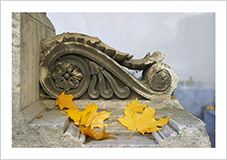 |
 |
| Photo d'automne originale | Peinture à l'aquarelle |
-
Étape 1. Ouvrez l'image dans Adobe Photoshop et dupliquez cette image pour obtenir un calque (Claque -> Dupliquer le calque (Ctrl+J).
Par défaut, le calque du premier plan est sélectionné et nous commençons à travailler sur ce calque.
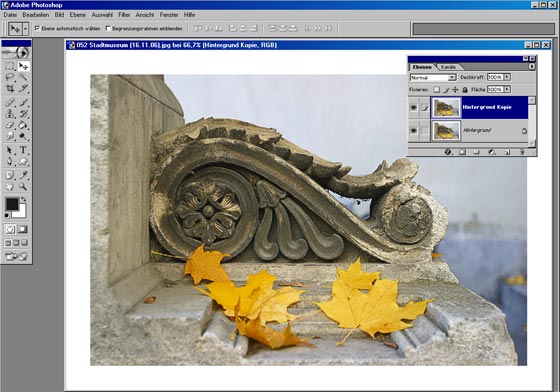
- Étape 2. Lancez le plugin (Filtres -> AKVIS -> Sketch).
-
Étape 3. Choisissez le mode Classique et régléz sur 40 le paramètre Colorisation dans le panneau Effets.
Cliquez sur le bouton . L'onglet Après affiche le rendu de l'esquisse faite au crayon.
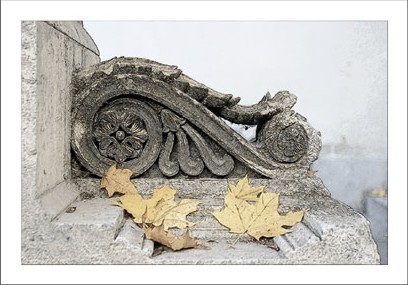
-
Étape 4. Pour appliquer le rendu, cliquez sur le bouton
 .
.
Voici l'esquisse au crayon que nous avons sur le deuxième claque de notre image.
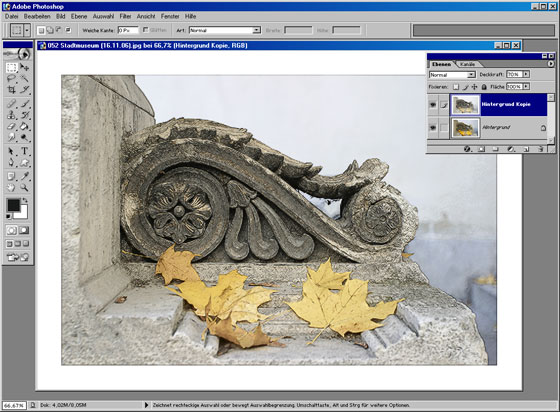
- Étape 5. Désactivez alors la visibilité du deuxième calque en double-cliquant sur l'icône Oeil près du calque dans la palette des calques. Nous en avons besoin pour voir le résultat de nos manipulations avec le calque de fond. Activez ensuite le calque de fond (calque en arrière-plan) et travaillez sur celui-là.
-
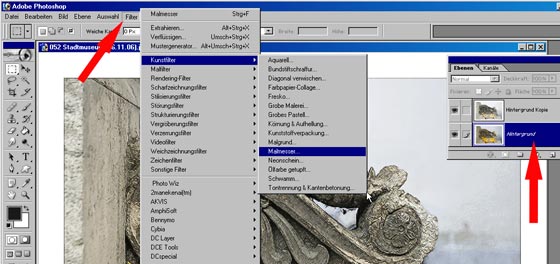
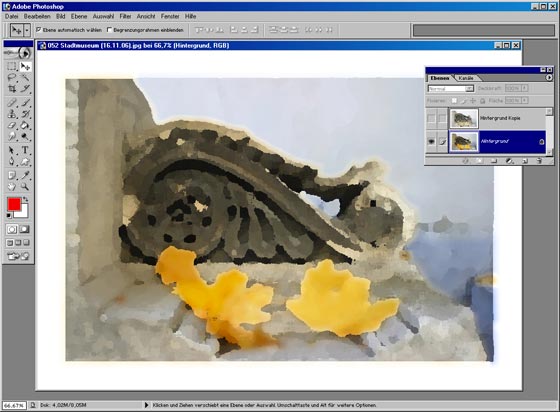
Étape 6. Allez dans Filtre -> Artistiques -> Couteau à palette du calque d'arrière-plan et définissez les paramètres que vous souhaitez.
Le rendu sera comparable à l'image suivante :
-
Étape 7. Affichez le premier calque : dans la palette Calques double-cliquez sur l'icône Oeil. Dans le menu déroulant de la palette des calques, choisissez le mode de fusion Lumière tamisée.
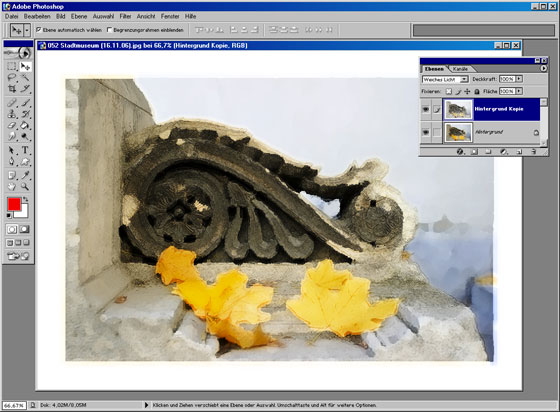
Le tableau paraîtra parfait dans un cadre photo. Pour cela, vous pouvez profiter de l'onglet Cadre dans le groupe Décoration ou essayer AKVIS ArtSuite.
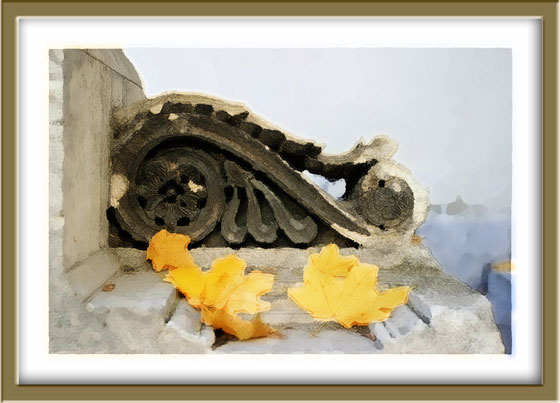
Peinture à l'aquarelle dans un cadre
(cliquez sur l'image pour ouvrir sa version agrandie dans une nouvelle fenêtre)
Sketch v. 28.1 - 10 jours d'essai
