Un dipinto ad acquerello da una foto
L'autore di questo esempio K.J. Hartmann scrive:
Ho provato molte volte a convertire una foto in uno schizzo o un disegno utilizzando diversi programmi ma non sempre sono rimasto soddisfatto dell'immagine finale. Ora sto usando AKVIS Sketch e sono molto soddisfatto del risultato!
Per questo tutorial ho usato AKVIS Sketch e uno dei filtri standard di Adobe Photoshop. Ti mostrerò come convertire una foto in un'opera d'arte.
 |
 |
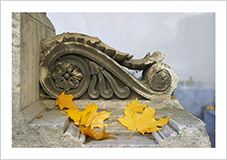
| Foto autunnale originale | Pittura ad acquerello |
-
Passaggio 1. Aprire l'immagine in Adobe Photoshop e duplicarla per ottenere un altro livello (Livello -> Duplica livello (Ctrl+J).
Per impostazione predefinita, il livello superiore è quello selezionato e iniziamo a lavorarci.
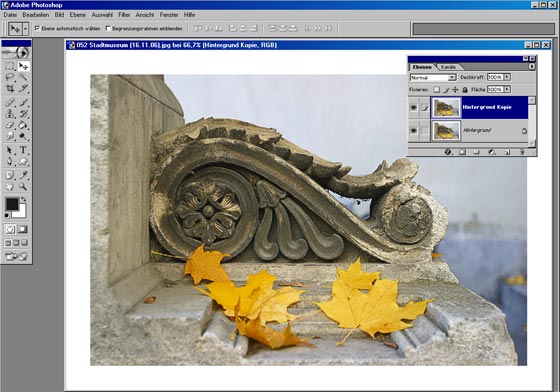
- Passaggio 2. Lanciare il plugin (Filtro -> AKVIS -> Sketch).
-
Passaggio 3. Impostare il parametro Colora nel pannello Effetti su 40.
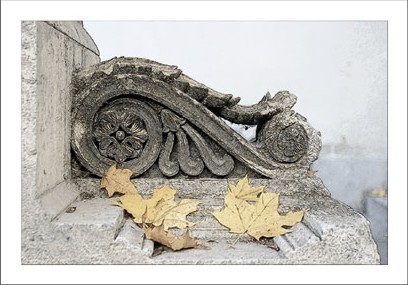
Premere il pulsante . La scheda Dopo mostra lo schizzo a matita risultante.
-
Passaggio 4. Per applicare il risultato premere il pulsante
 .
.
Ecco lo schizzo a matita che abbiamo sul secondo livello della nostra immagine.
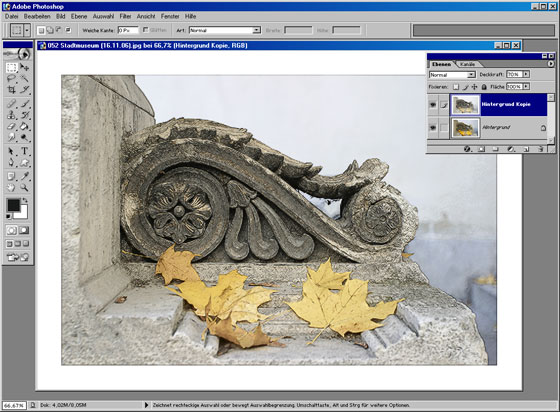
- Passaggio 5. Ora disattivare la visibilità del secondo livello con un doppio clic sull'icona dell'occhio vicino al livello nella palette Livelli. Ne abbiamo bisogno per vedere il risultato delle nostre manipolazioni con il livello inferiore. Quindi selezionare il livello inferiore (livello di sfondo) per lavorarci.
-
Passaggio 6. Lanciare Filtro -> Artistico -> Spatola per il livello di sfondo ed impostare i parametri come preferisci.
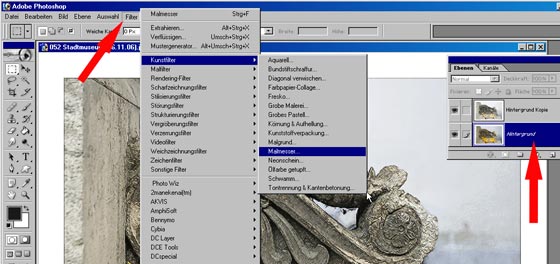
Il risultato sarà simile alla seguente immagine:
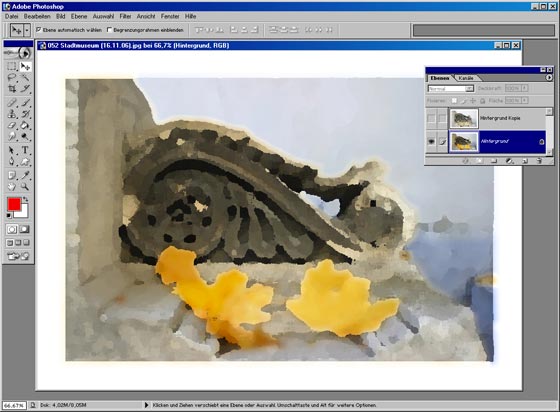
-
Passaggio 7. Attivare la visibilità del primo livello con un doppio clic sull'icona dell'occhio nella palette Livelli. Scegliere la modalità di fusione Luce soffusa nel menu a discesa della palette Livelli.
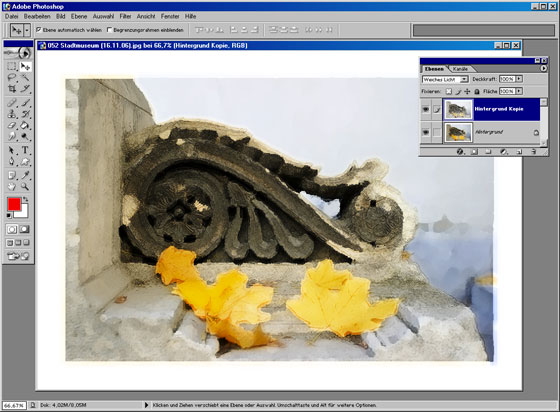
L'immagine sarà bellissima in una cornice per foto. Si può provare AKVIS ArtSuite per questo scopo.
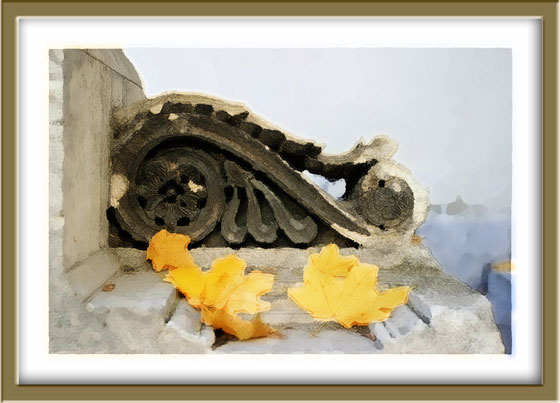
Pittura ad acquerello incorniciata
(fare clic sull'immagine per aprire la versione più grande in una nuova finestra)
Sketch v. 28.1 - 10-giorni di prova gratuita
