How it works Questa pagina è disponibile soltanto in inglese. La traduzione
italiana comparirà presto. Se desiderate ottenere una licenza gratuita
per la traduzione, prego di scrivere noi.
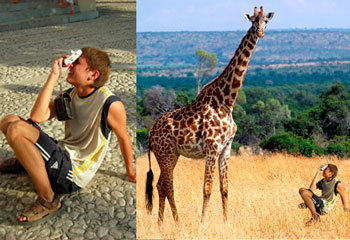
To create a collage using AKVIS Chameleon do the following:
-
Step 1. Open an image with the object that you want use for the photo collage.
-
Step 2. Select this object with any selection tool. The selection does not have to be precise.
-
Step 3. Call AKVIS -> Chameleon – Grab Fragment from the Filter menu of the photo editor.
Adobe Photoshop - Filter –> AKVIS –> Chameleon – Grab Fragment; Paint Shop Pro - Effects –> Plugins -> AKVIS –> Chameleon – Grab Fragment; Corel PHOTO-PAINT - Effects –> AKVIS –> Chameleon – Grab Fragment.
If everything is done correctly you’ll see a message that
selected object is saved into the clipboard.
-
Step 4. Open an image that will serve as background for the future
collage.
-
Attention! You may need to duplicate the layer, as on the resulting image the images will be merged into one.
Call the command AKVIS –> Сhameleon – Make Collage from
the menu Filters.
Adobe Photoshop - Filter –> AKVIS –> Chameleon –
Make Collage; Paint Shop Pro - Effects –> Plugins -> AKVIS –> Chameleon
– Make Collage; Corel PHOTO-PAINT - Effects –> AKVIS –> Chameleon –
Make Collage.
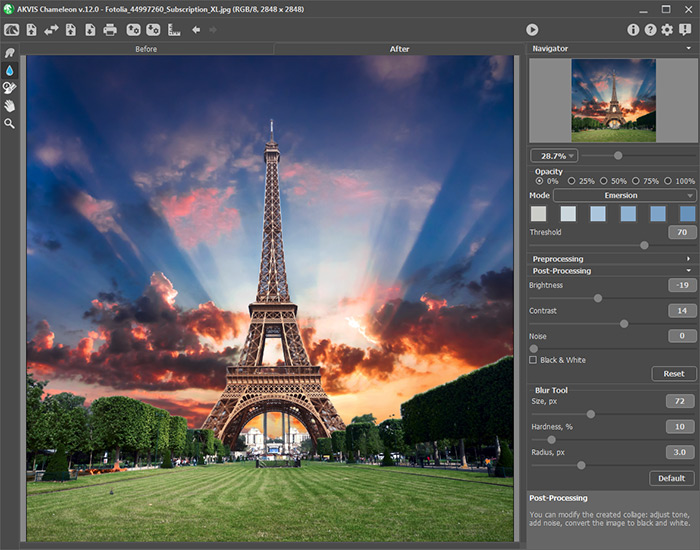
The AKVIS Chameleon window will open. The window
will contain the background image and the pasted object.
-
Note: If you begin with the step 4, the program will load the last used fragment.
- Step 5. Select the appropriate collage mode (Montage,
Chameleon, Blend) in the drop-down menu in the
Settings panel.
-
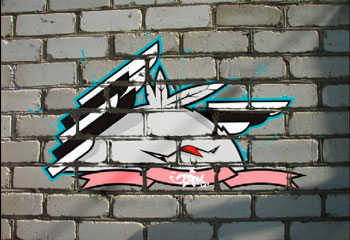
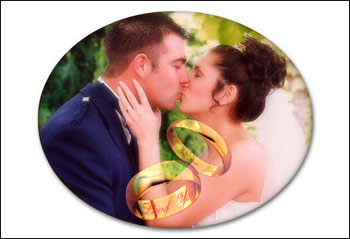
Montage. In the Montage the program combines images to create a seamless photo montage. It transfers selected objects to a new background and makes the irrelevant parts of the pasted fragment fade away. The object does not change its color range or opacity. This mode is good to use for creating photo collages with people (pasting a person into a new background).
-
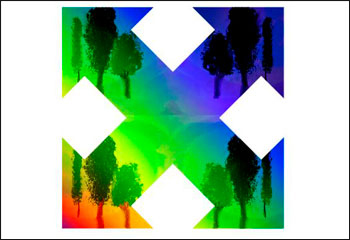
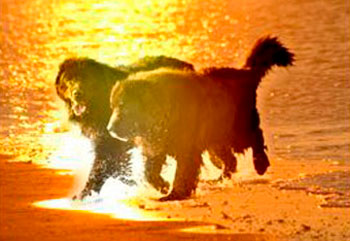
Chameleon. In the Chameleon mode the program
adjusts the inserted object to the target image color range and smoothes
the object's borders. It looks similar to the way a chameleon adapts to
the environment.
-
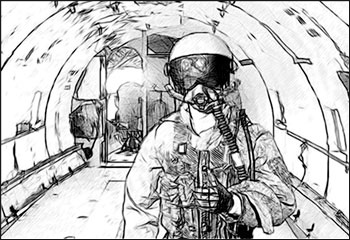
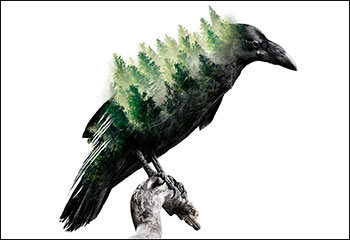
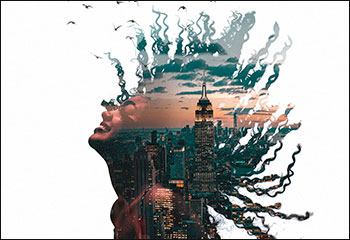
Blend Mode. In the Blend mode, the program does not only smoothes the borders of the
inserted object and adjusts its color range, but it also makes the object
semi-transparent, so that the texture and the relief of the primary image
can be seen through. Use this mode if you want to “dissolve” the inserted
image in the background.
 |
 |
 |
| Montage mode |
Chameleon mode |
Blend mode |
- Step 6.
Set the value of the Opacity parameter. This parameter
is auxiliary and does not affect the final result. Use it
when you need to position the fragment on the image at a high accuracy. The
parameter can have the following values: 25%, 50%, 75%, and 100%. With 100%
the pasted object is non-transparent. The lower the value of the parameter, the more
transparent is the fragment.
- Step 7. Click on
to start the process of collage creation. The result will be shown
in the After tab. You can switch between the tabs using the button
Tab.
If you are not satisfied with the result, switch to Before tab (the button Tab). Make necessary corrections and press the button again.
- Step 8. You can save the fragment used for the collage: press the
button
( Ctrl+S
(Command+S on Macintosh) hot-key) on the Control
Panel, in the Save fragment and strokes dialog box enter a name
for the file and indicate a folder to which you want to save the file.
The fragment will be saved with the .chameleonFragment extension. The file will contain information about the fragment's location, the settings and the drawn contours (only for Montage mode).
Open the saved fragment with the button (Ctrl+O (Command+O on Macintosh) hot-key) and choose the fragment in the Load fragment and strokes dialog box.
- Step 9. Click on
to apply the result and close the plugin window.
| |
|