Modalità Camaleonte
AKVIS Chameleon lavora in cinque modalità: Montaggio, Camaleonte, Fusione, Emersione e Doppia esposizione.
In modalità Camaleonte il programma adatta automaticamente gli oggetti inseriti alla gamma cromatica dell’immagine di sfondo e smussa i bordi dell’oggetto. Il processo è simile a quello che usa un camaleonte per adattarsi all’ambiente in cui si trova.
 |
 |
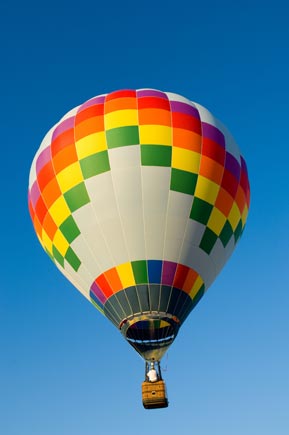
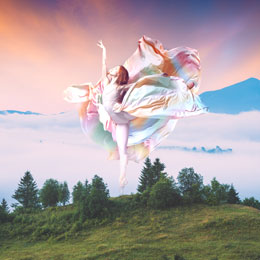 |
| Immagini originali | Risultato finale | |
Seguire queste indicazioni per creare un collage in modalità Camaleonte.
-
Passaggio 1. Selezionare un’immagine dalla finestra di dialogo Seleziona file per l’apertura aprendola con un doppio clic nell’area di lavoro vuota o cliccando sulle icone nel Pannello di controllo:
 - per aprire l'immagine di sfondo,
  - per aprire l'immagine con il frammento da inserire.

Attenzione! Se si lavora con il plugin eseguire questi passaggi (3-5).
- Passaggio 2. Selezionare la modalità Camaleonte dal menu a discesa nel Pannello impostazioni.
-
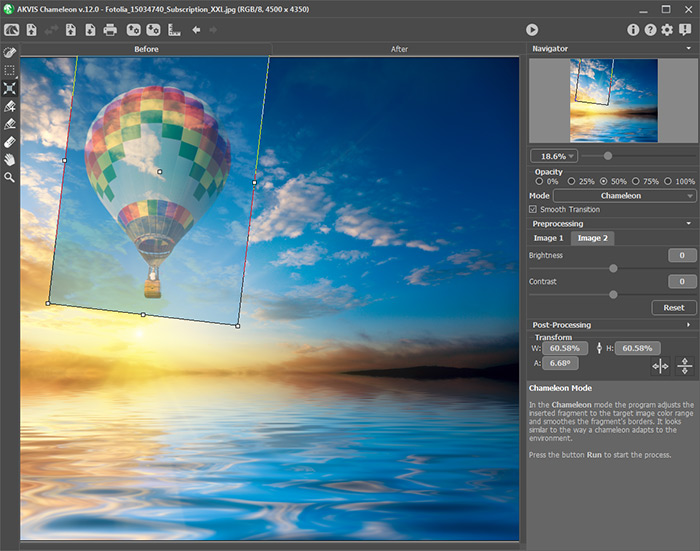
Passaggio 3. Usare lo strumento Trasforma
 , nella Barra degli strumenti, per regolare la dimensione, la posizione e l’angolo di rotazione del frammento da inserire nell’immagine di sfondo.
Per cambiare la misura mantenendo le proporzioni attivare l’icona
 posizionata nel Pannello impostazioni.
Regolare il parametro Opacità per posizionare il frammento sullo sfondo con molta precisione. Questo è un parametro ausiliario che non influisce sul risultato finale.
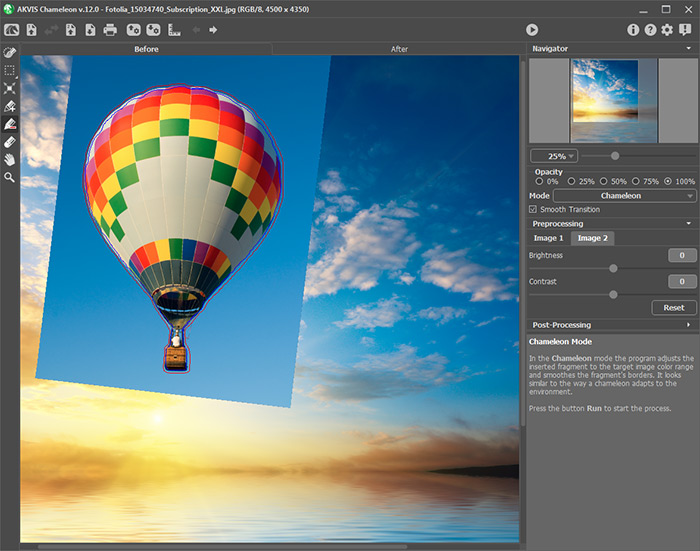
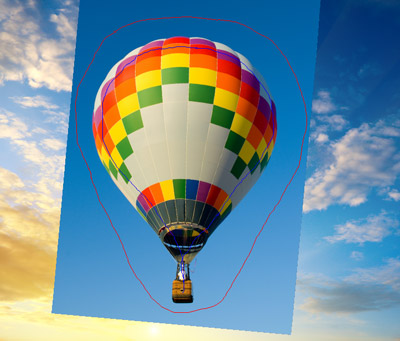
- Passaggio 4. Se necessario modificare i contorni del frammento con gli strumenti di selezione.
-
Passaggio 5. Quando una selezione non è precisa è possibile utilizzare l'opzione Transizione graduale. Questo parametro lavora solo se l’immagine è stata delineata dai tratti blu e rossi. Se l'opzione non è selezionata la sfumatura (anti-aliasing) appare solo lungo i bordi dei tratti rossi, mentre quando è attivata la sfumatura appare in tutta l’area tra i tratti blu e rossi. Il livello della sfumatura dipende dalla distanza tra i tratti blu e rossi. Maggiore è la distanza tra loro più dolce (graduale) sarà la transizione.
Tratti lontani uno dall'altro
Senza Transizione graduale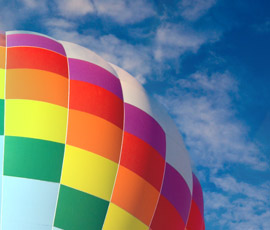
Con Transizione gradualeNota: Questo parametro deve essere usato con attenzione. Se il frammento contiene piccoli dettagli sporgenti, attivando questa opzione, potrebbero venire sfumati.
-
Passaggio 6. Fare clic su
 per iniziare il processo di creazione del collage. Il risultato sarà visualizzato nella scheda Dopo.
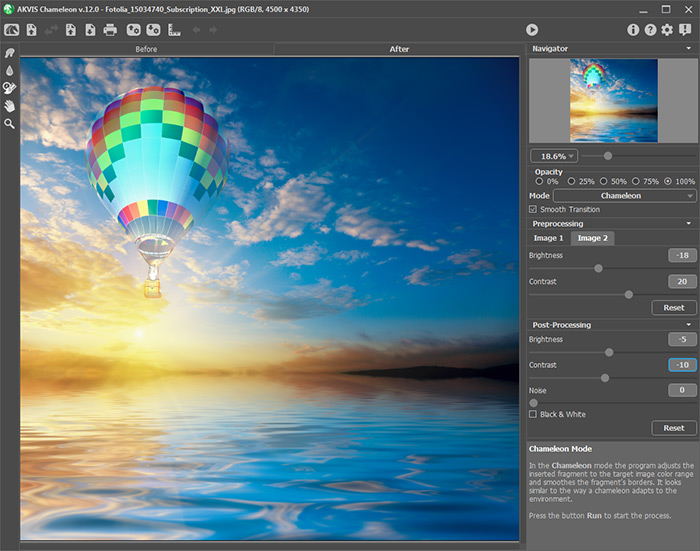
Inoltre, per le licenze Home Deluxe e Business, è possibile utilizzare gli strumenti di ulteriore elaborazione (Sbavatura
 , Sfocatura
  ed il Pennello storia
  ) per modificare il risultato.
Chameleon v. 12.2 - 10-giorni di prova gratuita
