Graphic software for Windows Mac graphic software  
Enter your email address to subscribe to the AKVIS news.
 
  
  Prodotti     Download     Online Store     Tutorial     Supporto     Chi siamo
en  fr  de  es  pt  it  jp  ru    
 

Tutorial: AKVIS Noise Buster

How it Works


Questa pagina è disponibile soltanto in inglese. La traduzione italiana comparirà presto.
Se desiderate ottenere una licenza gratuita per la traduzione, prego di scrivere noi.

AKVIS Noise Buster can work independently as a standalone program and as a plug-in to a photo editor


Follow the instruction below to reduce noise on a picture using the AKVIS Noise Buster plug-in.

  • Step 1. Open an image in your photo editor.
    Original photo: digital noise
  • Step 2. Call the AKVIS Noise Buster plug-in. For this purpose call the command Filter –> AKVIS –> Noise Buster in Adobe Photoshop; Effects –> Plugins -> AKVIS –> Noise Buster in Paint Shop Pro; Effects –> AKVIS –> Noise Buster in Corel PHOTO-PAINT.
  • Step 3. Once the program is open, it processes the image using the default settings (the Automatic Filtering preset from the list of presets) . The result of the filtration will be shown in the After tab in the preview area.

    The preview area represents a dotted frame. You can drag the frame or draw it anew on any part of the image, thus analysing different parts of the photo.

    With a left-click on the image you can temporarily switch to the Before tab and compare the result of automatic filtering with the original photo in the preview window.

    After the automatic filtration

    To filter the whole image, press the button Run.

  • Step 4. If the result of automatic filtration is not wholly satisfying you can adjust the settings to achieve the best result.

    The task of noise reduction is to find the golden mean between suppressing noise and keeping detail. Besides, it is important to take into account the psychological characteristics of visual perception: when comparing the original and the filtered photo pay your attention not only to details but to the overall impression as well. A certain amount of noise does not necessarily spoil a picture, while some smoothness of a photo may add to the visual effect (especially in portrait retouching where it is not desirable to see the skin structure in detail).

    Adjust the noise reduction parameters

    Noise on any color picture can be divided into: luminance noise and color noise. Luminance noise is perceived as dark dots or small blots, color noise represents color spots on areas having a different color. Another name for color noise is chroma noise.

    The Histogram below the Settings is a graphical depiction of the noise level and noise components of the original picture. The gray area shows the luminance noise; the red area shows the color noise. The more the histogram is shifted to the right, the higher is the noise level. And vice versa, if the histogram is shifted to the left, the image has a low noise level. The height of the histogram displays the number of pixels having this noise level. When adjusting the parameters, pay attention to the right part of the histogram, as it shows the amount of highly noised pixels. The amount of pixels in the left part shows low noised pixels that are a part of the picture, its natural background.

    To reduce noise of each type there are two parameters to manipulate: Noise Level and Smooth Level.

    • Noise Level. The parameter defines which elements of the image are to be considered noise (luminance or color) and which are to be considered important details. At high value of the parameter small details can be defined as noise and, therefore, be smoothed.
    • Smooth Level. The parameter sets the extent to which the elements defined as noise should be smoothed. The higher the parameter, the smoother the filtration result. However, at high values of the parameter, an image can lose in detail and look flat. High values of the parameter Smooth Level for color noise can produce an alteration of colors and loss of small color details.

    Attention! On a grayscale photo there is no color component and therefore no color noise. To suppress noise on a grayscale photo it is enough to regulate the parameters of the Luminance Noise.

    Attention! The Histogramm is only a graphic representation of the picture's noise level. It does not change as you change the settings. The histogramm helps you estimate the noise level and decide what parameters should be adjusted.

    Fade. The parameter sets the mixing ratio of the filtered image and the original. The parameter values vary between 0 and 100%. At 100 % all elements of the photo defined as noise are smoothed in accordance with the value of the parameter Smooth Level. As you move the slider to the left (i.e. reduce the value of the parameter), the original image noise mixes into the filtered image; at 0% there is no filtration at all. In most cases certain amount of original noise adds to the natural look of an image and allows restoring small details.

    In addition to the five main parameters there is an optional parameter Microdetail. This parameter allows restoring small details on the image. The default value usually offers a satisfactory result, but it is possible to increase the value of the parameter to improve sharpness.

    The result of the current settings is shown in the preview area - a dotted frame. You can drag the frame or draw it anew on any part of the image, thus analysing different parts of the photo.

    Compare the original image and the result by left-clicking on the image.

  • Step 5. The check-box Unsharp Mask. When this option is selected, the filtered image is compared with its blurred copy. If the pixel on the filtered image contrasts with the corresponding pixel on its copy, the contrast will increase. Otherwise the pixel will not change. In this way all pixels on the image are compared.

    The Amount parameter defines the level of contrast. The values of the parameter vary between 0 and 300%. At 100% the contrast increases twice, at 200%- by 4 times, at 300% - by 6 times etc.

    The Radius parameter defines the radius of the blurring of the copy. The values of the parameter vary between 0,1 to 3 pixels.

  • Step 6. To apply filtration to the whole image, press the button Run.
    Apply the filter settings to the whole image
  • Step 7. It is possible to save the settings you like as a preset and use them in the future. To save a preset, enter a name for the preset into the Presets field and press the button Save. If you change the values of the parameters, you can always come back to the default settings of the preset by pressing the button Reset.

    To delete a preset, select it from the list and press Delete.

    To process an image with the settings of a certain preset, you should select it from the fall-out menu and press the button Convert.

  • Step 8. To apply the filtration result to the image and close the plug-in's window, press the button Apply the result.
    The filtered image

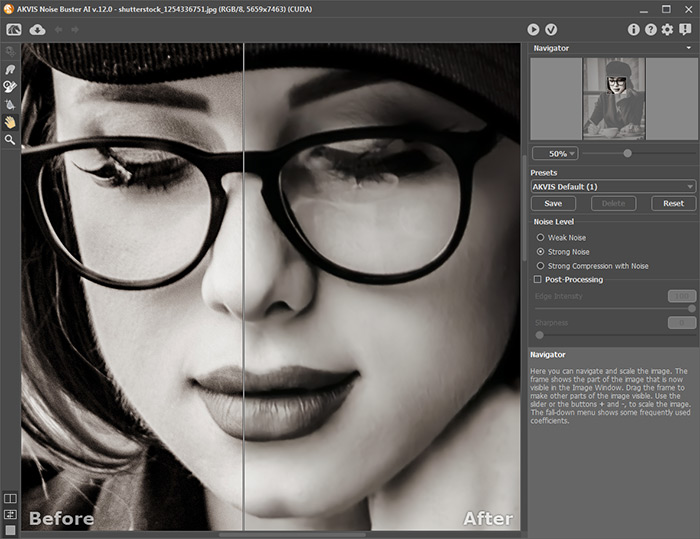
Compare the fragment below before and after filtration with AKVIS Noise Buster.
before AKVIS Noise Buster after AKVIS Noise Buster
Before AKVIS Noise Buster After AKVIS Noise Buster


Follow the instruction below to reduce noise on a picture using the AKVIS Noise Buster standalone.

  • Step 1. Launch the program AKVIS Noise Buster. You can do it in the following way:
    • On a Windows computer:

      - In the main menu: press the button Start and select from the pop-up menu the command AKVIS – Noise Buster.

      - Using the program's shortcut on the Desktop: put the cursor on the icon of the program AKVIS Noise Buster and double-click it with the left mouse button.

    • On a Macintosh computer:

      - Using Finder: select the folder Applications on the side bar of the Finder window, select the application AKVIS Noise Buster and double-click it.

  • Step 2. Open an image for editing. For this purpose, press the button and select the required file in the dialog box. The program supports images in bmp, jpg, tiff and png formats.
    The filtered image
  • Step 3. Once the program is open, it processes the image using the default settings (the Automatic Filtering preset from the list of presets) . The result of the filtration will be shown in the After tab in the preview area.

    The preview area represents a dotted frame. You can drag the frame or draw it anew on any part of the image, thus analysing different parts of the photo.

    With a left-click on the image you can temporarily switch to the Before tab and compare the result of automatic filtering with the original photo in the preview window.

    The filtered image

  • Step 4. If the result of automatic filtration is not wholly satisfying you can adjust the settings to achieve the best result.

    The filtered image

    To apply filitration to the whole image, press the button .

    The filtered image
  • Step 5. Save the image. For this purpose press the button and in the Save As dialog box enter a name for the file, set its format (jpeg, bmp, tiff or png) and indicate a folder to which you want to save the file.
    The filtered image
  • Step 6. It is possible to save the settings you like as a preset and use them in the future. To save a preset, enter a name for the preset into the Presets field and press the button Save. If you change the values of the parameters, you can always come back to the default settings of the preset by pressing the button Reset.

    To delete a preset, select it from the list and press Delete.

    To process an image with the settings of a certain preset, you should select it from the fall-out menu and press the button .

  • Step 7. It is possible to print the image. For this purpose press the button , adjust print settings in the Print dialog box and press the button Print.

    The left part of the Print dialog box is the preview area where the current position of the image on the page is shown, in the right part of the dialog box the print settings are adjusted:

    • The check-boxes Album and Portrait set the page orientation when printing. The check-box Album corresponds to the horizontal page orientation (width larger than height), the check-box Portrait - to vertical.

    • The parameters Scale, Width and Height and the check-box Fit to Page set the printed size of the image. They do not influence the image itself, only its printed copy. It is possible to change the size of the printed copy by specifying the image scale in % (any value less than 100% reduces the image, any value over 100% increases it) or by setting new values for width and height in the corresponding fields. If you just want to fit the image into the page, enable the check-box Fit to Page.

    • The image in the preview area has a frame with markers that allow changing the image size manually. Put the mouse cursor to a corner marker or to one of the sides (the cursor will transform to a two-side arrow) and drag the marker or the side. To change the position of the image on the page, bring the cursor to the center of the image, press the left mouse button and move the cursor. Besides, it is possible to define the image position on the page with the parameter Move To by clicking on one of the nine squares.

    If your computer is connected to a local network with several printers or several output devices are connected to this computer, you will have to choose one of the available printers to do the job. Click Printer Setup in the dialog box Print, select a printer in the opening dialog box and adjust the printing settings.

  • Step 8. Close the program AKVIS Noise Buster by pressing the button .


Funzionamento Funzionamento


   Privacy Policy | Mappa del Sito | Cerca nel sito | English  | Français  | Deutsch  | Español  | Português  | Italiano  | 日本語  | Pусский  | © 2004-2008, Sviluppato da AKVIS Software Inc. Diritti Riservati.