Animare un paesaggio
Il tutorial è stato creato da Philipp Schuster utilizzando il plugin AKVIS Chameleon in AliveColors, ma si potrà usare qualsiasi altro editor d'immagini compatibile o in alternativa avvalersi della versione standalone di Chameleon che non richiede il supporto di alcun programma.
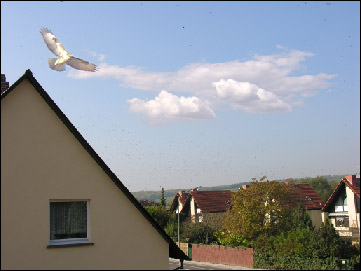
AKVIS Chameleon vi aiuterà a trasformare una monotona foto in un grazioso collage fotografico con l'aggiunta di nuovi oggetti selezionati da altre immagini. Esso saprà svolgere egregiamente il difficile compito di adeguare gli oggetti incollati sul nuovo sfondo.
-
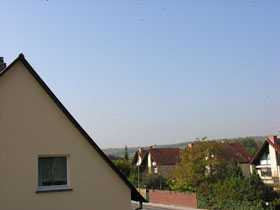
Passaggio 1. Aprire le immagini per il collage nell'editor grafico: una foto del cielo (lo sfondo), una con le nuvole ed una con un uccello.
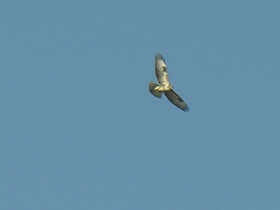
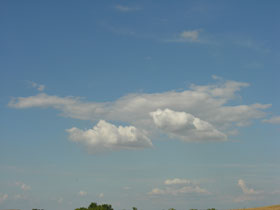
-
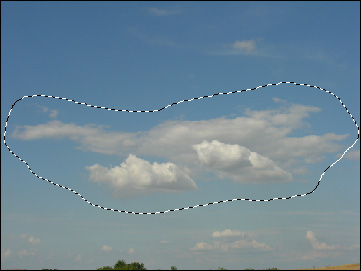
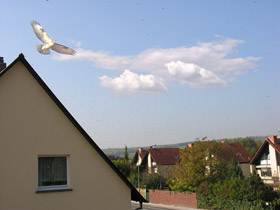
Passaggio 2. Iniziare il montaggio aggiungendo le nuvole. Utilizzare lo strumento Lazo per selezionarle, non è necessario effettuare una selezione precisa, essa può includere anche un po' del cielo circostante.
Se si lavora con la versione standalone di AKVIS Chameleon usare le matite del programma per disegnare i contorni blu e rossi. Questi strumenti sono disponibili anche nel plugin e permettono di disegnare o correggere i contorni della selezione, inoltre nel plugin è possibile trasferire la selezione eseguita nell'editor di foto.
-
Passaggio 3. Copiare la selezione lanciando AKVIS -> Chameleon - Grab Fragment dal menu Effetti. Se tutto è stato fatto correttamente verrà visualizzato un messaggio che indica l'avvenuto salvataggio del frammento.
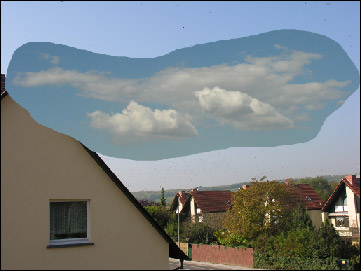
Attivare la fotografia del cielo e aprire AKVIS -> Chameleon - Make Collage dal menu Effetti. Nella finestra del plugin AKVIS Chameleon verrà visualizzato lo sfondo (il cielo) con il frammento (le nuvole).
-
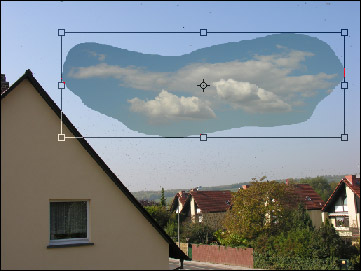
Passaggio 4. Selezionare la modalità Camaleonte dal menu a discesa nel Pannello impostazioni. Usare lo strumento Trasforma
 per modificare la dimensione, la posizione e l'angolo di rotazione del frammento incollato (le nuvole).
-
Passaggio 5. Premere su
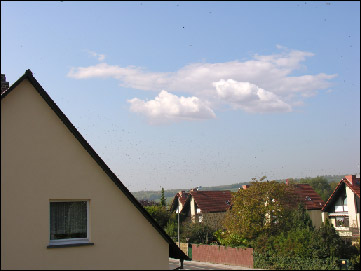
 per avviare il processo di creazione del collage, l'anteprima dell'immagine apparirà nella scheda Dopo.
Se il risultato è soddisfacente premere su
 per applicare il collage alla fotografia, chiudere il plugin e ritornare all'editor grafico.
-
Passaggio 6. Ora attivare l'immagine con l'uccello e selezionarlo con lo strumento Lazo, quindi copiare la selezione lanciando AKVIS -> Chameleon - Grab Fragment dal menu Effetti.
Attivare il collage del cielo con le nuvole creato in precedenza e aprire AKVIS -> Chameleon - Make Collage dal menu Effetti.
Nella finestra del plugin AKVIS Chameleon verrà visualizzato lo sfondo (il cielo e le nuvole) con il frammento (l'uccello).
-
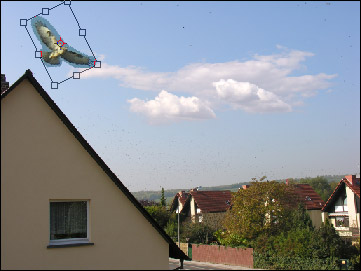
Passaggio 7. Selezionare la modalità Camaleonte dal menu a discesa nel Pannello impostazioni. Avvalersi dell'opzione Opacità per rendere più facile l'inserimento del frammento; rendendolo "trasparente" consente di posizionarlo sullo sfondo con elevata precisione. Tale operazione non pregiudica il risultato finale.
Trovare la giusta collocazione all'uccello usando lo strumento Trasforma
per modificare la dimensione, la posizione e l'angolo di rotazione facendo un modo che una sua ala risulti sopra la nuvola.
-
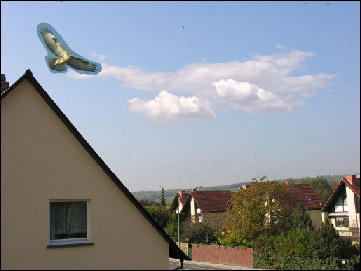
Passaggio 8. Premere su per avviare il processo di creazione del collage, l'anteprima dell'immagine apparirà nella scheda Dopo. Se il risultato è soddisfacente premere su per applicare il collage alla fotografia, chiudere il plugin e ritornare all'editor grafico.
Chameleon v. 12.2 - 10-giorni di prova gratuita
