Pittura su legno
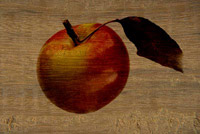
La modalità Fusione del plugin AKVIS Chameleon permette di incollare un oggetto su un nuovo sfondo rendendolo semi-trasparente, ciò consente di intravedere la trama sottostante. Nel seguente esempio vi mostreremo come incollare una mela su una superficie di legno, essa sarà come se fosse dipinta su un piatto di legno grezzo.
Useremo come sfondo la foto di un piatto di legno e la fotografia di una succosa mela come oggetto da incollare.
Il tutorial è stato realizzato utilizzando il plugin AKVIS Chameleon in Adobe Photoshop, ma si potrà usare qualsiasi altro editor d’immagini compatibile o avvalersi della versione standalone di Chameleon che non richiede il supporto di alcun programma.
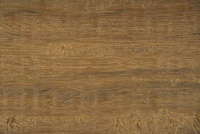
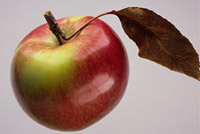
Seguire queste istruzioni per creare l'effetto pittura su una superficie ruvida:
- Passaggio 1. Aprire le due immagini in Adobe Photoshop.
-
Passaggio 2. Selezionare la mela usando gli strumenti disponibili nell'editor di foto.
Se si lavora con la versione standalone di AKVIS Chameleon usare le matite del programma per disegnare i contorni blu e rossi. Questi strumenti sono disponibili anche nel plugin e permettono di disegnare o correggere i contorni della selezione, inoltre nel plugin è possibile trasferire la selezione eseguita nell’editor di foto.
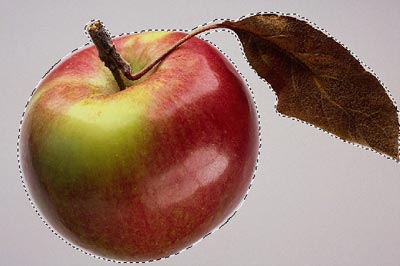
- Passaggio 3. Copiare la selezione lanciando AKVIS -> Chameleon - Grab Fragment dal menu Filtro. Se tutto è stato fatto correttamente verrà visualizzato un messaggio che indica l’avvenuto salvataggio del frammento.
- Passaggio 4. Tornare alla fotografia con la superficie di legno e lanciare Filtro -> AKVIS -> Сhameleon - Make Collage dal menu Filtro. Nella finestra del plugin verrà visualizzato lo sfondo (il legno) con il frammento (la mela).
- Passaggio 5. Selezionare la modalità Fusione dal menu a discesa nel Pannello impostazioni.
-
Passaggio 6. Usare lo strumento Trasforma
 per modificare la dimensione, la posizione e l’angolo di rotazione del frammento incollato (la mela).
Attenzione! Per cambiare la misura mantenendo le proporzioni attivare l’icona
 posizionata nel Pannello impostazioni.
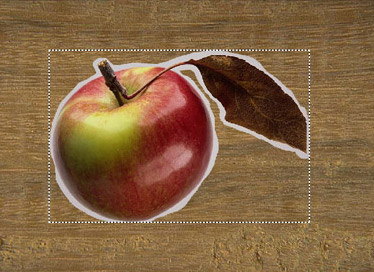
-
Passaggio 7. Premere su
 per avviare il processo di creazione del collage, l'anteprima dell’immagine apparirà nella scheda Dopo.
Se il risultato è soddisfacente premere su
 per applicare il collage alla fotografia, chiudere il plugin e ritornare all’editor grafico.
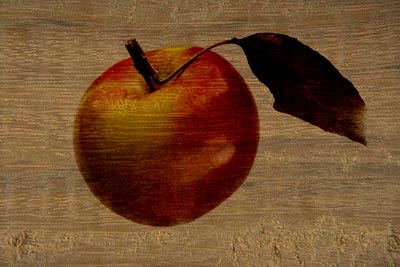
Come risultato abbiamo una mela dipinta su una superficie di legno.
Allo stesso modo è possibile creare dipinti su carta sgualcita, filati di lino, ecc.
Chameleon v. 12.2 - 10-giorni di prova gratuita
