Un biglietto d'auguri
L'autore di questo esempio è Ornelli, egli ha voluto creare un biglietto d'auguri dalla foto per parenti ed amici.
Il tutorial è stato realizzato utilizzando il plugin AKVIS Chameleon in AliveColors, ma si potrà usare qualsiasi altro editor d'immagini compatibile o in alternativa avvalersi della versione standalone di Chameleon che non richiede il supporto di alcun programma.
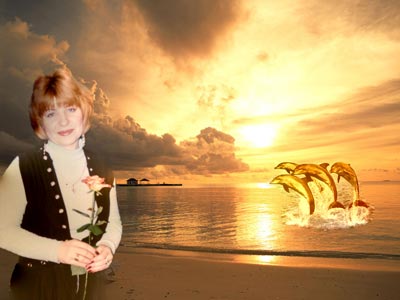
Collage fotografico - biglietto d'auguri
-
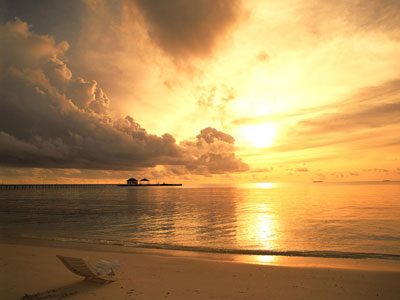
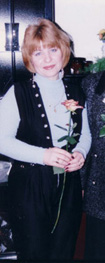
Passaggio 1. Aprire in le seguenti foto: un tramonto sul mare che fungerà da sfondo, un gruppo di delfini ed una donna con un fiore.
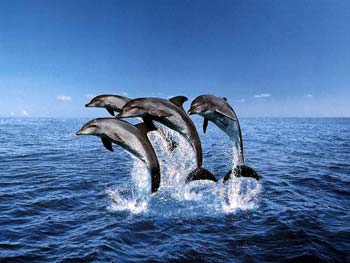
Con lo strumento Lazo, o qualsiasi altro strumento di selezione, isolare i delfini con un po d'acqua intorno.
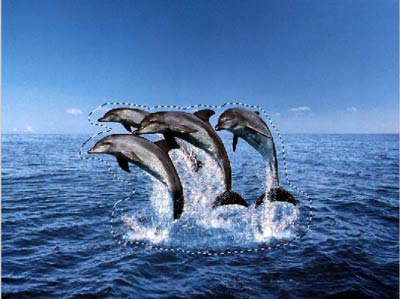
Se si lavora con la versione standalone di AKVIS Chameleon usare le matite del programma per disegnare i contorni blu e rossi. Questi strumenti sono disponibili anche nel plugin e permettono di disegnare o correggere i contorni della selezione, inoltre nel plugin è possibile trasferire la selezione eseguita nell'editor di grafica.
- Passaggio 2. Copiare la selezione lanciando AKVIS -> Chameleon - Grab Fragment dal menu Effetti. Se tutto è stato fatto correttamente verrà visualizzato un messaggio che indica l'avvenuto salvataggio del frammento.
-
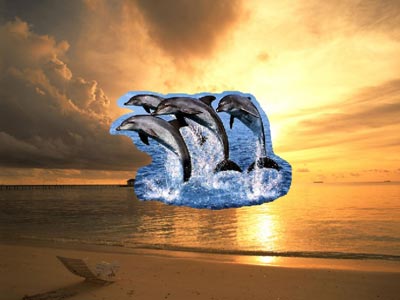
Passaggio 3. Attivare l'immagine del tramonto sul mare e aprire AKVIS -> Chameleon - Make Collage dal menu Effetti. Nella finestra del plugin AKVIS Chameleon verrà visualizzato lo sfondo (il tramonto sul mare) con il frammento (i delfini).
-
Passaggio 4. Selezionare la modalità Camaleonte dal menu a discesa nel Pannello impostazioni.
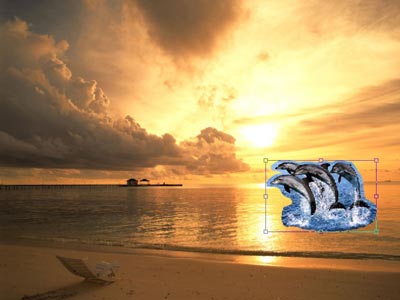
Avvalersi dell'opzione Opacità per rendere più facile l'inserimento del frammento; rendendolo "trasparente" consente di posizionarlo sullo sfondo con elevata precisione. Tale operazione non pregiudica il risultato finale.
Usare lo strumento Trasforma
 per modificare la dimensione, la posizione e l'angolo di rotazione del frammento incollato (i delfini).
Attenzione! Per cambiare la misura mantenendo le proporzioni attivare l'icona
 posizionata nel Pannello impostazioni.
-
Passaggio 5. Premere su
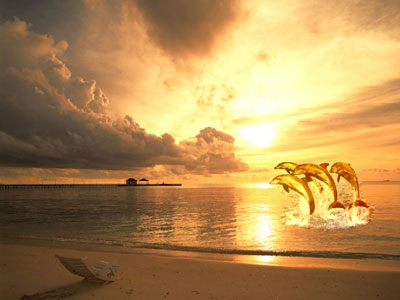
 per avviare il processo di creazione del collage, l'anteprima dell'immagine apparirà nella scheda Dopo. Se il risultato è soddisfacente premere su
  per applicare il collage alla fotografia, chiudere il plugin e ritornare all'editor di grafica.
-
Passaggio 6. Attivare la foto della donna e selezionare la sua immagine con uno strumento di selezione, poi copiarla lanciando AKVIS -> Chameleon - Grab Fragment dal menu Effetti. Se tutto è stato fatto correttamente verrà visualizzato un messaggio che indica l'avvenuto salvataggio del frammento.
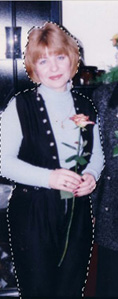
- Passaggio 7. Attivare il collage del tramonto sul mare con i delfini, precedentemente creato, e aprire nuovamente AKVIS -> Chameleon - Make Collage dal menu Effetti. Nella finestra del plugin AKVIS Chameleon verrà visualizzato lo sfondo (il tramonto sul mare con i delfini) ed il frammento (la donna).
-
Passaggio 8. Selezionare la modalità Camaleonte dal menu a discesa nel Pannello impostazioni.
Trovare la giusta collocazione alla figura femminile usando lo strumento Trasforma
per modificare la dimensione e la posizione, avvalendosi nuovamente dell'opzione Opacità per rendere più facile l'inserimento del frammento.
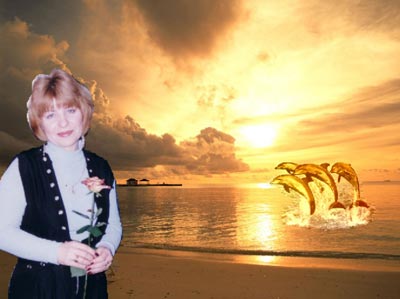
- Passaggio 9. Premere su per avviare il processo di creazione del collage, l'anteprima dell'immagine apparirà nella scheda Dopo.
Se il risultato è soddisfacente premere su
per applicare il collage alla fotografia, chiudere il plugin e ritornare all'editor grafico.
Chameleon v. 12.2 - 10-giorni di prova gratuita
