A greeting card
The author of the example is Ornelli. She used AKVIS Chameleon to create an unique greeting card with her photo for her relatives and friends.
She used AliveColors and AKVIS Chameleon plug-in. You can take the standalone version of Chameleon and make your own greeting card using it.

Photo Collage - Greeting Card
Below is the step-by-step instructions to create a photo collage.
-
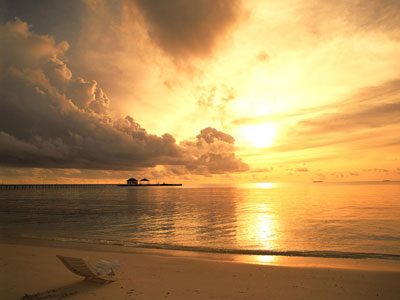
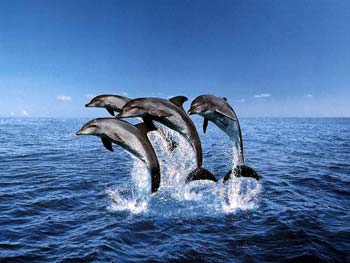
Step 1. Open in AliveColors the following photos: a sea view that will serve as a background for the photo collage, a school of dolphins and a girl with a flower.

-
Step 2. Select the dolphins with the water around them using the Lasso tool.
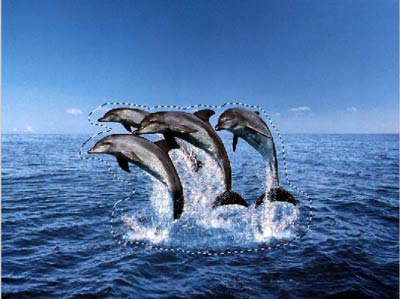
Note: If you work in the standalone version of AKVIS Chameleon just use the pencil tools in the program to draw red and blue outlines. They are available in the plugin version too.
-
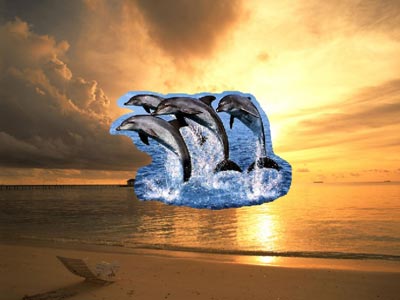
Step 3. Copy the selected part of the image by calling AKVIS -> Chameleon - Grab Fragment from the Effects menu.
Activate the image of the sea view and call AKVIS -> Chameleon - Make Collage from the Effects menu. The AKVIS Chameleon plug-in window will appear.
-
Step 4. Select Chameleon mode from the drop down menu in Settings Panel.
Reduce the size of the dolphins and position them in the sea view with the Transform tool
 from the Toolbar.
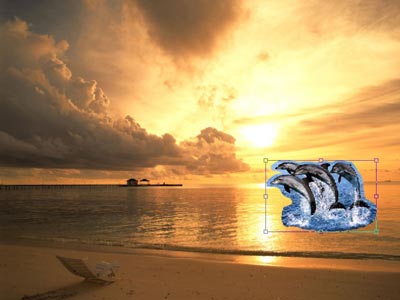
-
Step 5. Press the button
 to start the collage creation process. The result will appear in the After tab. Press the button
  to apply the collage to the image.
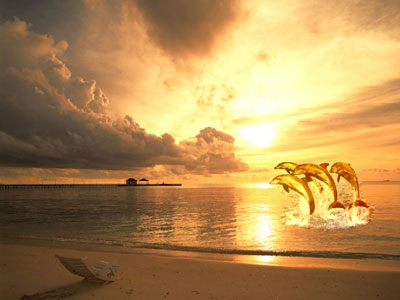
-
Step 6. Activate the photo of the girl and select her with the tool Lasso.
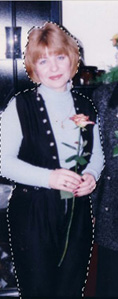
- Step 7. Copy the selection by calling AKVIS -> Chameleon - Grab Fragment from the Effects menu.
- Step 8. Activate the background image and call Effects -> AKVIS -> Chameleon - Make Collage. Select Chameleon mode from the drop-down menu of the Settings Panel.
-
Step 9. Find the right place for the girl with the Transform tool from the Toolbar.

-
Step 10. Press the button to create the collage. The result will appear in the After tab. Press the button to apply the collage to the image.
Chameleon v. 12.2 - Free 10-day Trial
