AKVIS Chameleon Preferences


Please enter your email to be kept posted on updates and discounts:
 
 
  Products     Download     Online Store     Tutorial     Support     Company      Customer Room
en  fr  de  es  pt  it  jp  ru    
 

Tutorial: AKVIS Chameleon

Program Preferences


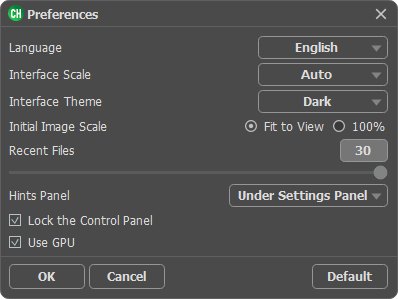
The Preferences dialog box looks like this:

Preferences window
  • Language. Change the program language by selecting another from the drop-down list.
  • Initial Scale. This parameter defines the way the image is scaled in the Image Window after opening. The parameter can take one of two values:

      image scaling Fit to View. The scale adjusts so that the image will be completely visible in the Image Window;

      - if the option 100% is checked, image doesn’t scale. Generally, when the scale = 100%, only part of the image will be visible.

  • Hints Panel. When you hover over parameters and buttons with the cursor you can see a brief description of them in the Hints field. You can choose how the hints will be shown:
    • The Position option lets you set the location of the field:

        - Under Image Window. It shows the hints in the main window, under the image. This mode is useful if there is not enough space by height to dispay this field under the settings;
        - Under Settings Panel. Select this to show hints at the bottom of the right part, under the settings;
        - Hide. Use this option if you do not need the hints.

    • The Color option lets you set the color scheme of the field:

        - Gray Panel - a white font on a gray background;
        - Yellow Panel - a navy/black font on a yellow background.

  • Recent Files (available only in the standalone version). The number of recent documents sorted by time. Maximum: 30 files. Right mouse click on the icon to show the list of the recent background images; on the icon to show the list of the recent foreground images.
  • Use OS File Dialog check-box. You can check this option if you want to use the System Open/Save Dialog. By default, the AKVIS File Dialog is used.
  • Lock the Control Panel check-box. It disables the possibility to hide/show the top panel. If the check-box is selected the panel is always visible.
  • Use GPU. The check-box lets you turn on GPU acceleration. If your computer does not support GPU acceleration the check-box will be disabled.

To save changes made in the Preferences window press OK.

If you need, click on the button Default to come back the default settings.

 
How It Works How It Works
   — Workspace — Workspace
   — How To Use The Program — How To Use The Program
   — Preferences — Preferences
Montage Mode Montage Mode
   — Photo Hunting — Photo Hunting
   — Serenade for a Gull — Serenade for a Gull
   — Happy Easter! — Happy Easter!
   — Wonderland — Wonderland
   — Lionheart: Create a Fantasy Character — Lionheart: Create a Fantasy Character
Chameleon Mode Chameleon Mode
   — To Sail Beyond the Sunset — To Sail Beyond the Sunset
   — Changing Appearance — Changing Appearance
   — Try on a Tattoo — Try on a Tattoo
   — Monkey and a Mask — Monkey and a Mask
   — Coffee postage stamp — Coffee postage stamp
   — Lemonade Label — Lemonade Label
   — Chameleon in the Fire — Chameleon in the Fire
   — The Flying Dutch — The Flying Dutch
   — Elephant in the Savanna — Elephant in the Savanna
   — Archeological Reconstruction — Archeological Reconstruction
   — The Swan Lake — The Swan Lake
   — An Earth View — An Earth View
   — Collage with a Girl — Collage with a Girl
   — Help the Dove - Symbolic Collage — Help the Dove - Symbolic Collage
   — A Girl in the Sunset — A Girl in the Sunset
   — A Greeting Card — A Greeting Card
   — Moonlight Sonata — Moonlight Sonata
   — Enliven the Scenery — Enliven the Scenery
Blend Mode Blend Mode
   — Wood Painting — Wood Painting
   — Creating a Greeting Postcard — Creating a Greeting Postcard
   — Valentine Card — Valentine Card
   — Autumn Collage — Autumn Collage
   — Butterfly on the Wall — Butterfly on the Wall
   — Fantastic Collage — Fantastic Collage
   — Blazing Photo of a Girl — Blazing Photo of a Girl
   — A Wedding Photo Collage — A Wedding Photo Collage
   — Fairy Tale Illustration — Fairy Tale Illustration
   — Ripe Cherries — Ripe Cherries
   — Creative Design in Paint Shop Pro — Creative Design in Paint Shop Pro
   — Time Goes by Like Water — Time Goes by Like Water
   — Star Leopard: Create a Wallpaper — Star Leopard: Create a Wallpaper
   — Newfoundlands From The Sea — Newfoundlands From The Sea
Emersion Mode Emersion Mode
   — For Graffiti Fans — For Graffiti Fans
   — Bird in a Cage — Bird in a Cage


back to top


   Privacy Policy | Site Map | Search at AKVIS    
   Contact Us | Twitter | Facebook | YouTube Channel    
| English  |Français  |Deutsch  |Español  |Português  |Italiano  |日本語  |Pусский  | © 2004-2012 AKVIS. All rights reserved.