Photo Hunting
This tutorial is created with AKVIS Chameleon plugin in AliveColors, but you can do the same in any other photo editor compatible with the Chameleon plugin or in the standalone version of Chameleon.
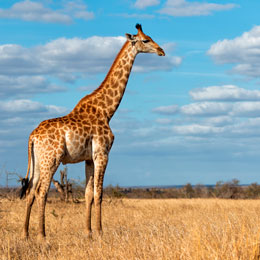
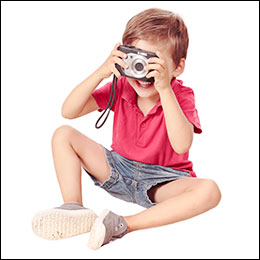
-
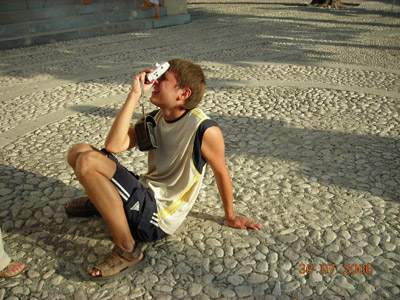
Step 1. Open the photo that contains a fragment for the new photo collage.
-
Step 2. Select the fragment you need. In our case it is the boy with a camera. The selection does not need to be precise, as the Chameleon plugin offers an advanced technique that allows cutting unneccessary parts almost automatically.
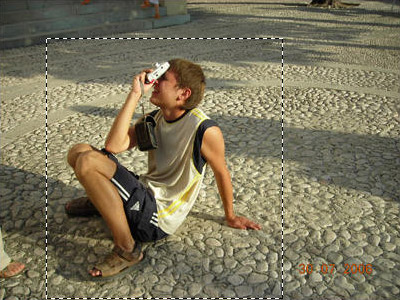
Select the command Effects –> AKVIS –> Chameleon – Grab Fragment from the main menu. You will see a message saying that the fragment has been saved.
-
Step 3. Open the background image.
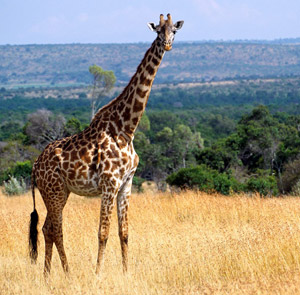
-
Step 4. Select the command Effects –> AKVIS –> Chameleon – Make Collage. AKVIS Chameleon plugin will open and you will see the background image and the fragment over it in the Before tab in the workspace.
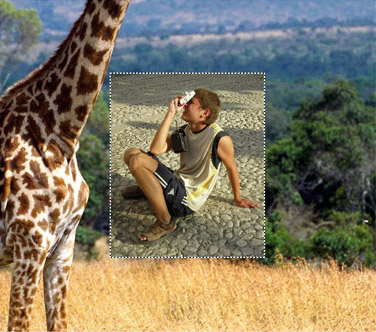
By default the Montage mode is active. We continue working in this mode.
-
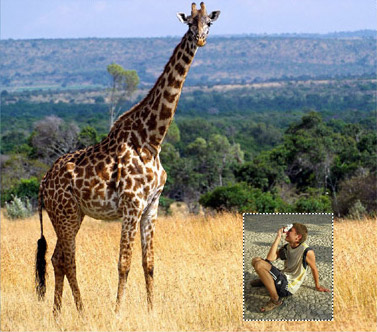
Step 5. Select the Transform tool
 in the Toolbar and adjust the position of the boy on the background.
-
Step 6. Now we should get rid of the irrelevant parts of the fragment, as only the figure of the boy should be kept.
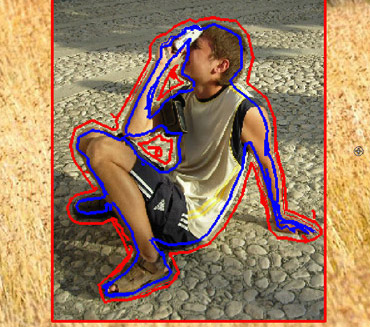
Select the Drop Area Tool
 and draw an outline around the boy. Then activate the Keep Area Tool
  and draw an outline within the boy’s figure; in this way you define what areas of the fragment should be kept and appear on the final photo montage.
You can use Eraser tool
 to erase outlines.
-
Step 7. Click on
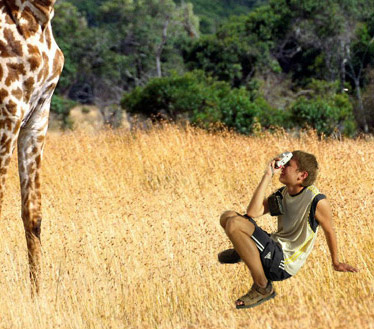
 to start the process of photo montage creation. The result will be shown in the After tab.
-
Step 8. Click on
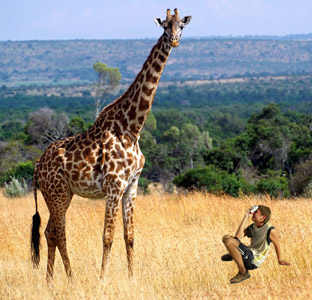
 . AKVIS Chameleon plugin will close and you will see the photo montage in the workspace of your photo editor.
-
Step 9. For the photo to look more realistic draw blades of grass over the boy's shoes: select the Color Brush tool in the Toolbar of your photo editor, adjust its size and color (you can use Color Picker to pick the color of the grass on the photo) and draw some strokes over the boy's shoes. Then pick another color and draw some strokes.
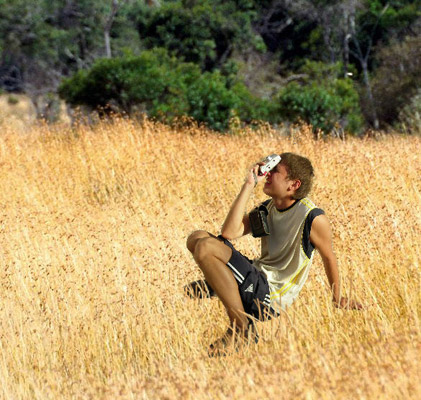
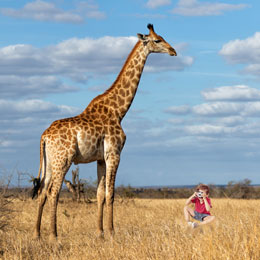
Here is the final result:
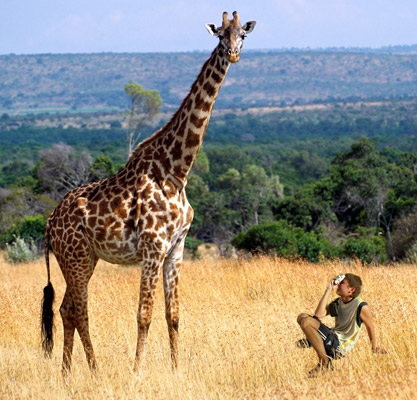
The boy could hardly imagine, leaving his home that day, that he would find himself in the company of a giraffe in the middle of African prairie.
Chameleon v. 12.2 - Free 10-day Trial
