Wallpaper with a Leopard
In this tutorial we will show you how to create desktop wallpaper with a leopard. We will use the Blend mode of AKVIS Chameleon to turn a snow leopard into a star leopard.
For the photo collage we will use a photo of a snow leopard and a photo of a starry sky.

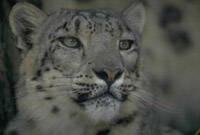
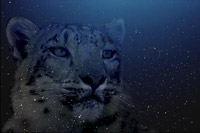
Open the source photos in AliveColors.
You can use AKVIS Chameleon in its standalone edition if you wish. In this case, just use the pencil tools in the program to draw red and blue outlines. They are available in the plugin version too. With these tools you can draw the contours and edit them.
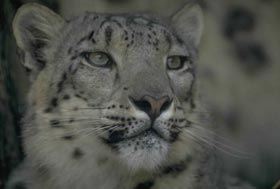
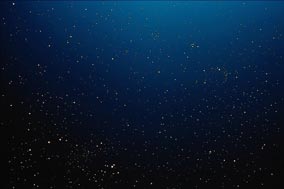
Select the leopard’s head not forgetting about the whiskers.
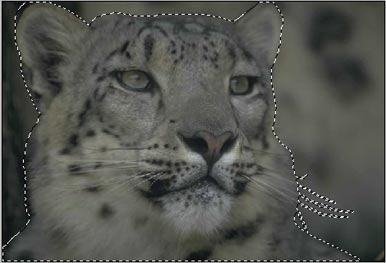
Copy the selection by calling the command AKVIS -> Chameleon – Grab Fragment from the Effects menu of the photo editor. If everything is done correctly, you’ll see a message that the selected object has been saved into the clipboard.
Switch to the photo with the starry sky and launch the plugin by selecting in menu Effects -> AKVIS –> Сhameleon – Make Collage.
The plugin’s window will open with the sky as background and the pasted leopard.
Change the position and the size of the leopard using the Transform tool  .
.
Select the Blend mode in the drop-down menu in the Settings Panel with a left-click of the mouse.
In Blend mode the plugin not only adjusts the colors of the pasted object to the new background but also makes the background visible through the new object.
Run the image processing with the  button. If you like the result, apply it and close the AKVIS Chameleon window by pressing on
  .
.
Here we are — the snow leopard turned into a starry one and our wallpaper is ready!
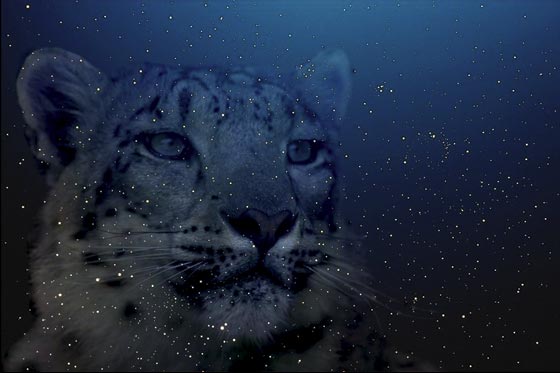
You can create postcards, advertising materials, and desktop wallpaper using this technique. It is easy and produces astonishing results.
Chameleon v. 12.2 - Free 10-day Trial
