To Sail Beyond The Sunset
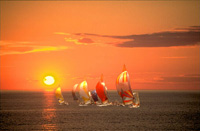
AKVIS Chameleon allows creating photo collages quickly and with a realistic result.
In the following tutorial we will use the Chameleon mode of the program to transfer the yachts from one image to another. In this mode the program smoothes the object’s borders and adjusts its color range to the new background.
It will take you only several minutes:
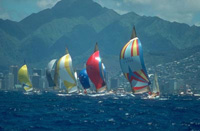
- Step 1. Open the photo with the yachts in AliveColors or photo editor compatible with AKVIS Chameleon plugin. Select the object that you want to transfer to another image with any selection tool.
Hint: If you use the standalone version you can draw the contours with blue and red pencils.
These tools are also available in the plugin, they let you edit the selection.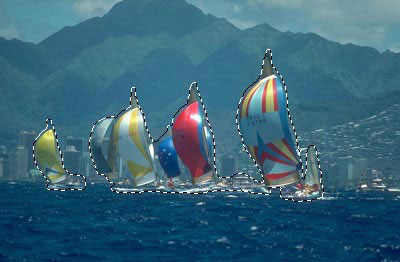
- Step 2. Call Effects -> AKVIS -> Chameleon – Grab Fragment from menu of the photo editor to save the fragment into the clipboard.
If everything is done correctly, you’ll see a message that the selected object has been saved into the clipboard.
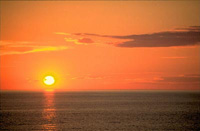
- Step 3. Now open the image with the sunset.
- Step 4. Call the command Effects -> AKVIS –> Сhameleon – Make Collage from menu.
The AKVIS Chameleon’s window will open and show the sunset image as a background and the yachts pasted over it.
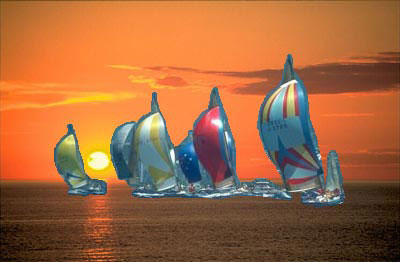
- Step 5. Select the Chameleon mode in the drop-down menu in the Settings Panel.
- Step 6. You can adjust the position of the pasted object using the Transform tool
 from the Toolbar.
To move an object bring the cursor inside the object, the cursor will turn into a cross
 . Move the object keeping the left mouse button pressed. To change the size of the object change the parameters W (width) and H (height).
In our case we have reduced the parameters W and H from 100% to 60%.
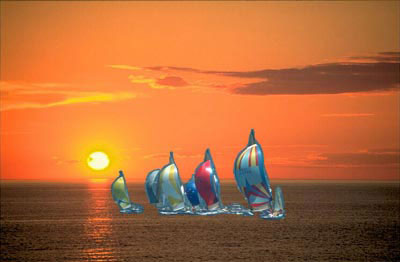
- Step 7. Press
 to start the process of collage creation. The result will be shown in the After tab.
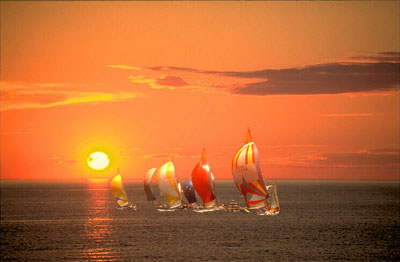
- Step 8. Press
 to apply the result and close the plugin’s window.
Chameleon v. 12.2 - Free 10-day Trial
