Blend Mode
AKVIS Chameleon works in five modes: Montage, Chameleon, Blend, Emersion, and Double Exposure.
In Blend mode, the program does not only smoothen the borders of the inserted object and adjusts its color range, but it also makes the object semi-transparent, so that the texture and the relief of the primary image can be seen through. Use this mode if you want to “dissolve” the inserted image in the background.
 |
 |
 |
| Original Images | Result | |
Follow the instructions to create a collage using the Blend Mode of AKVIS Chameleon.
-
Step 1. Click on
 to open an image for the background, then click on
  to open an image with a fragment for a collage.


Attention! If you work with the plug-in, proceed as follows.
- Step 2. Select the Blend mode from the drop-down menu in the Settings Panel.
-
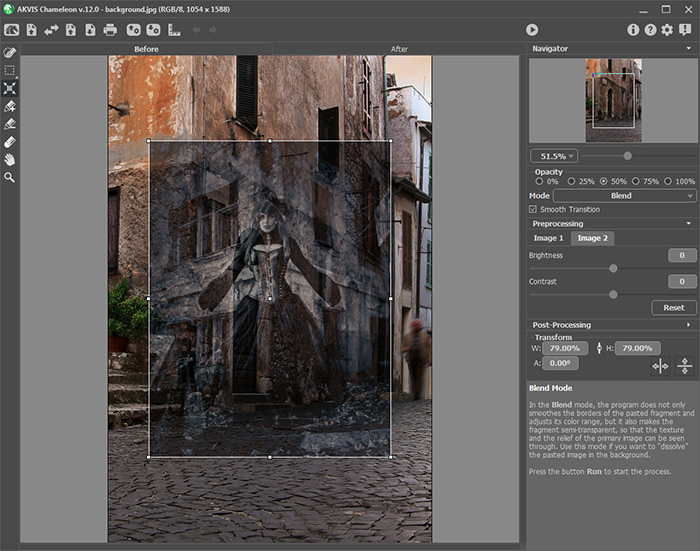
Step 3. Use the Transform tool
 to change the size, the position, and the rotation angle of the pasted fragment on the background image.
Use the Opacity parameter to place the fragment more accurately.
-
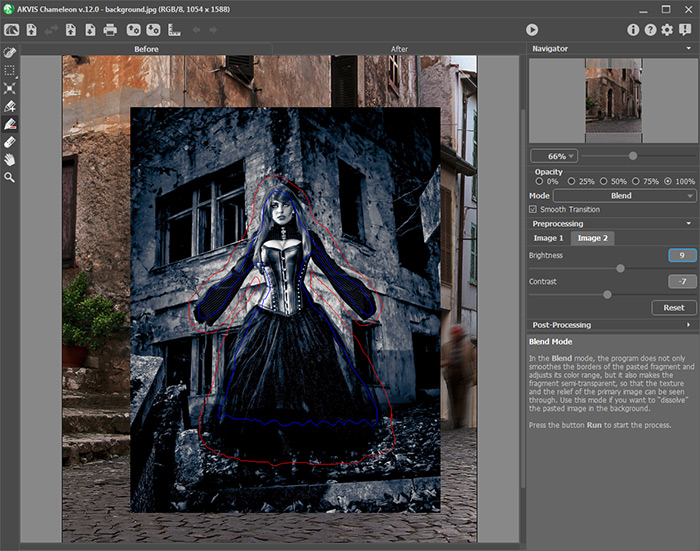
Step 4. Use the selection tools to select a fragment for a collage and mark unwanted areas.
-
Step 5. You can use the Smooth Transition option for inexact selections.
Note: It only works if the image has strokes.
When the option is deactivated, anti-aliasing occurs only along the borders of the red strokes. When it is enabled, anti-aliasing will occur throughout the area between the red and blue strokes. The degree of smoothness depends on the distance between the red and blue stroke. The farther apart the red and blue strokes are, the smoother the transition.
Attention: This parameter should be used carefully. It can blur small details along the edges of the inserted fragment.
-
Step 6. Click on
 to start the process of the collage creation. The result will be shown in the After tab.
The program smoothened the borders of the pasted object and adjusted its color range, and the fragment was dissolved in the background.
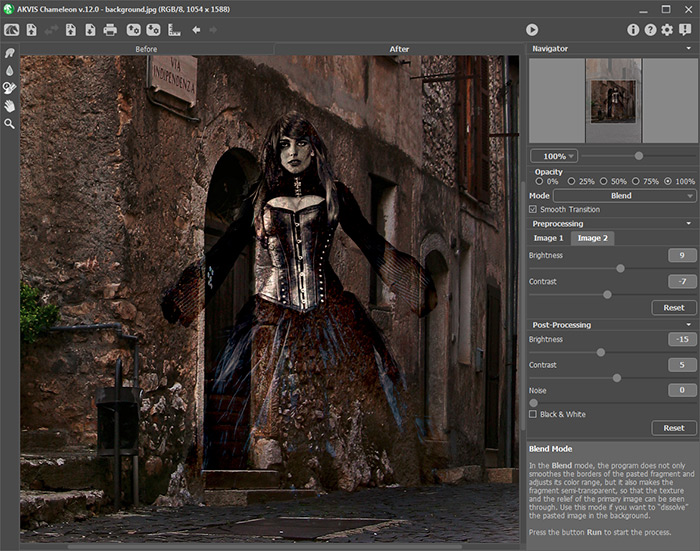
You can also use the post-processing tools (Smudge
 , Blur
  , and History Brush
  ) to edit the result.
Chameleon v. 12.2 - Free 10-day Trial
