Butterfly on the wall
We know that chameleons have the faculty of changing their color and the body pattern in order to adapt to the environment and escape their numerous enemies.
AKVIS Chameleon can help any creature to try this amazing feature of chameleons.
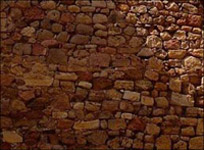
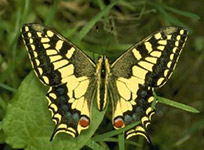
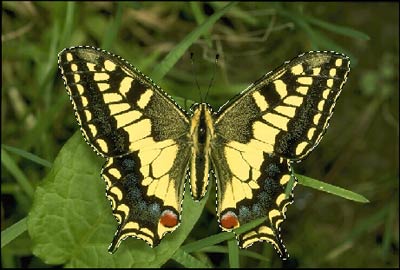
- Step 1. We take a picture of a butterfly and a stone wall texture and try to help the butterfly to hide - to blend with the stone wall.
-
Step 2. Make selection. You can use any selection tool in your image editor. We use the Quick Mask tool in Photoshop.
Switch to the Quick Mask mode and paint the butterfly with a pencil or a hard-edged brush.
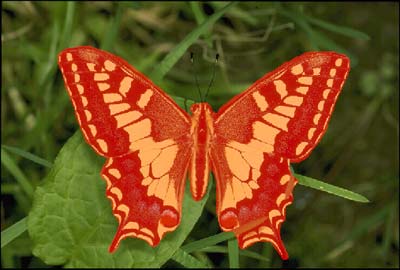
Switch back to the Standard mode and invert the selection by calling the command Select - Inverse.
-
Step 3. Call AKVIS -> Chameleon – Grab Fragment from the Filter menu.
If everything is done correctly you will see a message that the selected object is saved into the clipboard
-
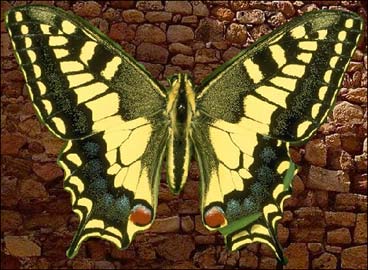
Step 4. Open the photo of the stone wall and call AKVIS -> Chameleon – Make Collage from the Filter menu.
The AKVIS Chameleon window will open. This window will contain the background image and the pasted object.
Select Blend mode from the drop-down menu in the Settings Panel.
-
Step 5. Use the Transform tool
 to change the size of the butterfly.
-
Step 6. Press the button
 to start the collage creation process. A preview of the image will appear in the After tab.
Then press the button
 to apply the collage to the photo.
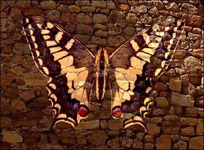
After AKVIS Chameleon application the butterfly, like a chameleon, changed its green color to brown and blended with the stone wall. Also, it adapted the stone wall texture.

Chameleon v. 12.2 - Free 10-day Trial
