Graphic software for Windows Mac graphic software
Please enter your email to be kept posted on updates and discounts:
 
  
  Products     Download     Online Store     Tutorial     Support     Company
en  fr  de  es  pt  it  jp  ru    
 

Tutorial: AKVIS Chameleon

For Graffiti Fans


Graffiti as a form of art in its modern form first appeared at the beginning of 20th century, but its origins go back long ago when the first men expressed their artistic talents on cave walls.

Either graffiti is a work of art or mere vandalism, this question has no definite answer. Some graffiti have an artistic value and an idea behind them; others are a waste of paint and unsightly damage to state and private property.

In this tutorial we will show you how to make graffiti on any wall without running the risk of being fined.

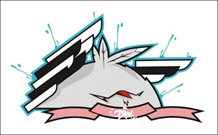
The image below has been taken from the internet. We do not know the author personally, but we hope he will not mind.

We used the Chameleon plugin in Adobe Photoshop, but you can use any other photo editor compatible with the AKVIS Chameleon plugin.
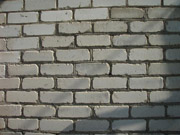
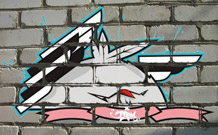
Background image - wall Image for graffiti effect Graffiti on the wall

  • Step 1. Open the graffiti image in your photo editor.
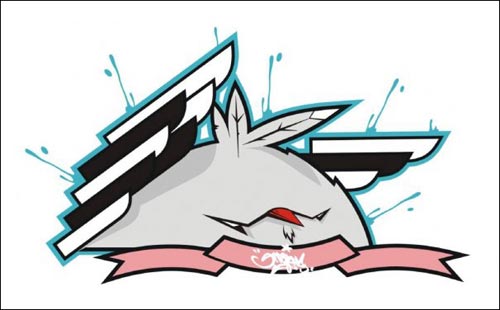
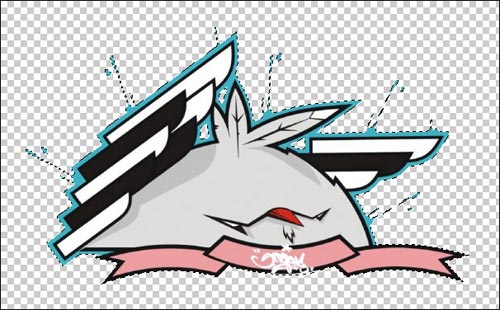
    The graffiti image
  • Step 2. Make a precise selection of the fragment. In this case the graffiti design has a difficult form, but the background is homogeneous. It’s easier to delete the background than to select the object.

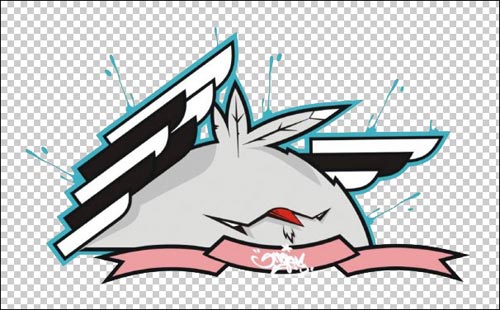
    In Adobe Photoshop you can use Magic Eraser Tool Magic Eraser Tool. Select it from the Toolbar and left click on the background around the chicken and between the wings and feathers. The background will be removed.

    Remove the background

    Now select the fragment. For quick selection click on the layer icon in the Layers palette keeping the Ctrl-key ( on Macintosh) pressed.

    Quick selection
    "Layers" palette
    Select the object

    Select the command Filter –> AKVIS –> Chameleon – Grab Fragment in the main menu. You’ll see a message that the selected object has been saved into the clipboard.

  • Step 3. Open the background image. Here we have a photo of a brick wall.
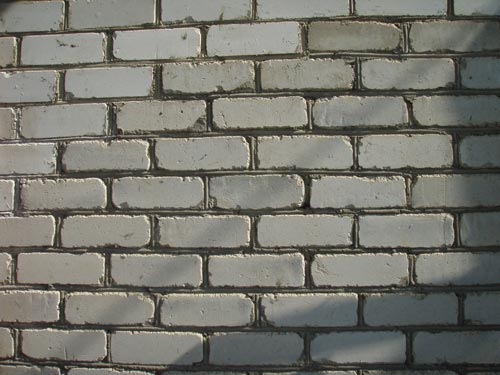
    The background image for the collage
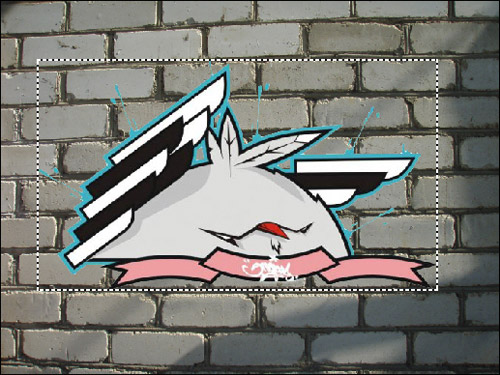
  • Step 4. Select the command Filter –> AKVIS –> Chameleon – Make Collage. The Chameleon workplace will open with the background image and the fragment loaded into the Image Window.
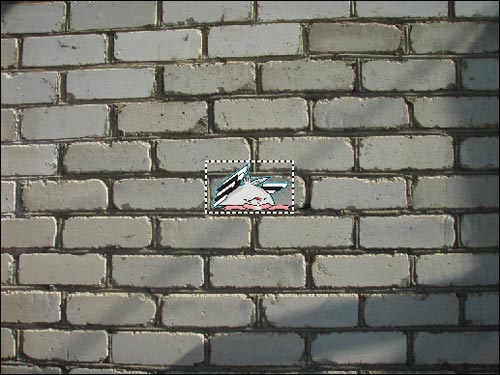
    The background with the pasted image
  • Step 5. Select the Emersion mode from the drop-down menu Mode in the Settings panel.
  • Step 6. Use the Transform tool Transform to adjust the size and the position of the chicken on the wall.
    Transform the object

    Press the Enter-key (Return on Macintosh) to apply the changes.

    Apply
  • Step 7. Select the colors of the wall. The selected colors will be replaced with the fragment’s areas.

    Select Colors
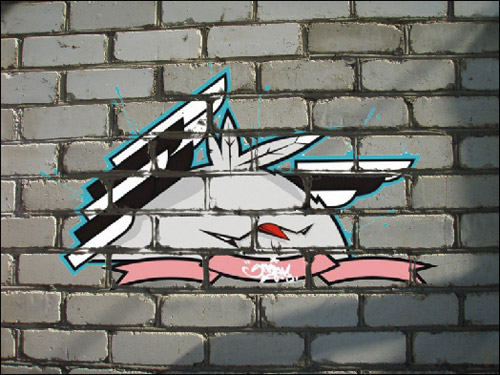
  • Step 8. Click on to start image processing. Here is the result:
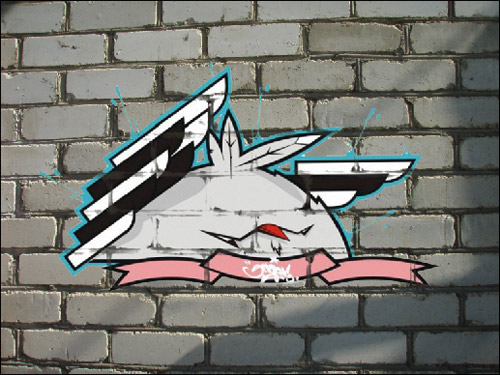
    Result with the default parameters
  • Step 9. For the image to look more natural adjust the value of the Threshold parameter. In this case the optimum value is about 50-60.
    Adjust the Threshold parameter

    Now it looks more realistic.

    Apply the result. Click on Apply to apply the effect and close the plug-in window. The result will be shown in the workspace of your photo editor.

  • Step 10. One more trick to give the image the final touch. In Step 4 one can see a shadow that faded after the processing with the plug-in. We can restore it using the Photoshop Burn Tool. Select this tool from the Toolbar and adjust its settings. Now left-click on the shadow and, keeping the Shift-key pressed to get a straight line, draw a line over the graffiti.

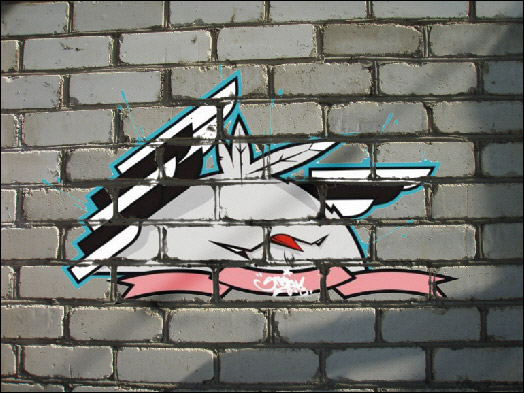
    Here is the final result:

    Graffiti on the brick wall

    P. S.: No wall has been damaged as a result of this experiment!


Workspace Workspace
How It Works How It Works
Montage Mode Montage Mode
   — Photo Hunting — Photo Hunting
   — Snow Windserfing — Snow Windserfing
   — Serenade for a Gull — Serenade for a Gull
   — Happy Easter! — Happy Easter!
Chameleon Mode Chameleon Mode
   — To Sail Beyond the Sunset — To Sail Beyond the Sunset
   — Changing Appearance — Changing Appearance
   — Try on a Tattoo — Try on a Tattoo
   — Monkey and a Mask — Monkey and a Mask
   — Coffee postage stamp — Coffee postage stamp
   — Lemonade Label — Lemonade Label
   — Chameleon in the Fire — Chameleon in the Fire
   — The Flying Dutch — The Flying Dutch
   — Flowers and a Cat — Flowers and a Cat
   — Elephant in the Savanna — Elephant in the Savanna
   — Archeological Reconstruction — Archeological Reconstruction
   — The Swan Lake — The Swan Lake
   — An Earth View — An Earth View
   — Collage with a Girl — Collage with a Girl
   — Help the Dove — Help the Dove
   — A Girl in the Sunset — A Girl in the Sunset
   — A Greeting Card — A Greeting Card
   — Moonlight Sonata — Moonlight Sonata
   — Enliven the Scenery — Enliven the Scenery
   — Photo Collage in Corel Photo-Paint — Photo Collage in Corel Photo-Paint
Blend Mode Blend Mode
   — Wood Painting — Wood Painting
   — Creating a Greeting Postcard — Creating a Greeting Postcard
   — Valentine Card — Valentine Card
   — Autumn Collage — Autumn Collage
   — Butterfly on the Wall — Butterfly on the Wall
   — Dove in the Fire — Dove in the Fire
   — Fantastic Collage — Fantastic Collage
   — Blazing Photo of a Girl — Blazing Photo of a Girl
   — A Wedding Photo Collage — A Wedding Photo Collage
   — Fairy Tale Illustration — Fairy Tale Illustration
   — Ripe Cherries — Ripe Cherries
   — Sky Swapping — Sky Swapping
   — Creative Design in Paint Shop Pro — Creative Design in Paint Shop Pro
   — Time Goes by Like Water — Time Goes by Like Water
   — Wallpaper with a Leopard — Wallpaper with a Leopard
   — Newfoundlands From The Sea — Newfoundlands From The Sea
Emersion Mode Emersion Mode
   — For Graffiti Fans — For Graffiti Fans


   Privacy Policy | Site Map | Search    
   Contact Us | Twitter | Facebook   
| English  |Français  |Deutsch  |Español  |Português  |Italiano  |日本語  |Pусский  | © 2004-2010 AKVIS Software Inc. All rights reserved.