Graphic software for Windows Mac graphic software  
Please enter your email to be kept posted on updates and discounts:
 
  
  Products     Download     Online Store     Tutorial     Support     About Company
en  fr  de  es  pt  it  jp  ru    
 

Tutorial: AKVIS Chameleon

Blazing photo of a girl


The example was made in the old version of the Chameleon plug-in.
Now the technique of using AKVIS Chameleon is different, but the result will be the same.

Consult the article "Blend mode" to get the same result with the new version. In the older versions (before v.5.0) this mode was called Snapshot and applied automatically right after you launch the plugin from the menu Filter.


When creating a photo collage with AKVIS Chameleon you can use Snapshot mode that allows not only smoothing the borders of the inserted object and adjusting its color range, but as well making the object semi-transparent, so that the texture and the relief of the main image is seen through.

In this case, before you paste the object, take a snapshot of the background picture by selecting the command Filter - AKVIS - Chameleon (Take Snapshot) in your photo editor, then paste the object, adjust its size and position and start AKVIS Chameleon by calling the command Filter - AKVIS - Chameleon (Use Snapshot).

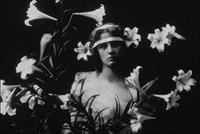
The following example demonstrates Snapshot mode in action. To make a collage we use two images: a burning photo frame and a black and white photography. We will make a collage of these two photos creating a blazing photo effect.
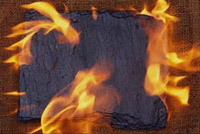
a burning photo frameblack and white photo of a girl

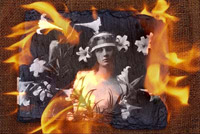
First of all we take a snapshot of the image with burning paper by selecting the command Filter - AKVIS - Chameleon (Take Snapshot). Then we select the entire black and white photo, copy the selection and paste it into a new layer of the image with burning paper. Having inserted the photo, reduce it by 20 % to get the following picture:

insert the photo of a girl

Now we cut off all unnecessary parts of the black and white photo to give it the form of the burning photo frame. First we reduce the Opacity parameter to 50%, so that the burning paper could be seen through.

reduce Opacity to 50%

Now we activate the Quick Mask mode and paint over the areas that should be kept with a hard edged Pencil tool or Brush Tool. In other photo editors you can select this area with other selection tools.

edit in the Quick Mask mode

We switch to the Standard mode and see that the area that was not painted in the Quick Mask mode fall into the selection.

in the Standard mode

Now we clear the selected area by using the command Edit - Clear or by pressing the DELETE key on the keyboard. When the selection is removed we see the following photo:

remove the selection

We restore the value of the Opacity parameter (100%).

increase Opacity to 100%

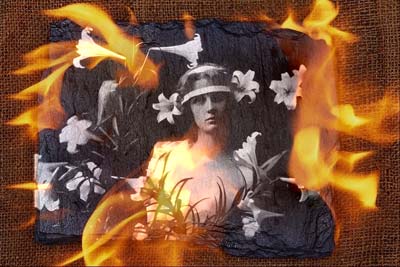
Finally, we start AKVIS Chameleon by calling the command Filter - AKVIS - Chameleon (Use Snapshot).

Collage: a blazing photo of a girl

 
How It Works How It Works
Montage Mode Montage Mode
   — Photo Hunting — Photo Hunting
Chameleon Mode Chameleon Mode
   — To Sail Beyond the Sunset — To Sail Beyond the Sunset
   — Changing Appearance — Changing Appearance
   — Try on a Tattoo — Try on a Tattoo
   — Chameleon in the Fire — Chameleon in the Fire
   — The Flying Dutch — The Flying Dutch
   — Flowers and a Cat — Flowers and a Cat
   — Elephant in the Savanna — Elephant in the Savanna
   — Lemonade Label — Lemonade Label
   — Archeological Reconstruction — Archeological Reconstruction
   — The Swan Lake — The Swan Lake
   — Monkey and a Mask — Monkey and a Mask
   — An Earth View — An Earth View
   — Collage with a Girl — Collage with a Girl
   — Coffee postage stamp — Coffee postage stamp
   — Fantasy Collage — Fantasy Collage
   — Help the Dove — Help the Dove
   — A Girl in the Sunset — A Girl in the Sunset
   — A Greeting Card — A Greeting Card
   — Moonlight Sonata — Moonlight Sonata
   — Enliven the Scenery — Enliven the Scenery
   — Photo Collage in Corel Photo-Paint — Photo Collage in Corel Photo-Paint
Blend Mode Blend Mode
   — Wood Painting — Wood Painting
   — Creating a Greeting Postcard — Creating a Greeting Postcard
   — Valentine Card — Valentine Card
   — Dove in the Fire — Dove in the Fire
   — Fantastic Collage — Fantastic Collage
   — Blazing Photo of a Girl — Blazing Photo of a Girl
   — A Wedding Photo Collage — A Wedding Photo Collage
   — Fairy Tale Illustration — Fairy Tale Illustration
   — Ripe Cherries — Ripe Cherries
   — Butterfly on the Wall — Butterfly on the Wall
   — Bird in the Sky: B&W + color — Bird in the Sky: B&W + color
   — Sky Swapping — Sky Swapping
   — Autumn Collage — Autumn Collage
   — Creative Design in Paint Shop Pro — Creative Design in Paint Shop Pro
   — Time Goes by Like Water — Time Goes by Like Water
   — Wallpaper with a Leopard — Wallpaper with a Leopard


   Privacy Policy | Site Map | Search | English  | Français  | Deutsch  | Español  | Português  | Italiano  | 日本語  | Pусский  | © 2004-2008, AKVIS Software Inc. All rights reserved.