Serenade for a Gull
The author of this tutorial is Gordon Sisson.
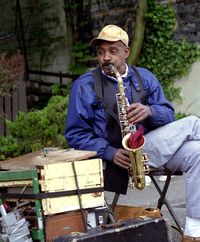
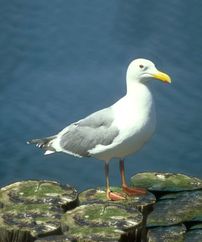
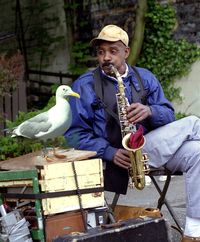
Combining several shots to create a more expressive image is one of the most popular manipulations in photo editing. This requires extracting the fragment, placing it into a new background and adjusting color tones and edges so that the image looks as if it had been shot exactly this way. The extraction part can as well be done with AKVIS's AKVIS SmartMask plug-in, but in this tutorial we would like to do it with AKVIS Chameleon.
AKVIS Chameleon is ideal for the users who want to have a quick and clean result. The tutorial's author, Gordon Sisson, confessed that he was intrigued by the capabilities of AKVIS Chameleon and therefore decided to experiment with it. Gordon Sisson describes below his first experience with the Montage mode of AKVIS Chameleon.
You can use the standalone version if you want. In this case just load both images into the program and use the pencils to outline the object.
Let’s see how Gordon created this amazing collage.
-
Step 1. Open the photo containing the fragment to be copied.
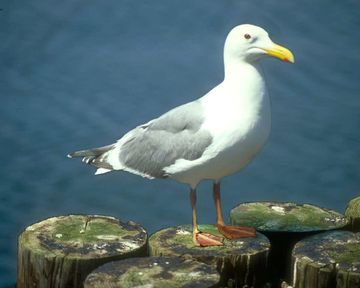
The photo used as a source for the fragment -
Step 2. Select the part of the photo to be transfered. An ordinary Rectangular selection
 is all that you need to select the fragment. The efficient Chameleon tools will complete the final cutting out of the image (see Step 7).
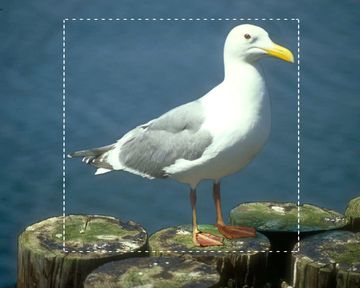
Fragment selection - Step 3. In the Effects menu, call up AKVIS -> Chameleon – Grab Fragment. A window will appear telling the fragment has been saved.
-
Step 4. Open the photo of the new background.
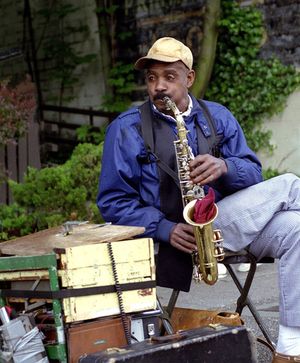
Background for the collage to be created -
Step 5. In the Effects menu, call up AKVIS -> Chameleon – Make Collage and selected fragment gets placed over the background. By default, the work is started in the Montage mode.
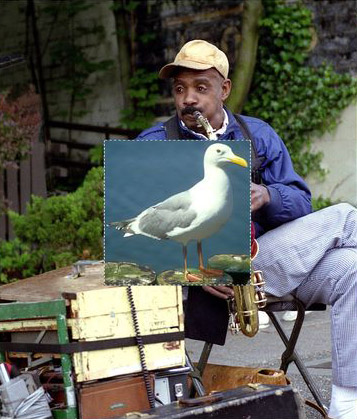
AKVIS Chameleon window -
Step 6. In order to proportionally alter the fragment’s dimensions one should first ensure that the proportion sign
 is engaged, then place the cursor over the fragment's border (outlined by the dashed line). When the cursor changes it's shape to a double-sided arrow
  , click the left mouse button and increase or decrease the image's size keeping the left mouse pressed. After that, the fragment may be moved to its destination. In order to do this, simply place the cursor within the fragment's boundaries (until the mouse cursor takes the cross-shape
  ), click the left mouse button and drag the fragment to the destination keeping the left mouse pressed.
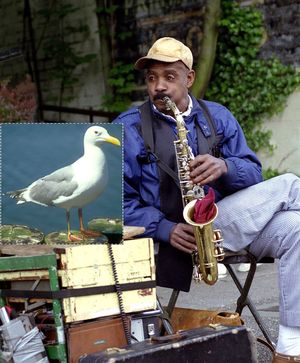
Fragment transformation -
Step 7. Now one needs to complete the extraction of the inserted photo. This task is easier if the gull is scaled to fit the Image Window. With the size slider in Navigator you can make the placed image as large as the window will permit.
Select the Drop Area Tool
 and draw an outline around the gull. Select the Keep Area Tool
  and draw a line just inside the edge of the figure of the gull.
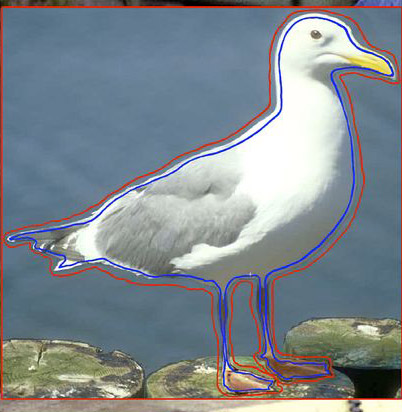
Draw strokes -
Step 8. Click on the Run button
 to process montage creation. The result will appear in the After tab.
-
Step 9. Click on the Apply button
 to close the Plug-in’s window. The photo montage will be shown on the screen — amazing and touching as it is.
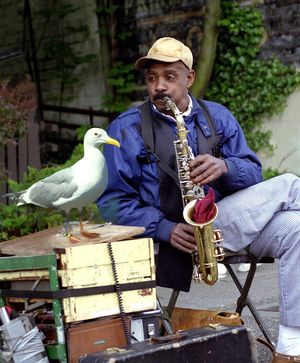
Photo montage
Chameleon v. 12.2 - Free 10-day Trial
