Serenata para uma gaivota
O autor deste tutorial é Gordon Sisson.
Este tutorial foi criado com o AliveColors, mas você pode fazer a mesma coisa usando qualquer outro editor de imagem compatível com o AKVIS Chameleon.
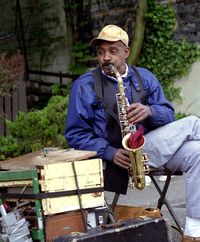
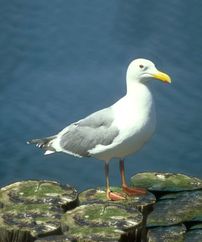
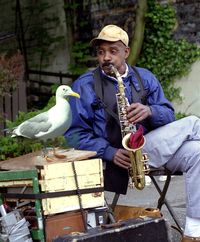
A combinação de várias fotos para criar uma imagem mais expressiva é um dos modos mais populares de trabalhar com a edição de fotos. Isso requer extrair o objeto, colocá-lo em um novo fundo e ajustar as tonalidades das cores e bordas, de tal forma, que a imagem pareça ter sido fotografada exatamente desse jeito. A parte da extração pode ser muito bem feita com o plugin AKVIS SmartMask, mas neste tutorial gostaríamos de usar o AKVIS Chameleon. Este plugin é ideal para usuários que desejam um resultado rápido e perfeito. O autor do tutorial, Gordon Sisson, confessou que estava curioso com relação às possibilidades do AKVIS Chameleon e por isso resolveu experimentá-lo. Gordon Sisson descreve abaixo sua primeira experiência com o modo Montagem do AKVIS Chameleon.
-
Passo 1. Abra a foto contendo o objeto a ser copiado.
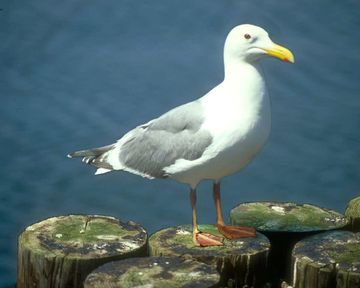
Foto de onde foi extraído o objeto -
Passo 2. Selecione a parte da foto a ser transferida. Uma Seleção Retangular
 comum é tudo que você precisa para selecionar o objeto. As ferramentas eficientes do Chameleon completarão o trabalho da extração final da imagem (veja o Passo 7).
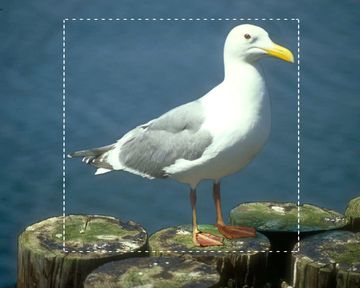
Seleção do objeto - Passo 3. No menu Effects abra AKVIS -> Chameleon – Grab Fragment (="pegar o fragmento"). Uma janela se abre dizendo que o objeto foi salvo.
-
Passo 4. Abra a foto do novo fundo.
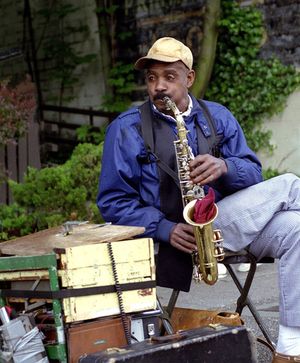
Fundo para a colagem -
Passo 5. No menu Effects, abra AKVIS -> Chameleon – Make Collage (="fazer uma colagem") e o objeto selecionado aparece colocado sobre o background (fundo). Como padrão o trabalho é iniciado no modo Montagem.
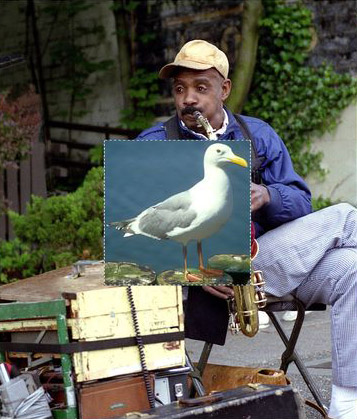
Janela do AKVIS Chameleon -
Passo 6. A fim de modificar, proporcionalmente, as dimensões do objeto, você deve em primeiro lugar ter a certeza de que o sinal de proporção
 está ativado; em seguida coloque o cursor sobre a borda do objeto (contornada pela linha pontilhada). Quando o cursor muda a sua forma para uma flecha de 2 direções
  , clique o botão esquerdo do mouse e aumente, ou diminua o tamanho da imagem conservando pressionado o botão esquerdo. Depois disso, o objeto pode ser deslocado para o seu lugar. Para fazer isto, coloque, simplesmente, o cursor dentro dos limites do objeto (até que o mesmo tome a forma de uma cruz
  ); clique o botão esquerdo do mouse e arraste o objeto para o seu destino, mantendo pressionado o botão.
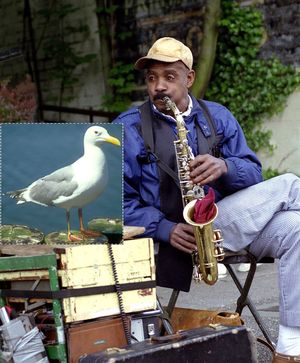
Transformação do objeto -
Passo 7. Agora é preciso completar a extração da foto que foi inserida. Este trabalho é mais fácil, se a gaivota for dimensionada para encaixar na Janela da imagem. Com a alça de aumento do janela de navegação você pode tornar a imagem tão grande quanto a janela o permita.
Selecione o lápis vermelho em Lápis eliminar área
 e faça um contorno em volta da gaivota. Selecione então o lápis azul em Lápis manter área
  e desenhe uma linha exatamente por dentro da borda da imagem da gaivota.
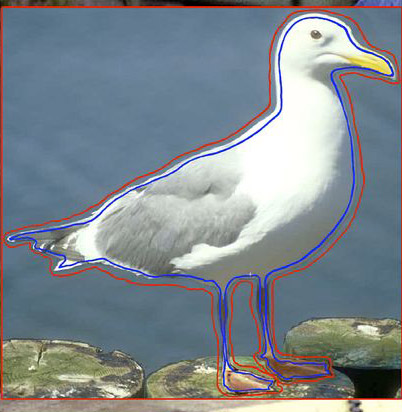
Linhas -
Passo 8. Clique no botão
 para processar a criação da montagem. O resultado aparecerá na pasta Depois.
-
Passo 9. Clique no botão
 para fechar a janela do plugin. A fotomontagem será mostrada na tela – admirável e tocante como ela é.
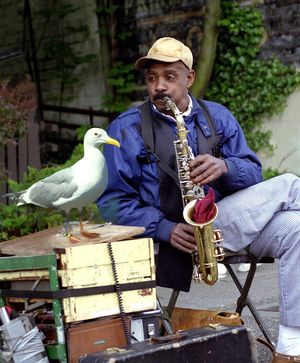
Fotomontagem
Chameleon v. 12.2 - Teste gratuito 10 dias
