Colagem de Outono
Escolhemos estas duas fotos para criar uma fotocolagem: a foto de um álamo contra o céu de outono e a de uma encantadora garota.
Abrimos as fotos no AliveColors.
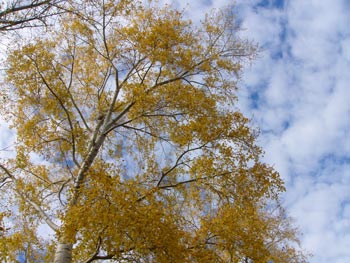
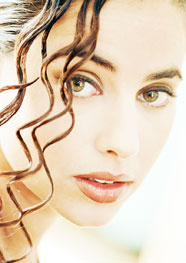
- Passo 1. Primeiro, selecionamos a todo o retrato da garota (Select -> Select All). Então, aplicamos um fragmento à imagem da árvore selecionando o comando Effects -> AKVIS -> Chameleon - Grab Fragment. Aparecerá uma mensagem indicando que o objeto ou fragmento de imagem selecionado está salvo para uso na fotomontagem ("Fragmento está salvo").
-
Passo 2. Abra a imagem que será utilizada como fundo na fotomontagem. Copiamos a área selecionada e colamos na foto com a árvore (comando Effects -> AKVIS -> Chameleon - Make Collage.
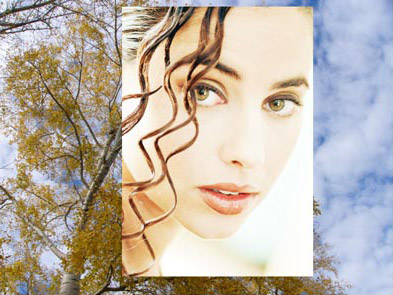
- Passo 3. Selecione o modo Fusão no menú rápido Modo do Painel de ajustes.
-
Passo 4. Use a ferramenta Transformar
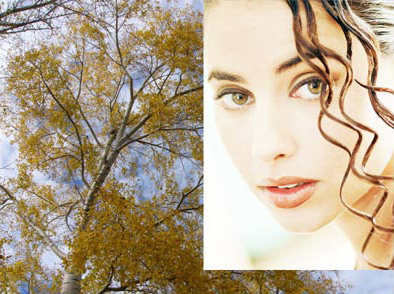
 e escolha o tamanho do objeto cuja altura foi um pouco menor que a imagem com a árvore, espelhar o retrato verticalmente, então, mova o retrato para o canto superior direito.
-
Passo 5. Clique no botão
 para iniciar o processo de criação da fotomontagem. Em segundos você obterá a seguinte imagem na pasta Depois.
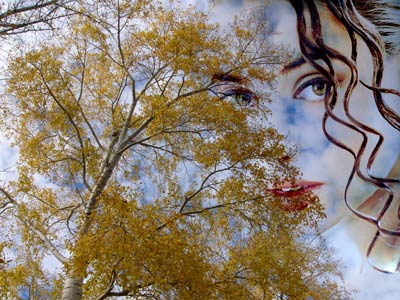
-
Passo 6. Clique em
 para aplicar o resultado e feche a janela do plugin.
-
Passo 7. Achamos que a fotocolagem ficará melhor se a fizermos mais clara através do comando Levels. Porém, antes de aplicar o comando, gostaríamos de fundir as camadas, caso contrário, o comando será aplicado apenas na camada da garota.
Bem, primeiro chamamos o comando Layers -> Merge All, então selecione o comando Adjustment -> Levels no menu Image. Na caixa de diálogo Levels, movemos o cursor branco aproximadamente 200 para a esquerda e pressione o botão OK.
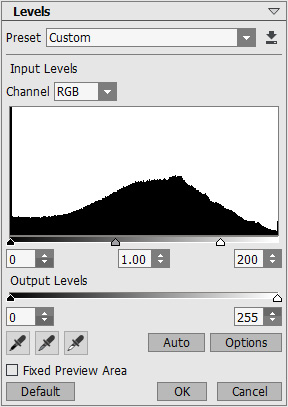
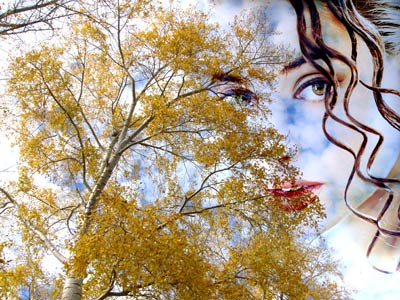
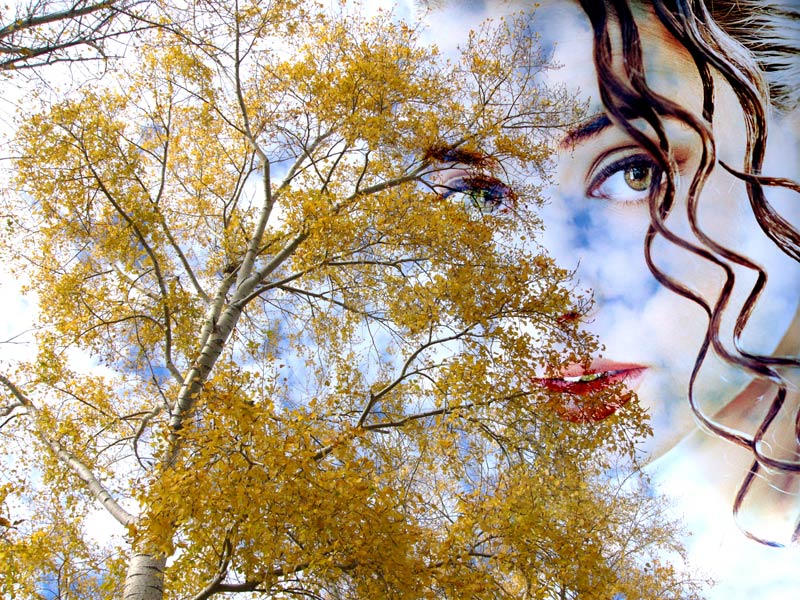
Como resultado, teremos a seguinte fotocolagem: um álamo, um céu azul e o contorno da face de uma garota.
Chameleon v. 12.2 - Teste gratuito 10 dias
