Graphic software for Windows Mac graphic software  
Entrar seu e-mail para subscrição em novidades.
 
  
  Produtos     Download     Online Store     Tutorial     Suporte     Quem Somos
en  fr  de  es  pt  it  jp  ru    
 

Tutorial: AKVIS Chameleon

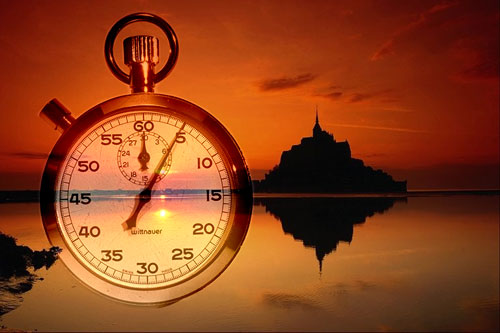
Time goes by like water: a photo collage in Corel Photo-Paint


Sunrises replace sunsets and time goes by like sand through your fingers...

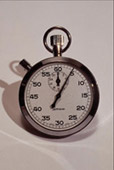
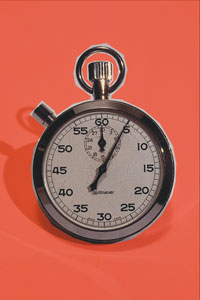
To create a "philosophic" photo collage symbolizing the eternal beauty of nature and the fleetingness of the human life we have chosen two photos: a sunset photo and a stop-watch.

a stop-watch a sunset photo

We will make the photo collage in Corel Photo-Paint using AKVIS Chameleon Plug-in in the Snapshot mode. Follow the instructions below:

  • Step 1. Open the photos in your photo editor.
  • Step 2. First open the image with the stop-watch and activate any selection tool, for example Magnetic Mask Tool.

    In the Options palette of the chosen selection tool deactivate the check-box Anti-aliasing.

  • Step 3. Outline the stop-watch with the selection tool. Read more about Magnetic Mask Tool here.
    Select the stop-watch Select the stop-watch
  • Step 4. Copy the selected stop-watch into the buffer by pressing the buttons Ctrl+C or by calling the command Copy -> Edit.
  • Step 5. Activate the image with the sunset and call the command Effects -> AKVIS -> Chameleon (Take Snapshot) to take a snapshot of the image. We will need this snapshot the next time we call the plug-in. We use the Snapshot mode to make the background image visible through the pasted object. In this case we want the stop-watch to adapt its color range to the photo and to be semi-transparent.
  • Step 6. Paste the stop-watch into the sunset photo by calling the command Edit -> Paste -> Paste as New Selection.
    Paste the stop-watch into the sunset photo
  • Step 7. Do not remove the mask!
  • Step 8. Select Object Pick Tool in the Toolbar and move the stop-watch to the left, just a little bit.
    Move the stop-watch
  • Step 9. Call the command Mask -> Invert twice. This double command does not change anything visually but without it you won't get the plug-in working in Corel Photo-Paint.
  • Step 10. Call the plug-in AKVIS Chameleon by selecting the command AKVIS -> Chameleon (Use Snapshot) in the menu Effects.
    Call AKVIS Chameleon
  • Step 11. Remove the mask with the command Mask -> Remove. The photo collage is ready.
    Remove the mask
  •  

 
Como funciona Como funciona
Montage Mode Montage Mode
Chameleon Mode Chameleon Mode
   — O pôr do Sol — O pôr do Sol
   — Câmbio da aparência — Câmbio da aparência
   — A prova de tattoo — A prova de tattoo
   — Um camaleão em fogo — Um camaleão em fogo
   — Peisagem marinho — Peisagem marinho
   — Flores e um gato — Flores e um gato
   — Um Elefante — Um Elefante
   — Etiqueta para limonada — Etiqueta para limonada
   — Ruinas arqueológicas — Ruinas arqueológicas
   — Um lago com cisnes — Um lago com cisnes
   — Um macaco com máscara — Um macaco com máscara
   — Terra e Lua — Terra e Lua
   — Imagem com uma rapariga — Imagem com uma rapariga
   — Marca do Café — Marca do Café
   — Imaginação — Imaginação
   — Pombo de paz — Pombo de paz
   — Uma menina em ocaso — Uma menina em ocaso
   — O cartão de parabéns — O cartão de parabéns
Blend Mode Blend Mode
   — Pintura em madeira — Pintura em madeira
   — Criação dum cartão — Criação dum cartão
   — Dia de São Valentin — Dia de São Valentin
   — Um pombo em fogo — Um pombo em fogo
   — Imagem fantástica — Imagem fantástica
   — Uma rapariga em fogo — Uma rapariga em fogo
   — Pássaro Mágico — Pássaro Mágico
   — Fruteira com ginjas — Fruteira com ginjas
   — Borboleta sobre a parede — Borboleta sobre a parede
   — Um pássaro em céu — Um pássaro em céu


   Política de privacidade | Mapa do Site | Pesquisar na site | English  | Français  | Deutsch  | Español  | Português  | Italiano  | 日本語  | Pусский  | © 2004-2008, AKVIS Software Inc. Todos os direitos reservados.