Serenata para una gaviota
El autor de este tutorial es Gordon Sisson.
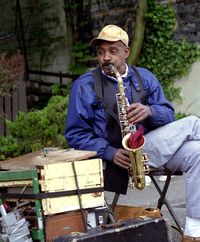
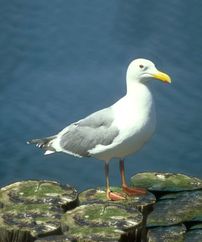
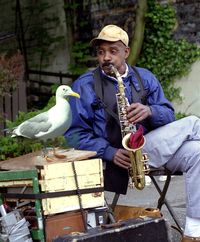
La combinación de varias tomas para crear una imagen más expresiva es una de las manipulaciones más populares de edición de fotos. Esto requiere la extracción de un fragmento, colocándolo en un nuevo fondo y ajustar los tonos de colores y los bordes para que la imagen se vea como si hubiera recibido una instantánea exactamente de esta manera. La parte de la extracción puede hacerse con AKVIS SmartMask plugin, pero en este tutorial nos gustaría hacerlo con AKVIS Chameleon.
AKVIS Chameleon es ideal para los usuarios que quieren tener un resultado rápido y limpio. El autor del tutorial, Gordon Sisson, confesó que se sintió intrigado por las posibilidades de AKVIS Chameleon y por lo tanto decidió experimentar con él. Gordon Sisson nos describe a continuación su primera experiencia con el modo Montaje de AKVIS Chameleon.
Usted puede usar la versión independiente (standalone), si lo deseas. En este caso sólo tienes que cargar dos imágenes en el programa y el uso de los lápices para esbozar el objeto.
Vamos a ver cómo Gordon creó este increíble collage.
-
Paso 1. Abra la foto que contiene el fragmento que desea copiar.
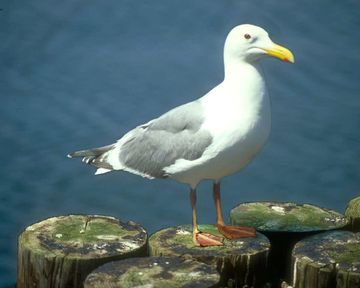
La foto es usada como una fuente para el fragmento -
Paso 2. Seleccione la parte de la foto para ser transferida. Una Selección rectangular
 es todo lo que usted necesita para seleccionar el fragmento. Las herramientas eficientes de Chameleon completarán el final de corte de la imagen (vea el paso 7).
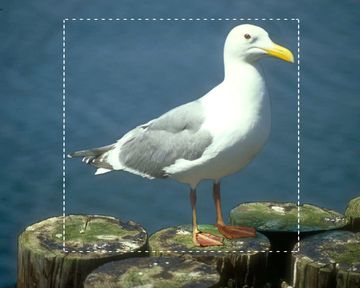
Fragmento seleccionado - Paso 3. En el menú Effects, llamar al AKVIS -> Chameleon – Grab Fragment. Aparecerá una ventana que nos dice que el fragmento ha sido guardado.
-
Paso 4. Abra la foto del nuevo fondo.
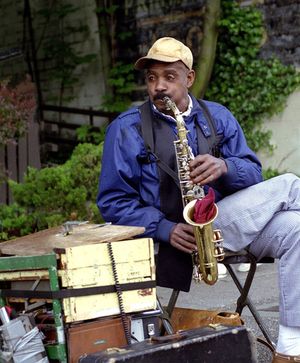
Fondo para ser creado el collage -
Paso 5. En el menú Effects, llamar al AKVIS -> Chameleon – Make Collage y el fragmento seleccionado se coloca sobre el fondo. Por defecto, el trabajo se inicia en el modo Montaje.
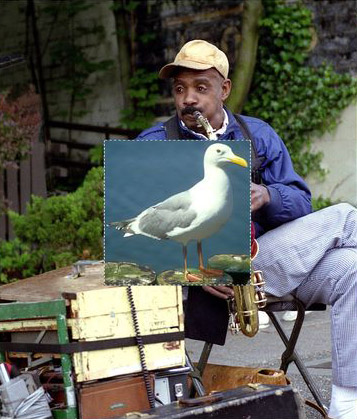
Ventana de AKVIS Chameleon -
Paso 6. Con el fin de modificar proporcionalmente las dimensiones del fragmento lo primero es asegurarse de que la señal de la proporción
 esté dedicada. A continuación, coloque el cursor sobre el borde del fragmento (delineado por líneas de puntos). Cuando el cursor cambia su forma a una flecha de dos puntas
  , haga clic en el botón izquierdo del ratón y aumente o disminuya el tamaño de la imagen manteniendo presionado el botón izquierdo del ratón. Después de eso, el fragmento puede ser movido a su destino. Para ello, basta con colocar el cursor dentro de los límites del fragmento (hasta que el cursor del ratón adopta la forma de cruz
  ), haga clic en el botón izquierdo del ratón y arrastre el fragmento al destino manteniendo siempre el botón izquierdo del ratón pulsado.
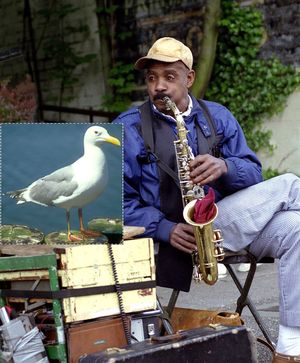
Transformación del fragmento -
Paso 7. Ahora necesitas completar la extracción de la foto insertada. Esta tarea es más fácil si la gaviota la escala para ajustarse a la ventana de la imagen. Con el regulador de tamaño en el Navegador puede hacer que la imagen colocada sea tan grande como la ventana permita.
Seleccione la herramienta Eliminar área
 y dibuje un contorno alrededor de la gaviota. Seleccione la herramienta Conservar área
  y trace una línea justo en el interior del borde de la figura de la gaviota.
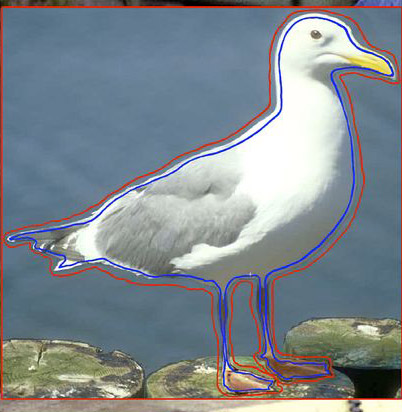
Realice los trazos o contornos -
Paso 8. Haga clic en el botón ejecutar
 para procesar la creación del montaje. El resultado se mostrará en la pestaña Después.
-
Paso 9. Haga clic en el botón Aplicar
 para cerrar la ventana del plugin. El montaje de la foto se realzará en la pantalla, y se nos mostrará increíble y conmovedora.
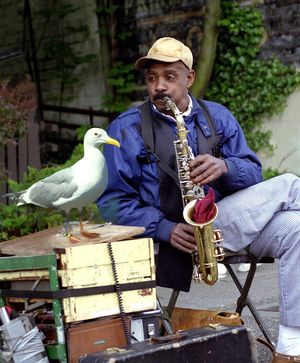
Foto montaje
Chameleon v. 12.2 - Prueba gratuita de 10 días
