Graphic software for Windows Mac graphic software  
Ingrese su email para suscribirse a la lista de AKVIS.
 
  
  Productos     Descargar     Tienda Online     Tutorial     Apoyo técnico     Compañia
en  fr  de  es  pt  it  jp  ru    
 

Tutorial: AKVIS Chameleon

"Blend" Mode


Esta información está disponible solamente en inglés. La version española aparecerá pronto.

Follow the instruction to create a collage using the Blend Mode of AKVIS Chameleon.

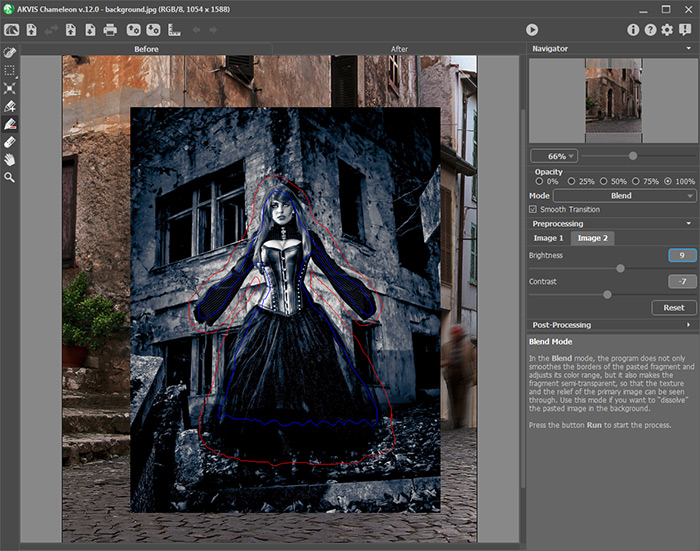
In the Blend Mode, the program does not only smoothes the borders of the inserted object and adjusts its color range, but it also makes the object semi-transparent, so that the texture and the relief of the primary image can be seen through. Use this mode if you want to “dissolve” the inserted image in the background.

  • Step 1. Open an image with the object that you want to transfer to a new background.

  • Изображение бабочки
  • Step 2. Select the object with any selection tool.

  • Выделяем бабочку
  • Step 3. Call AKVIS -> Chameleon – Grab Fragment from the Filter menu of the photo editor.

    Adobe Photoshop - Filter –> AKVIS –> Chameleon – Grab Fragment; Paint Shop Pro - Effects –> Plugins -> AKVIS –> Chameleon – Grab Fragment; Corel PHOTO-PAINT - Effects –> AKVIS –> Chameleon – Grab Fragment.

    If everything is done correctly you’ll see a message that selected object is saved into the clipboard.

  • Step 4. Open an image that will be used as a background for the future collage
    Фоновое изображение цветка

    and call the command AKVIS –> Сhameleon – Make Collage from the menu Filters.

    Adobe Photoshop - Filter –> AKVIS –> Chameleon – Make Collage; Paint Shop Pro - Effects –> Plugins -> AKVIS –> Chameleon – Make Collage; Corel PHOTO-PAINT - Effects –> AKVIS –> Chameleon – Make Collage.

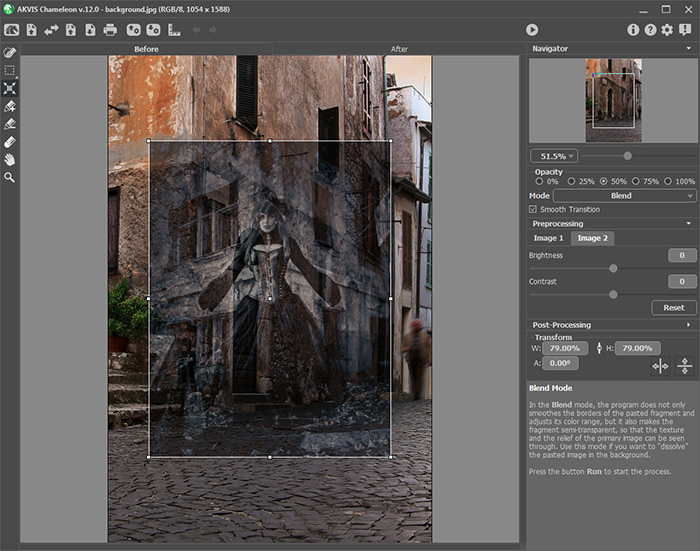
    The AKVIS Chameleon window will open. The window will contain the background image and the pasted object.

    Окно плагина AKVIS Chameleon

    Note: If you begin with Step 4, the window will show the last used fragment.

  • Step 5. Select the Blend mode from the drop-down menu in the Settings panel.

  • Step 6. Set the value of the Opacity parameter. This parameter is auxiliary and does not affect the final result. Use it when you need to position the fragment on the image at a high accuracy. With 100% the pasted object is non-transparent. The lower the value of the parameter, the more transparent is the fragment.

    In this case we do not need to change this parameter, as we do not have a precise position for the butterfly.

  • Step 7. Use the Transform tool from the Toolbox to change the size, the position, and the rotation angle of the pasted fragment on the background image. If you press the button (T) a dotted frame will appear and the Settings panel will show the transformation parameters.
    Изменяем размер и положение фрагмента

    To change the size of the object, bring the cursor to the dotted frame. The cursor will turn into a two-sided arrow . Keeping the left mouse button pressed, increase or reduce the size of the fragment. Besides, you can scale the image by changing the parameters W (width) and H (height).

    There is a proportion sign between the parameters W and H. If this option is enabled the image will be scaled proportionally, if it is disabled you can set your own parameters.

    To rotate an object, bring the cursor to one of the angle markers to get a rounded two-arrows pointer , move the pointer keeping the left mouse button pressed. You can rotate an object by setting the parameter A (angle) to a value between 0 to 360 in the Settings panel.

    To move an object bring the cursor inside the object, the cursor will turn into a cross . Move the object keeping the left mouse pressed.

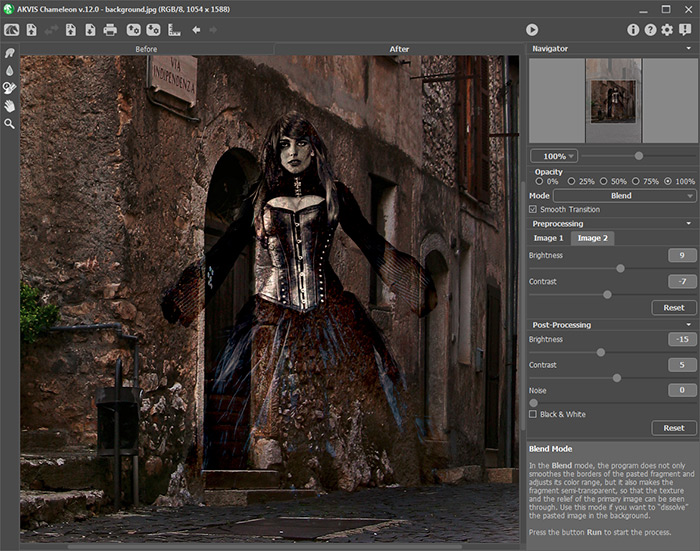
  • Step 8. Click on to start the process of the collage creation. The result will be shown in the After tab. You can switch between the tabs using the button Tab.
    Результат работы плагина (Закладка "После")
  • Step 9. You can save the fragment used for the collage: press the button ( Ctrl+S (Command+S on Macintosh) hot-key) on the Control Panel, in the Save fragment and strokes dialog box enter a name for the file and indicate a folder to which you want to save the file.

    The fragment will be saved with the .chameleonFragment extension. The file will contain information about the fragment's location and the settings.

    Open the saved fragment with the button (Ctrl+O (Command+O on Macintosh) hot-key) and choose the fragment in the Load fragment and strokes dialog box.

  • Step 10. Click on to apply the result and close the plugin's window.
    Получившийся коллаж, бабочка на цветке


Cómo funciona Cómo funciona
Modo Montaje  Modo Montaje
   — Photo Hunting — Photo Hunting
Modo Camaleón Modo Camaleón
   — Yates en el mar — Yates en el mar
   — Cambiar la apariencia — Cambiar la apariencia
   — Hacerse un tatuaje — Hacerse un tatuaje
   — Camaleón en el fuego — Camaleón en el fuego
   — Velero en paisaje marino — Velero en paisaje marino
   — Flores y un Gato — Flores y un Gato
   — Elefante en la sabana — Elefante en la sabana
   — Etiqueta de limonada — Etiqueta de limonada
   — Ruinas romanas — Ruinas romanas
   — El lago de los cisnes — El lago de los cisnes
   — Mono con una máscara — Mono con una máscara
   — La vista de la Tierra — La vista de la Tierra
   — Collage con una chica — Collage con una chica
   — Timbre postal — Timbre postal
   — Composición de fotos — Composición de fotos
   — La paloma de la paz — La paloma de la paz
   — Muchacha en el ocaso — Muchacha en el ocaso
   — Una tarjeta de felicitaciones — Una tarjeta de felicitaciones
   — Crear un fotomontaje dramático — Crear un fotomontaje dramático
   — Un paisaje rural — Un paisaje rural
Modo Fusionar Modo Fusionar
   — Pintura sobre madera — Pintura sobre madera
   — Tarjeta postal — Tarjeta postal
   — Tarjeta de San Valentin — Tarjeta de San Valentin
   — La paloma en el fuego — La paloma en el fuego
   — Collage fantástico — Collage fantástico
   — Foto en fuego — Foto en fuego
   — Lechuza en el bosque — Lechuza en el bosque
   — Guindas maduras — Guindas maduras
   — La mariposa en el muro — La mariposa en el muro
   — Pájaro en el cielo — Pájaro en el cielo
   — Paisaje de otoño — Paisaje de otoño
   — Leopardo para papel de tapiz — Leopardo para papel de tapiz


   Política de privacidad | Mapa Web | Buscar | English  | Français  | Deutsch  | Español  | Português  | Italiano  | 日本語  | Pусский  | © 2004-2008, AKVIS Software Inc. Todos los derechos reservados.