Fantastic collage
Sometimes to create an outstanding design for a book (a postcard, a poster etc) you may need to combine various objects. These objects may be absolutely alien to each other.
AKVIS Chameleon is the right tool to create such fantastic images.
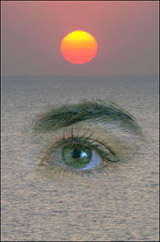
We will try to combine a human eye and a sea view.
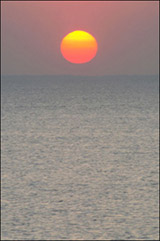
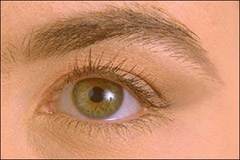
In the first stage we will select the eye and the eyebrow with the Lasso tool or Elliptical Selection tool.
Note: If you work in the standalone version of AKVIS Chameleon just use the pencil tools in the program to draw red and blue outlines. They are available in the plugin version too. With these tools you can draw the contours and edit them.
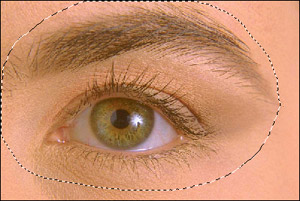
Then we copy the selection by calling AKVIS -> Chameleon -> Grab Fragment from the Effects menu.
We switch back to the image with the sea view and call AKVIS -> Chameleon -> Make Collage from the Effects menu. The AKVIS Chameleon plug-in window opens. The sea view and the fragment (eye) appear in the Before tab.
Next we select Blend mode from the drop-down menu in the Settings Panel.
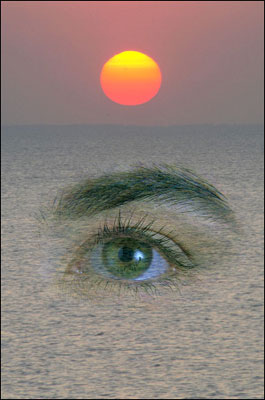
In Blend mode, the program does not only smoothen the borders of the inserted object and adjusts its color range, but it also makes the object semi-transparent, so that the texture and the relief of the primary image can be seen through. We can use this mode if we want to "dissolve" the inserted image in the background.
Adjust the eye’s size and position with the Transform  tool from the Toolbar.
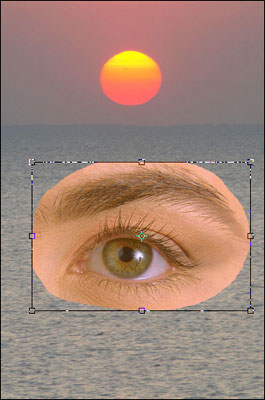
We press the button  to start the collage creation process. The result will appear in the After tab.
Then we press the button  to apply the collage to the image.
Even though the view is a fantasy it looks very nice.
Chameleon v. 12.2 - Free 10-day Trial
