Workspace
AKVIS Chameleon can work independently as a standalone program and as a plug-in to a photo editor.
Standalone is an independent program; you can open it by clicking on the program's icon.
To launch the standalone version, run the program directly:
On a Windows computer - select it from the Start menu or use the program's shortcut.
On a Mac computer - launch the app from the Application folder.
Plugin is an add-on for a photo editor, for example for Photoshop. To call the AKVIS Chameleon plug-in do the following:
Open an image with the object that you want to use for creating a collage.
Use any selection tool to select a fragment and choose Chameleon - Grab Fragment from the Filter/Effects menu of the photo editor.
Open an image that will be used as a background for the future collage and choose Chameleon - Make Collage from the menu Filter/Effects.
The workspace of AKVIS Chameleon looks like this:
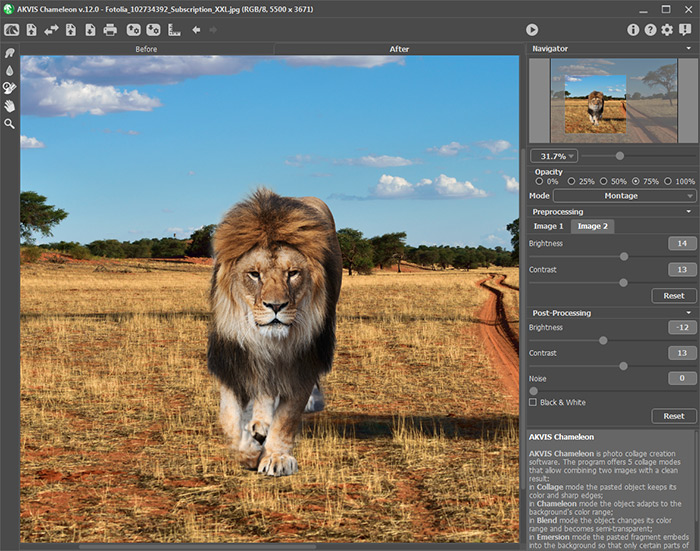
Workspace of AKVIS Сhameleon
It consists of the following elements:
The left part of the program's window is taken by the Image Window with two tabs: Before and After. The background image will be displayed in the Before tab, and above this the image, from which the desired fragment will be taken. This will be an entire image in the standalone version. In the plug-in this will be a selection made in a graphics editor, which can be adjusted within the Before tab. The resulting collage will be displayed in the After tab.
In the upper part of the program’s window, you can see the Control Panel with the following buttons:
-
The button
 opens the home page of AKVIS Chameleon.
-
The button
 (only in the standalone) opens the image that will be used for the background. The hot-keys for the command are Ctrl+O on Windows, ⌘+O on Mac. It's also possible drag the required image into the workspace of the program.
-
The button
 opens the foreground image from which a fragment will be taken.
-
The button
 allows you to swap the background (1) and fragment (2) images.
-
The button
 (only in the standalone version) saves an image to the disk. The hot-keys are Ctrl+S on Windows, ⌘+S on Mac.
-
The button
 (only in the standalone version) helps to print the image. The hot-keys are Ctrl+P on Windows, ⌘+P on Mac.
-
The button
 opens the files with the ending .chameleonFragment. You can save the fragment that you use to make a collage. The file will contain information about the fragment’s location on the background image, the drawn outlines and the parameters on the Settings Panel.
-
The button
 saves the fragment with its parameters to the separate file .chameleonFragment.
-
The button
 shows/hides the guidelines.
-
The button
 cancels the last action. If you press this button several times, you can cancel several actions. The hot-keys are Ctrl+Z on Windows, ⌘+Z on Mac.
-
The button
 restores an action cancelled by . The hot-keys are Ctrl+Y on Windows, ⌘+Y on Mac.
-
The button
 starts the process of collage creation. Use hot-keys: Ctrl+R on Windows, ⌘+R on Mac.
-
The button
 (only in the plugin version) allows closing the AKVIS Chameleon plugin window and applying the collage into your photo editor.
-
The button
 calls information about the program.
-
The button
 calls help files to the program. The hot-key is F1.
-
The button
 button calls the Preferences dialog box for changing the program's options.
-
The button
 opens a window showing the latest news about Chameleon.
At the left side of the Image Window is the Toolbar. Parameters for the chosen tool are shown in the Settings Panel.
A description of each tool can be read here.
Navigate and scale the image using the navigation window — Navigator. In the Navigation Window you can see the reduced copy of the image. The frame shows the part of the image that is now visible in the Image Window; the areas outside the frame will be shaded. Drag the frame to make other parts of the image visible. To move the frame, bring the cursor inside the frame, press the left mouse button and, keeping it pressed, move the frame in the Navigator.
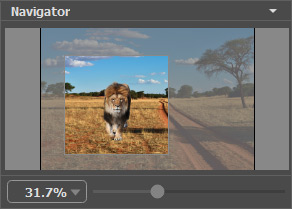
Navigation Window
Use the slider to scale the image in the Image Window. When you move the slider to the right, the image scale increases. When you move the slider to the left, the image scale decreases.
To scroll the image in the Image Window you can press the spacebar on the keyboard and drag the image with the left mouse button. Use the scroll wheel of the mouse to move the image up/down, by keeping the Ctrl key pressed (Mac: ⌘) – to the left/to the right, by keeping the Alt key pressed (Mac: Option) − scale the image. Right-click on the scroll bar to activate the quick navigation menu.
You can also change the image scale by entering a new coefficient into the scale field and pressing the button Enter (Return on Mac). The drop-down menu shows some frequently used coefficients.
You can use hot-keys to change the image scale + and Ctrl++ (⌘++ on Mac) to increase the image scale and - and Ctrl+- (⌘+- on Mac) to reduce the scale.
Under the Navigator there is a Settings Panel where you can choose the Mode to create the collage and settings to the selected mode.
Under the Settings Panel you can see Hints for the parameters and buttons when you hover over them with the cursor. You can choose where the hints will be shown or hide them in the program's Preferences.
Chameleon v. 12.2 - Free 10-day Trial
