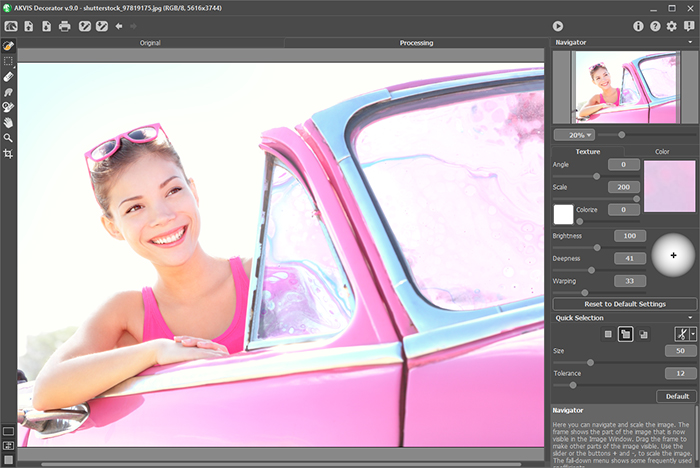
Step 4. You can apply a new texture to the object or recolor it. Therefore in the following step you should select a texture or a color.
Select a texture
A texture is chosen from the Texture Library. To open the Texture Library you should double-click with the left mouse button on the square with a texture.
The built-in Texture Library has a great variety of textures. All textures are divided into groups: stone, fabric, flowers, etc. To select a pattern you should first select a group from the group tree and then double-click the required texture with the left mouse button.
You can also use your own textures. For this purpose you should adjust their size (100 x 100 px) and save it as a jpg file with High or Maximum quality into any folder on your computer.
To load this texture into AKVIS Decorator, you should open the Texture Library, press the button
and select your texture in the dialog box Open.
To come back to the Settings Panel without selecting a texture, just press the button
.
The program allows adjusting Angle, Scale and Color of the selected texture.
If you change the texture's parameters, you should press the button Generate to apply the changes to the texture.
Select a color
If you do not want to apply a new texture to the object and your task is only to change its color, you should switch to the Color tab in the Settings panel and choose a color.
You can select a color from the Color Palette, from the Standard Color Selection Dialog or from the original image.
To select a color from the Color Palette just left-click on any color of the palette. The selected color will be shown in the color rectangular on the right.
The Standard Color Selection Dialog opens as you double-click the color rectangular on the right of the palette.
Besides, it is possible to choose a color from the
original image. For this purpose left-click on any point of the
original image keeping the Ctrl key pressed (Command on Macintosh).
Over the color rectangular on the Color tab there is a mini-palette, where you can keep custom colors. To save a color in the mini-palette, just drag this color from the color rectangular on any cell of the palette (even if the cell is not free). To select a color from the mini-palette, just left-click it with the mouse. To remove a color, right-click it.