How to Use The Program
AKVIS Decorator lets you change the surface of an object in a realistic manner. The program applies a texture keeping the volume of an object, following its folds and creases. The new pattern looks absolutely natural and makes you see things differently.
To resurface or recolor an object on a photo with AKVIS Decorator follow these instructions below:
- Step 1. Open an image.
- If you work with the standalone edition:
The dialog box Select File to Open appears if you double-click on the empty workspace of the program or if you click on the button
 on the Control Panel. You can also drag the required image into the workspace of the program. The Standalone edition of AKVIS Decorator supports JPEG, PNG, BMP, WEBP, and TIFF file formats.
- If you work with the plugin:
Open an image in your photo editor by calling the command File -> Open or using the key combination Ctrl+O on Windows, ⌘+O on Mac.
Then call the AKVIS Decorator plugin in the Filter/Effects menu of the photo editor:
in AliveColors: Effects -> AKVIS -> Decorator;
in Adobe Photoshop: Filter -> AKVIS -> Decorator;
in Corel PaintShop Pro: Effects -> Plugins -> AKVIS -> Decorator;
in Corel Photo-Paint: Effects -> AKVIS -> Decorator.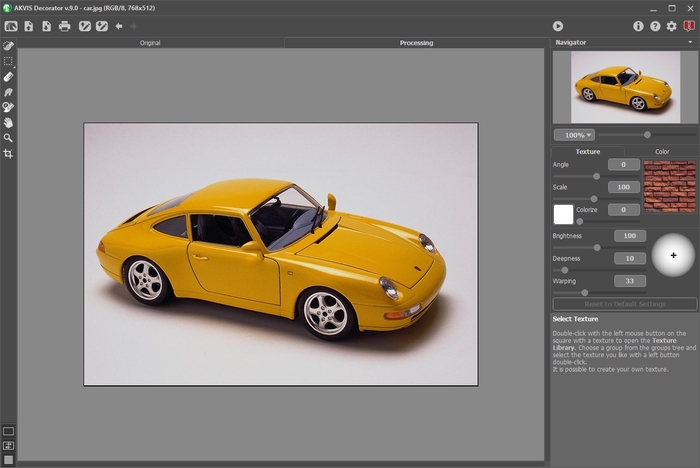
- Step 2. Select an object to apply a texture on. The selection must be precise.
In AKVIS Decorator, you can make/edit the selection with these tools:
 ,
,  ,
,  ,
,  ,
,  ,
,  .
.
The tools' parameters are shown in the Settings Panel or a pop-up box after right-clicking in the image window.
If you work with the Decorator plugin, you can use any selection tool of your photo editor. A selection made in the graphics editor will be transferred to the plug-in.
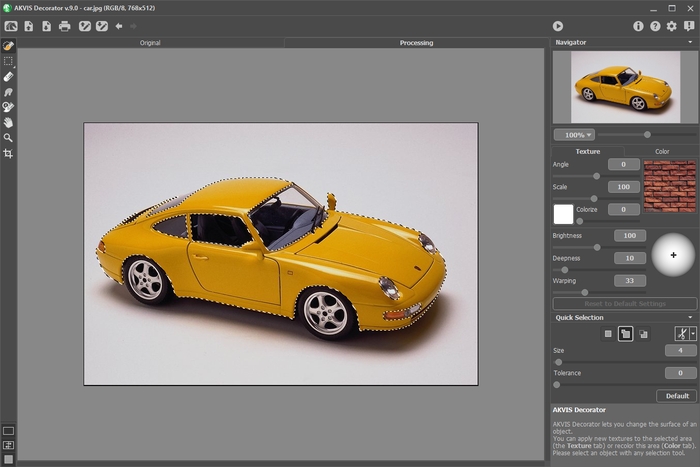
You can save your selection to a .decor file using
 . It's possible to load the selection with
  .
.
- Step 3. In Decorator, you can apply a new texture to the selected object or recolor it. Adjust the parameters in the Settings Panel, in the Texture or Color tab.
- Step 4. Press the button
 to apply a texture or a color to the selected object. The result will be shown in the Processing tab. If necessary, continue adjusting parameters, edit the selection or create a new one. Then re-run the processing.
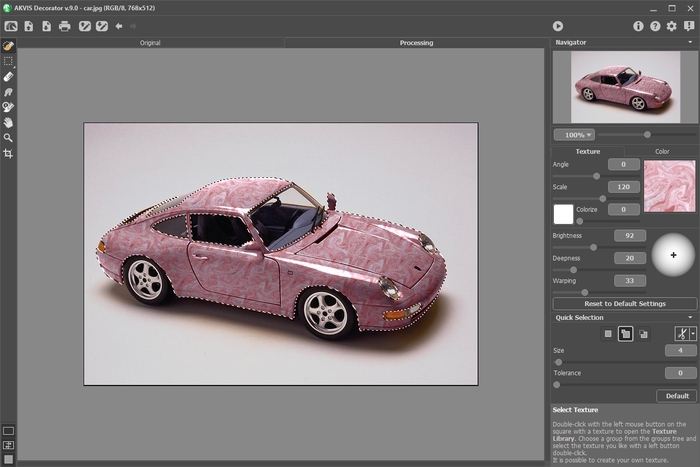
- Step 5. You can put the finishing touches to your image using the Smudge
 and History Brush
  tools, available under the Home Deluxe/Business licenses.
- Step 6. In the standalone version you can also print your picture with
 .
.
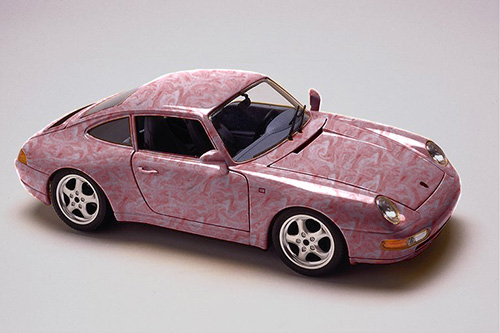
- Step 7. Save the processed image.
- If you work with the standalone edition:
Click on the button
 to open the Save as dialog box. Enter a name for the file, choose the format (TIFF, BMP, JPEG, WEBP or PNG) and indicate the target folder.
- If you work with the plugin:
Press the button
 to apply the result to the picture.
Call the Save As dialog box using the command File -> Save As, enter a name for the file, choose the format and indicate the target folder.
Decorator v. 9.1 - Free 10-day Trial
