Enliven the Scenery
The tutorial has been created by Philipp Schuster in AliveColors.
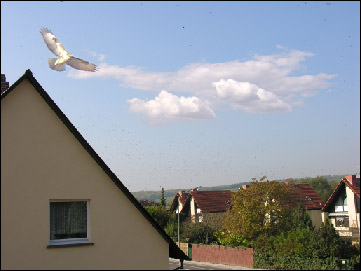
AKVIS Chameleon will help you to turn a boring picture into a lovely photo collage just by adding new objects from other photos. AKVIS Chameleon will perform the difficult job of adjusting the pasted objects to the new background and processing the borders of these objects.
-
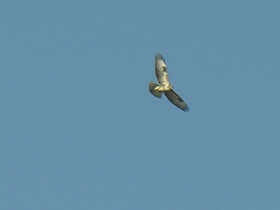
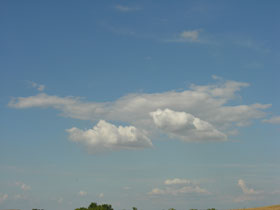
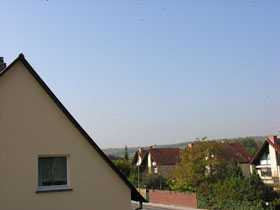
Step 1. Open the images for the photo collage in your photo editor: a photo of the sky (it’ll be the background image), an image of a bird and white clouds in the blue sky.
-
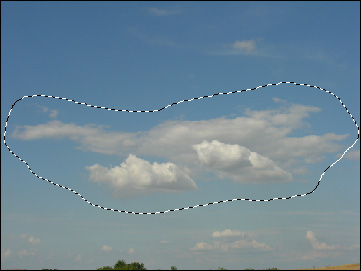
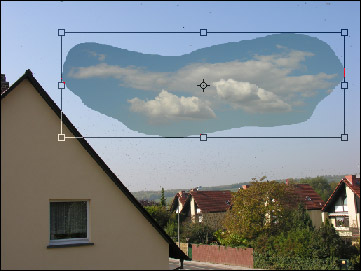
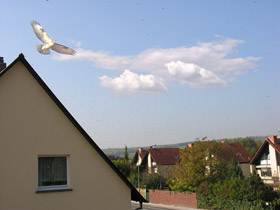
Step 2. Start mounting the collage by adding the clouds to the photo. Use the Lasso tool to select the clouds. The selection does not need to be precise; it can include the sky around the clouds.
-
Step 3. Copy the selection by calling Effects -> AKVIS -> Chameleon - Grab Fragment. If successful you should see a message stating that the fragment was copied to the clipboard.
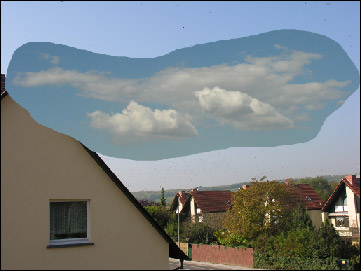
Open the photo of the sky and call Effects -> AKVIS -> Chameleon - Make Collage. The AKVIS Chameleon plug-in window will open, with the photo of the sky and the copied fragment in the Before tab.
Select Chameleon mode from the drop-down menu in the Settings Panel.
-
Step 4. Adjust the size and position of the fragment (clouds) with the Transform tool
 from the Toolbar.
-
Step 5. Press the button
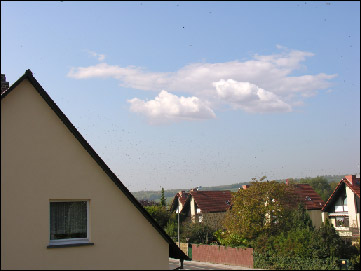
 to start processing the collage. The result will appear in the After tab. To apply the collage to the photo, press the button
  .
.
-
Step 6. Now comes the bird. First we select the bird with the Lasso tool, then copy the selection by calling Effects -> AKVIS -> Chameleon - Grab Fragment.
Open the background image and call Effects -> AKVIS -> Chameleon - Make Collage.
Select Chameleon mode from the drop-down menu in the Settings Panel.
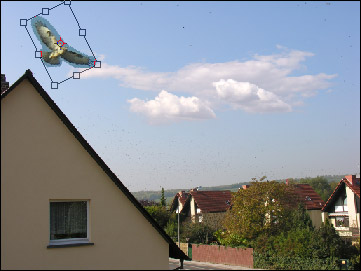
Move the bird with the Transform tool
from the Toolbar so that it’s wing is over the cloud.
-
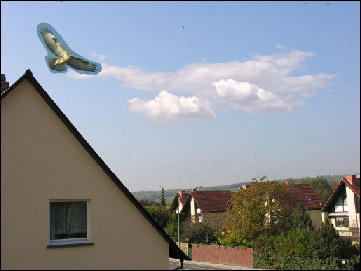
Step 7. Press the button to start processing the collage as before. The result will appear in the After tab. To apply the collage to the photo, press the button .
Chameleon v. 12.1 - 10日間の評価期間

