Una foto pintada con acuarela
El autor de este ejemplo K.J. Hartmann escribe:
Intenté muchas veces convertir una foto a bosquejo o dibujo usando diferentes programas pero no quedaba siempre satisfecho con la imagen final. ¡Ahora uso AKVIS Sketch y estoy encantado con el resultado!
Para este tutorial usé AKVIS Sketch y uno de los filtros estándar de Adobe Photoshop. Mostraré como convertir una foto en una obra de arte.
 |
 |
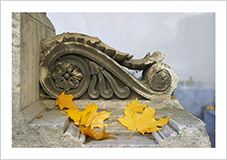
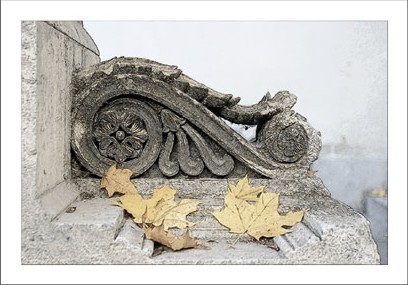
| Otoño, foto original | Pintura de acuarela |
-
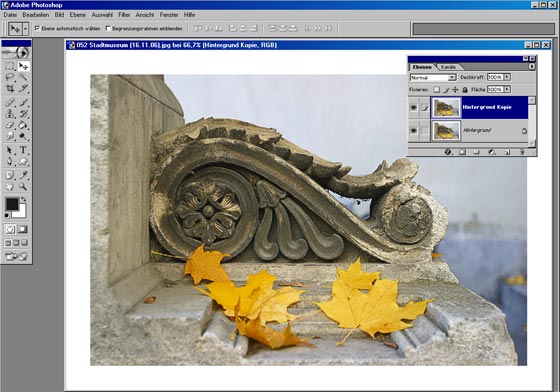
Paso 1. Abrir la imagen en Adobe Photoshop, duplique esta imagen para conseguir una capa más (Capa -> Duplicar capa (Ctrl+J)).
Por defecto selecciona la capa superior y empezamos a trabajar con ella.
- Paso 2. Llame el plugin (Filtro -> AKVIS -> Sketch).
-
Paso 3. Ajuste el parámetro Coloración en el panel Efectos a 40. Pulse el botón
 . La pestaña Después nos muestra el resultado del dibujo a lápiz.
-
Paso 4. Para aplicar el resultado pulse el botón
 .
.
Aquí está el dibujo a lápiz, lo tenemos en la segunda capa de nuestra imagen.
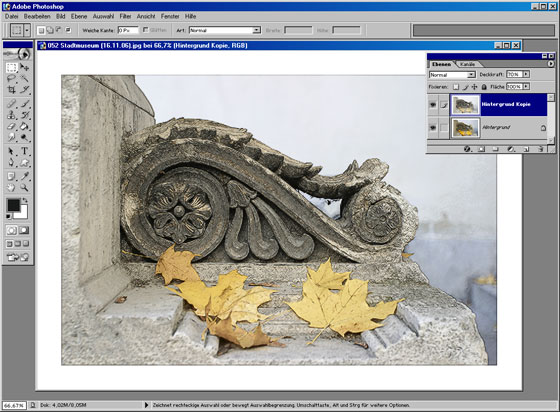
- Paso 5. Ahora desactivamos la visibilidad de la segunda capa con un doble clic en el icono del ojo cerca de la capa en la paleta Capas. La necesitamos para ver el resultado de nuestras manipulaciones con la capa inferior. A continuación, activamos la capa inferior (capa de fondo) y vamos trabajar con él.
-
Paso 6. Llame Filtro -> Artístico -> Espátula en la capa de fondo y establezca los parámetros a su gusto.
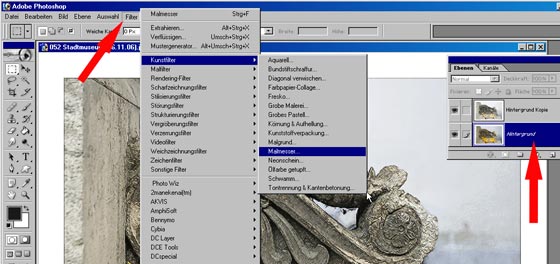
El resultado será similar a la imagen siguiente:
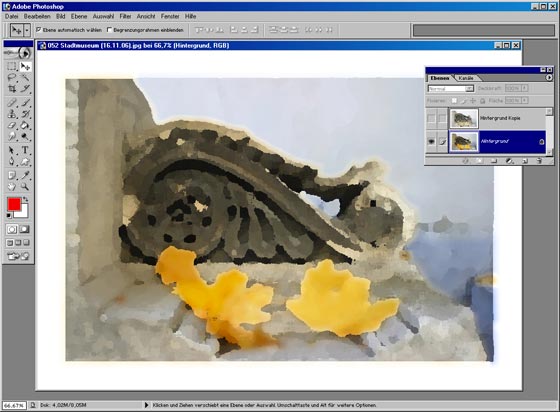
-
Paso 7. Active la visibilidad de la primera capa con un doble clic en el icono del ojo de la paleta Capas. Elija el modo de fusión Luz suave en el menú despegable de la propia paleta Capas.
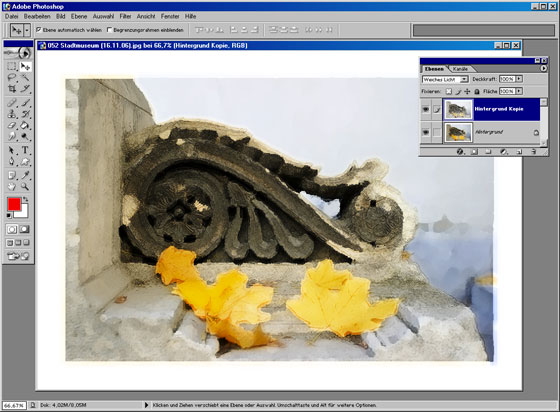
La imagen se verá bien con un marco de fotos. Para este fin usted puede utilizar AKVIS ArtSuite.
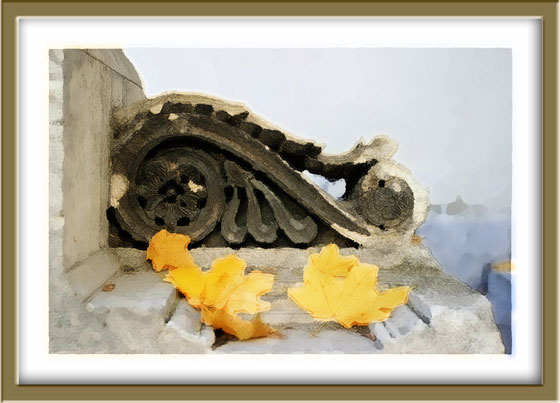
Pintura de la acuarela enmarcada
(haga clic en la imagen para abrir la copia más grande en una nueva ventana)
Sketch v. 28.1 - Prueba gratuita de 10 días
