Dibujo en blanco y negro enmarcado
El autor del ejemplo es Sanjeev Saha, Nueva Delhi, INDIA.
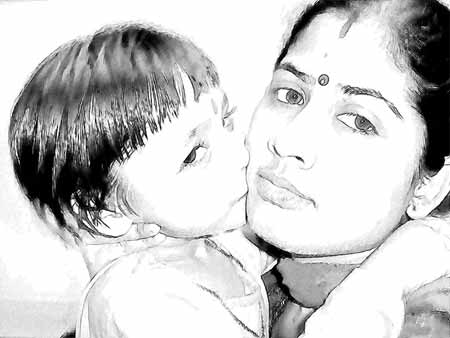
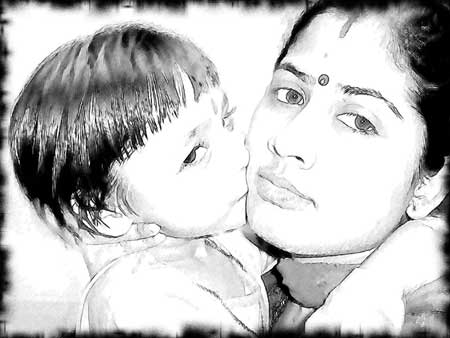
Aquí tenemos una foto de familia de la India. El autor nos muestra como crear un dibujo en blanco y negro original usando un editor de fotos y plugins de AKVIS Sketch y AKVIS ArtSuite.
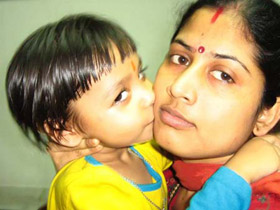
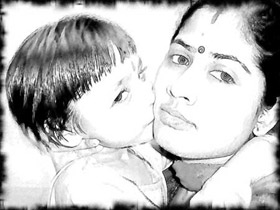
El autor utiliza AliveColors, pero se puede trabajar con cualquier editor de fotos compatible con los plugins de AKVIS.
O, si usted no tiene un editor de fotos, puede utilizar Sketch y ArtSuite en sus ediciones independientes.
-
Paso 1. Primero elija una foto y abrala en el editor de fotos.
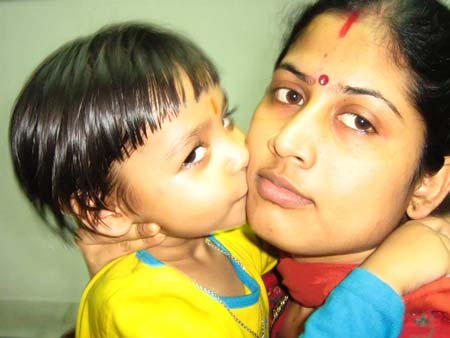
-
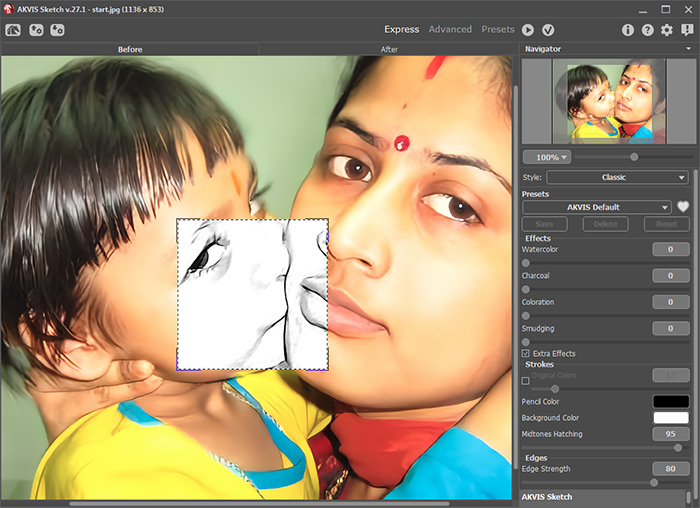
Paso 2. Vamos a llamar a AKVIS Sketch en el menú principal de efectos del editor Effects -> AKVIS -> Sketch. Ejecute AKVIS Sketch con la configuración predeterminada.
-
Paso 3. Para conseguir un dibujo más natural tenemos que cambiar la configuración. Establezca el valor de los parámetros como se muestra a continuación Acuarela = 1, Sombreado de tonos medios = 87. Mantenga el resto de los parámetros a sus valores predeterminados.
Puedes jugar con los parámetros y obtener el efecto que desea.
-
Paso 4. Pulse el botón
 para procesar la foto con AKVIS Sketch.
Aquí está el resultado y el botón
 para aplicar el resultado y cerrar la ventana del plugin.
Tenemos un bosquejo increíble.
-
Paso 5. Vamos a usar AKVIS ArtSuite para enmarcar esta imagen y darle el toque final.
Ejecute AKVIS ArtSuite el menú principal de los efectos del editor Effects -> AKVIS -> ArtSuite.
En el menú de Marcos elegimos Spray, Color del marco = Negro, Ancho del marco = 21%, Densidad = 99 y Número aleatorio a su elección. Hemos establecido este valor en 4980.
-
Paso 6. Pulse el botón para ver el marco de fotos en el área de vista previa. A continuación, pulse el botón para aplicar el marco de fotos a la imagen y cerrar el plugin.
Ahora nuestra foto tiene una mirada artística.
Sketch v. 28.1 - Prueba gratuita de 10 días
