Graphic software for Windows Mac graphic software
Entrar seu e-mail para subscrição em novidades.
 
  
  Produtos     Download     Online Store     Tutorial     Suporte     Quem Somos
en  fr  de  es  pt  it  jp  ru    
 

Tutorial: AKVIS Sketch

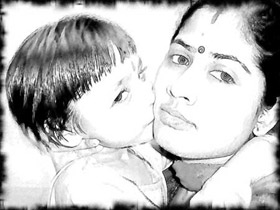
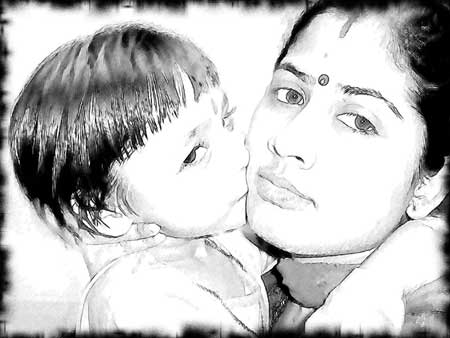
Framed black and white sketch


Neste momento algumas páginas estão disponíveis somente em Inglês e em Espanhol.
Você pode obter uma licença para qualquer programa AKVIS, se traduzir os arquivos do nosso acervo
para o Português (do espanhol ou do inglês) para saber mais escreva para o team@akvis.com

The author of the example is Sanjeev Saha, New Delhi, INDIA

Here we have a family photo from India. The author shows us how to create an original black and white sketch using a photo editor, AKVIS Sketch and AKVIS Frame Suite.

The author used Jasc Paint Shop 7, but you can use any photo editor compatible with AKVIS plugins.

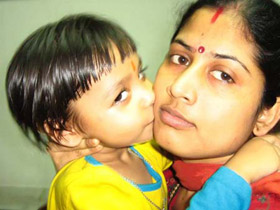
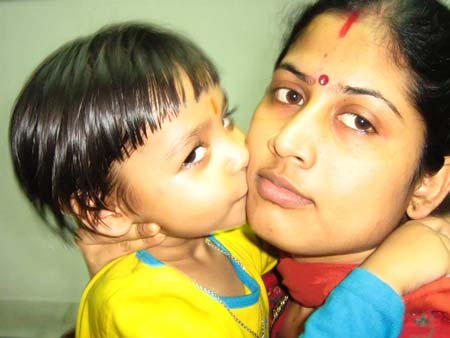
  • Step 1. First choose a photo and open it in the photo editor.
    Original photo of the family
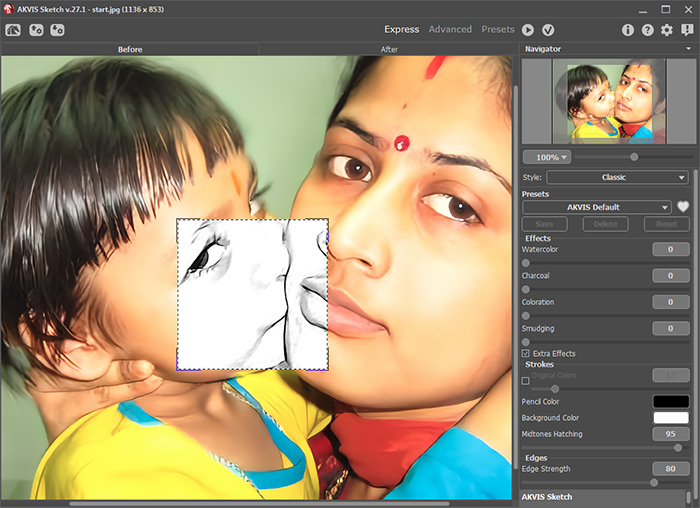
  • Step 2. Let's call AKVIS Sketch from the main menu of the photo editor Effects->Plugin Filter->AKVIS->Sketch. Run AKVIS Sketch with default settings.
    AKVIS Sketch with default settings

    We get the following image:

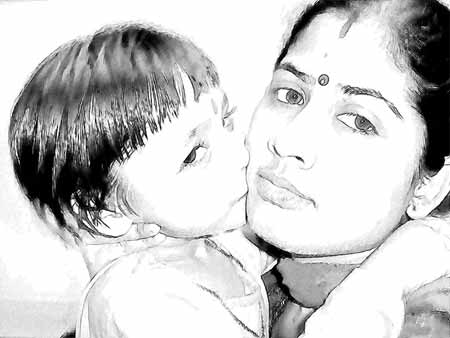
    Applying the result of AKVIS Sketch with default settings
  • Step 3. But to get a more natural sketch we should change the settings. Set the value of the parameters as shown below Effects Watercolor=1, Charcoal=0, Coloration=0, Stroke Angle=45, Size=8, Min Length=3 Max=8, Midtone Intensity=5, Midtone Hatching=87 and Sharpen=80.
  • Step 4. Press the button Run to process the photo with Akvis Sketch.
    Sketch. The author's settings

    Here is the result.

  • Step 5. Press the button Apply to apply the result and close the plugin window.

    Here we have an amazing sketch.

    The image after using AKVIS Sketch
  • Step 6. Let's use AKVIS Frame Suite to frame this image and give it the final touch. Call Akvis Frame Suite from the main menu of the photo editor Effects->Plug-in->AKVIS->Frame Suite. In the fall-out menu we choose Frame Spray, Frame Color will be Black, Frame Width=21 px, Density=99 and Random Seed on your choice. We set this value to 4980.
  • Step 7. Press the button Run to see the photo frame in the preview area.
    Add a frame

    And then press the button Apply to apply the photo frame to the image and close the plug-in.

    Now our photo has an artistic look.

    Black and white sketch
 
Como Funciona Como Funciona
   — Área de Trabalho — Área de Trabalho
   — Utilizando o Programa — Utilizando o Programa
   — Desenho a lápis a partir de foto — Desenho a lápis a partir de foto
   — Efeitos de Fundo — Efeitos de Fundo
   — Adicionar texto — Adicionar texto
   — Desenho em Tela — Desenho em Tela
   — Ajustes predefinidos — Ajustes predefinidos
   — Opções — Opções
Exemplos Exemplos
   — Vamos desenhar uma tulipa — Vamos desenhar uma tulipa
   — Desenho Colorido — Desenho Colorido
   — Um vídeo em um desenho animado — Um vídeo em um desenho animado
   — Desenho com pasteis — Desenho com pasteis
   — Um inverno dos sonhos — Um inverno dos sonhos
   — Efeito: foto no desenho a lápis — Efeito: foto no desenho a lápis
   — Faça um desenho a partir de uma foto — Faça um desenho a partir de uma foto
   — Desehno a lápis — Desehno a lápis
   — Porto Tranqüilo: uma aquarela — Porto Tranqüilo: uma aquarela
   — Um casal encantador — Um casal encantador
   — Parada do Momento!(Desenho&Desfoque) — Parada do Momento!(Desenho&Desfoque)
   — Versailles: Viagem ao passado — Versailles: Viagem ao passado
   — Auto-expressão: desenho em um minuto — Auto-expressão: desenho em um minuto


   Política de privacidade | Mapa do Site | Pesquisar na site | English  |Français  |Deutsch  |Español  | Português  |Italiano  |日本語  |Pусский  | © 2004-2009, AKVIS Software Inc. Todos os direitos reservados.