Esboço a lápis de velha foto sépia
O autor do tutorial, David Kelly nos escreveu:
Aqui você vai descobrir como AKVIS Sketch foi usado em conjunto com Paint Shop Pro 9 para criar um esboço preto e branco de aparência realista de uma foto original de 1912 virada em sépia, mostrando uma seção da rua Westmuir, Glasgow, Escócia.
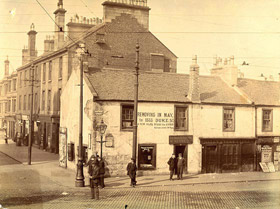
Fotografia original
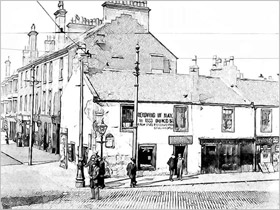
Resultado
ESTÁGIO UM: PREPARAÇÃO DA FOTO PARA CONVERSÃO POR AKVIS SKETCH
-
Passo 1. Abri uma cópia da foto original no PSP9. Tamanho de imagem:1000 x 746 pixels.
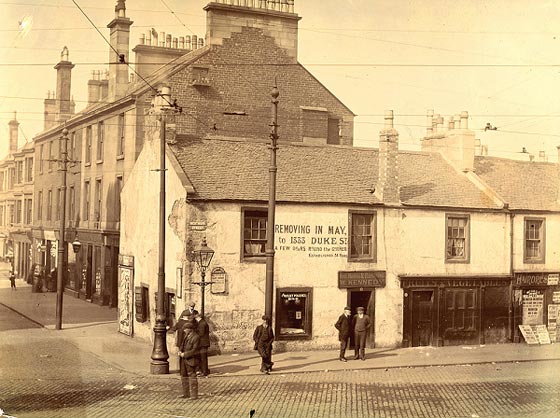
Imagem 01. Foto original de 1912 - Passo 2. Converti para escala de cinzas: Imagem -> Escala de Cinzas.
- Passo 3. Aumentei a profundidade de cor: Aumentar Profundidade de Cor - 16 milhões de cores (24 bits).
-
Passo 4. Usei a ferramenta Seleção a Mão Livre “ponto a ponto” com definição de pena a “1” para cuidadosamente selecionar uma seção clara do telhado do edifício branco, selecionar a Ferramenta Mover do PSP9, em seguida com o botão direito do mouse arrastar a seleção para uma parte mais escura do telhado. Copiar a seleção nesta seção (Ctrl+C), em seguida remover a seleção (Ctrl+D). Em continuação colar uma seção do telhado copiada como uma nova camada Ctrl+L, continuando com a ferramenta Mover e botão esquerdo do mouse arrastar e colar o fragmento de cor mais clara na parte superior correspondente do telhado. As duas seções de telhado coloridas mais leves foram substituídas usando este procedimento. A imagem foi salva como um arquivo de PSP.
Finalmente, as duas novas camadas foram fundidas com a camada de fundo original, Camadas, Mesclar, Mesclar Todas, (Achatar).
-
Passo 5. Usar comando PSP9 Curvas para ajustar valores de Brilho e Contraste: Ajustar –> Brilho e Contraste -> Curves. O resultado pode ser visto na imagem 02 abaixo.
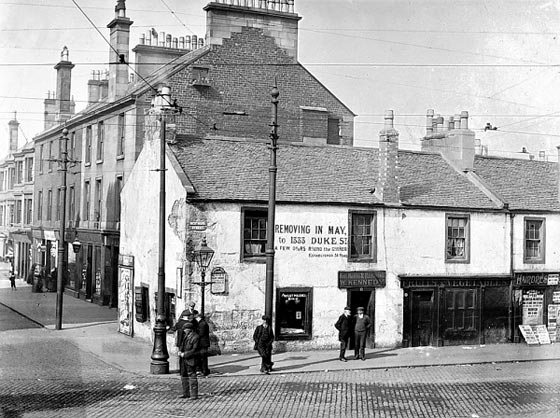
Imagem 02. Curvas ajustadas na versão preto e branco -
Passo 6. Adicionada pequena quantidade de desfoque: Ajustar –> Desfoque Gaussiano, Raio = 1.00.
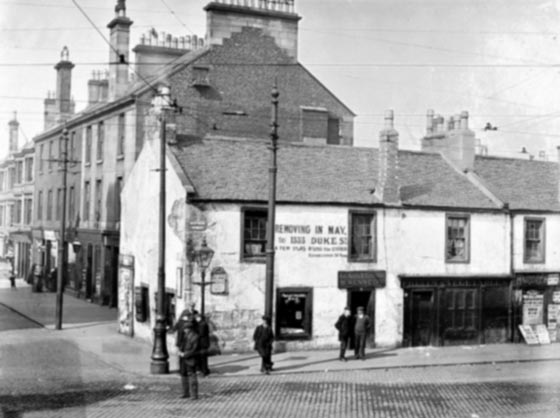
Imagem 03. Depois de aplicado pequeno Desfoque gaussiano
ESTÁGIO 2: APLICADO AKVIS SKETCH
- Passo 7. Chamado Efeitos –> Plug-ins –> AKVIS –> Sketch.
- Passo 8. Você pode ver o resultado das definições padrão na janela de visão previa.
-
Passo 9. Depois de entrar com diferentes parâmetros e clicar no botão
 para ver os resultados, use outros valores até produzir o efeito desejado.
-
Passo 10. Clique mouse esquerda no botão Aplicar
 . Isto fecha o Sketch e volta a área de trabalho do PSP 9 mostrando o esboço terminado em B&P.
-
Passo 11. Usei a Ferramenta Borracha do PSP9 para arrumar o céu.
Nota: Embora a maioria dos cabos de força cortando a foto original tenham sido removidos, isto não afetou o efeito final de esboço, nem tão pouco comprometeu a aparência de imagem do período de 1912.
-
Passo 12. Adicionada uma borda cinza claro; Imagem –> Adicionar Bordas. Entrei com os valores relevantes na caixa Adicionar Bordas então cliquei de esquerda no OK. Veja o esboço final a lápis abaixo, Imagem 04.
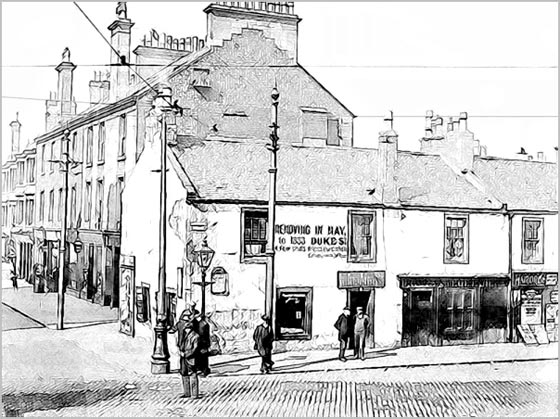
Imagem 04. Esboço a lápis terminado e salvo como uma imagem -
Passo 13. Dado nome e salvo o esboço final como imagem. Tiff sem perdas.
Nota: Nota Frequentes salvamentos foram feitos no formato proprietário do Paint.
Sumário: Em qualquer programa criativo, e AKVIS Sketch não é exceção, a arte criada é totalmente subjetiva. Entretanto, com Sketch não há razão que usados com um programa de edição de imagem compatível você não seja capaz de criar um esboço fino a cores ou preto e branco adequado para impressão, emoldurar e exposição.
Baixe o irrestrito 10 dias de experiência grátis AKVIS Sketch e dê a aquela foto velha, (não tanto), um novo sopro de vida transformando em um trabalho de arte pessoal seu.
Shop Pro durante o processo de edição/conversão.
Sketch v. 28.1 - Teste gratuito 10 dias
