Um retrato a aquarela
O autor deste exemplo é K.J. Hartmann.
"Desenhar foi sempre a minha paixão. Comecei em tempos em que gráficos no computador ainda não existiam e era obrigado a gastar muito tempo tentando conseguir aquela “aparência” que eu desejava. Os programas modernos permitem criar uma peça de arte de uma maneira confortável sem horas de desenho. E é agradável ter as ideias realizadas rapidamente!
Gosto de pinturas a aquarela e vou lhe mostrar como criar uma aquarela de uma foto.
Eu usei AKVIS Sketch para este tutorial."
 |
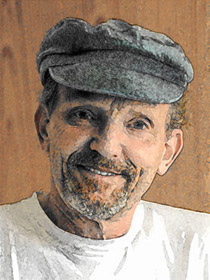 |
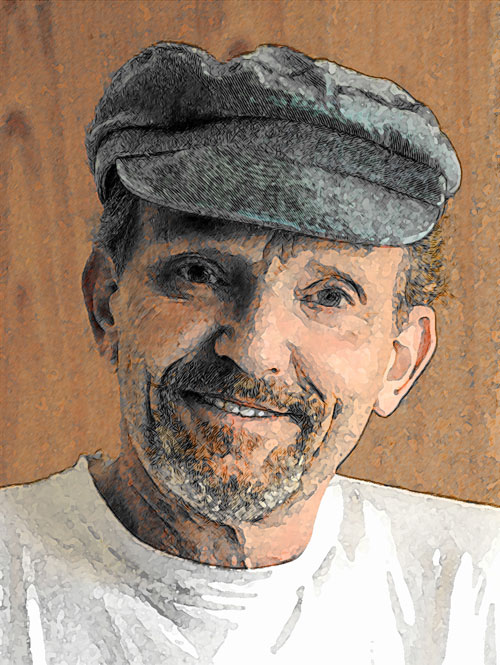
| Fotografia a cores | Resultado: Retrato a aquarela |
Vamos seguir os passos que Mr. Hartmann descreveu:
-
Passo 1. Abra a foto no Adobe Photoshop.

Clique na Imagem para abrir maior em outra janela - Passo 2. Copie a camada. Do menu do foto editor escolha Camada -> Duplicar camada (Ctrl+J). Por padrão a primeira camada será selecionada. E iremos iniciar nosso trabalho nesta camada.
-
Passo 3. Chame AKVIS Sketch. Rode-o com os parâmetros padrão apertando o botão
 . A janela Depois mostrará o esboço a lápis resultante.
Aperte o botão
 para aplicar as mudanças e fechar a janela do plugin. O resultado será semelhante ao da imagem seguinte:
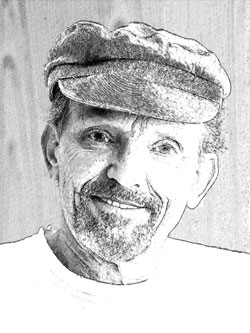
Clique na Imagem para abrir maior em outra janela - Passo 4. Agora trabalhe com a segunda camada. Desative a visibilidade da primeira camada. Duplo clique no ícone olho (indica a visibilidade das camadas) Em seguida aperte a segunda camada na paleta das camadas e trabalhe com ela.
-
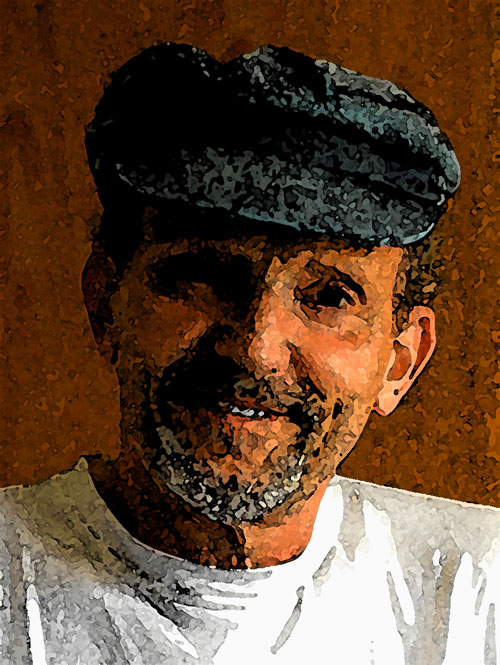
Passo 5. Chame o comando Filtro -> Artistico -> Aquarela do menu do foto editor. Aquí está o resultado:
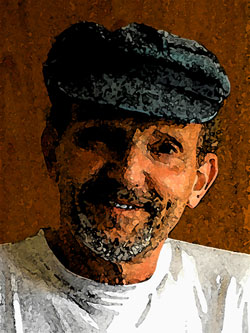
Clique na Imagem para abrir maior em outra janela -
Passo 6. Ative a visibilidade da primeira camada (duplo clique em Indicar Visibilidade das Camadas na paleta Camadas). Mas a primeira camada oculta a segunda. Por tanto escolha a primeira camada na paleta Camada e mude o valor do parâmetro de Opacidade para 50%.
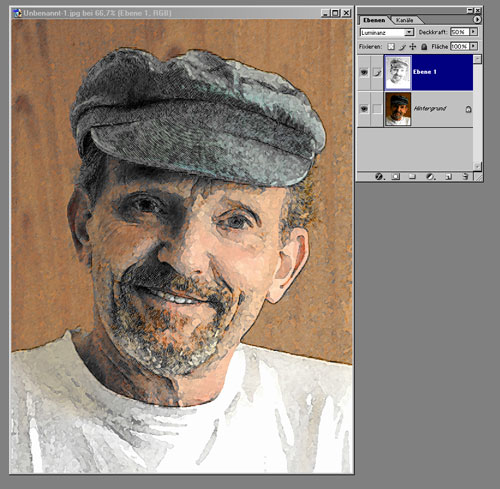
Aquí temos uma pintura a aquarela.
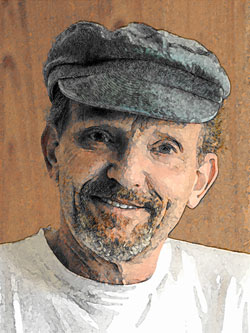
Clique na Imagem para abrir maior em outra janela


Sketch v. 28.1 - Teste gratuito 10 dias
