Do sonho para a realidade: misturando croquis e uma foto
O autor deste tutorial, George Crofton, nos enviou sua história:
"Um cliente, construtor de casas e celeiros, me contatou com uma ideia para um anúncio. Seu lema era “Se podemos esboça-lo, nos podemos construí-lo”. Ele tinha imaginado um gráfico que mostraria a mistura de um esboço com uma fotografia de seu celeiro. Ele não trouxe nenhuma foto de celeiro, assim selecionei uma foto de meu arquivo. Decidi usar Xara Xtreme Pro e AKVIS Sketch para criar um exemplo e mostrar ao meu cliente."
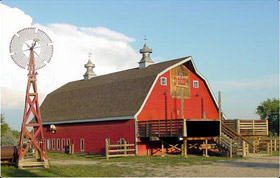 |
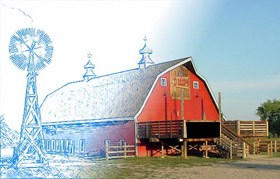 |
| Imagem original | Resultado |
-
Passo 1. Importe a imagem escolhida para Xara Xtreme Pro e mantenha selecionada.
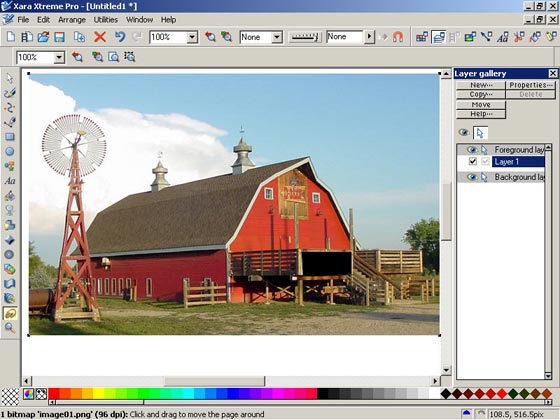
-
Passo 2. Clique com o botão direito do mouse e selecione Clonar bitmap... no menu suspenso. A imagem clonada será colocada acima da imagem original.
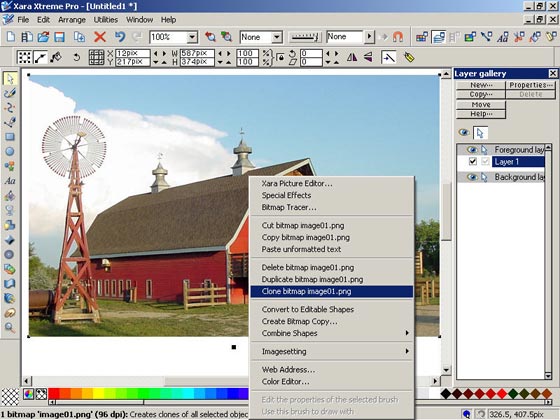
-
Passo 3. Abra o menu Plugins, selecione AKVIS e clique Sketch.
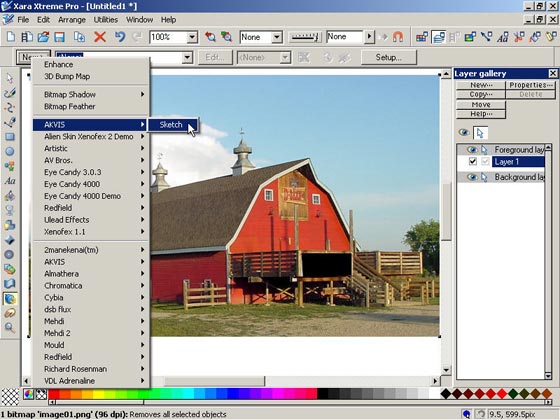
- Passo 4. Agora devemos definir valores paramétricos na caixa Efeitos como mostrado no canto direito da imagem abaixo.
-
Passo 5. Aperte o botão
 localizado acima da janela do Navegador (o primeiro botão). Enquanto os efeitos são processados, uma série de quadrados verdes se move da esquerda para a direita na barra progressiva.
O resultado será mostrado na aba Depois; se não estiver satisfeito com o resultado, defina outros valores para os parâmetros e clique no botão
novamente.
-
Passo 6. Se estiver satisfeito com o resultado, aperte o botão
 para aplicar o resultado e fechar a janela do plugin. Aqui conseguimos a nova imagem.
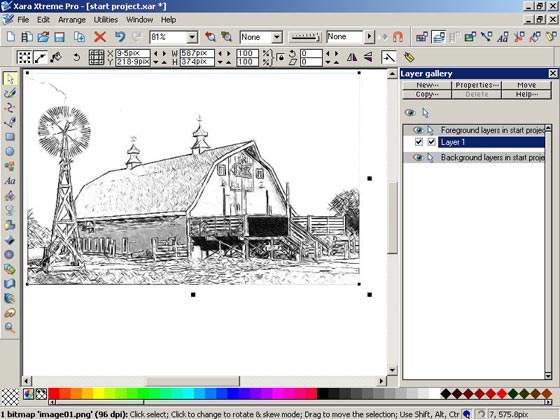
Trocamos a cor dos traços de preto para azul claro.
- Passo 7. Selecione e clique com botão esquerdo na ferramenta Transparência. Selecione a opção transparência Linear. Leve a seta Transparência para o centro da nova imagem criada e arraste a ponta da seta em direção ao canto direito inferior. Ao arrastar a ponta da seta, vê-se a mistura da nova imagem com a original. Se estiver satisfeito com o resultado, Exporte a imagem acabada para o diretório desejado.
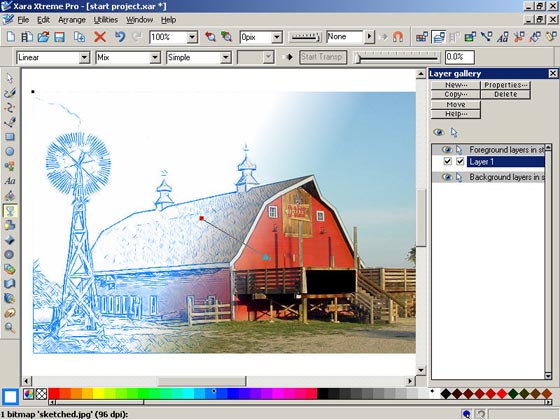
Mostrei o resultado ao meu cliente, ele ficou muito animado.
Honestamente, AKVIS Sketch é o mais incrível programa dos que tenho experimentado. Apenas olhe para a imagem abaixo.
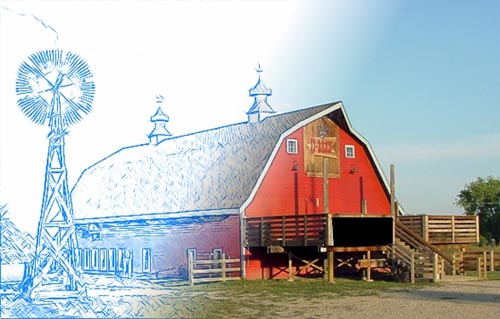
Você pode conseguir tal resultado usando a ferramenta AKVIS Sketch você mesmo.
Leia como misturar uma foto original e um croquis com o uso das características da aba Fundo do AKVIS Sketch.Sketch v. 28.1 - Teste gratuito 10 dias

- Passo 7. Selecione e clique com botão esquerdo na ferramenta Transparência. Selecione a opção transparência Linear. Leve a seta Transparência para o centro da nova imagem criada e arraste a ponta da seta em direção ao canto direito inferior. Ao arrastar a ponta da seta, vê-se a mistura da nova imagem com a original. Se estiver satisfeito com o resultado, Exporte a imagem acabada para o diretório desejado.
Nota que este tutorial foi feito com uma versão antiga de AKVIS Sketch. O programa atualmente oferece efeitos especiais na aba Fundo. Pode-se usar as novas características para misturar a foto original e o desenho, e mesmo desfocar algumas partes.
Agora ainda pode-se usar sua edição independente como aplicativo autônomo, tanto como plugin em editores de imagem.