Dream to Reality: Blending a Sketch and a Photograph
The author of this tutorial George Crofton sent us his story:
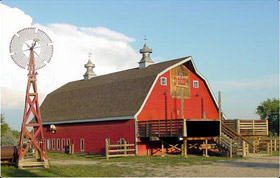
"A client, a builder of homes and barns, contacted me with an advertisement idea. His motto is “If we can sketch it, we can build it”. He had envisioned a graphic that would show the blend of a sketch and a photograph of his barn. He did not have any photograph of his barn with him, so I selected a photograph from my files. I decided to use Xara Xtreme Pro and AKVIS Sketch to create an example for my client to view."
 |
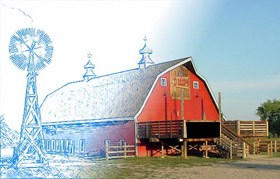 |
| Source image | Result |
Note that this tutorial was made with the old version of AKVIS Sketch. Now the program offers a special effects in the Background tab. You can use the new features to blend the original photo and the drawing, and even to blur some parts of the image.
Also, now you can use Sketch in its standalone edition, as an independent application, as well as a plugin to image editors.
George tells us how he achieved this beautiful result using Xara software and the Sketch plugin:
-
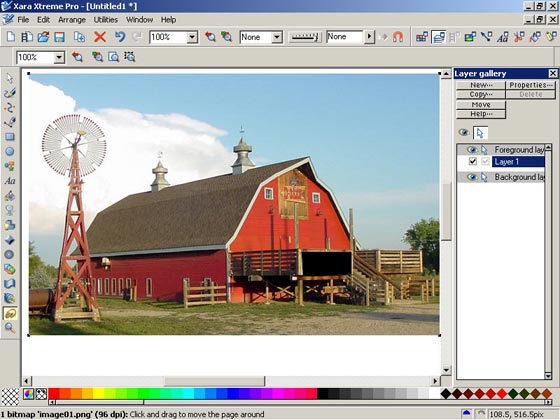
Step 1. Import the desired photograph into Xara Xtreme Pro and keep it selected.
-
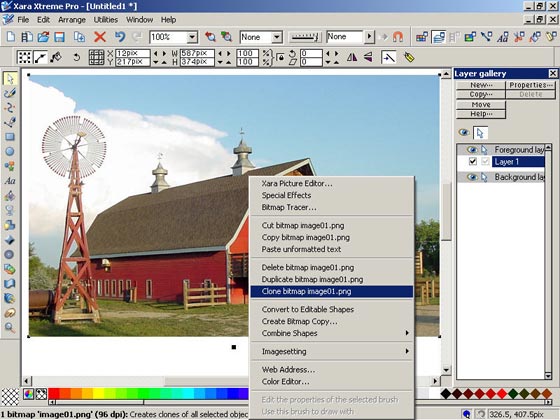
Step 2. Click the right mouse button and select clone bitmap ... from the drop menu. The cloned image will be placed above the original image.
-
Step 3. Open the Plugins menu, select AKVIS and then left click Sketch.
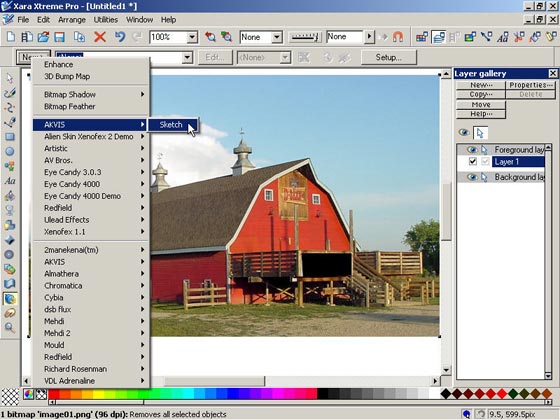
- Step 4. Now we should set the value of the parameters in the Effects box as shown in the lower right corner of the image below.
-
Step 5. Press the button
 , it is located above the Navigator window (the first button). While the Effects are being processed, a series of green squares will move from the left to the right in the progress bar.
The result will be shown in the After tab. If you are not satisfied with the result, set another values of the parameters and click the button
again.
-
Step 6. If you are satisfied with the result, press the button
 to apply the result and close the plugin window. Here we get the new image.
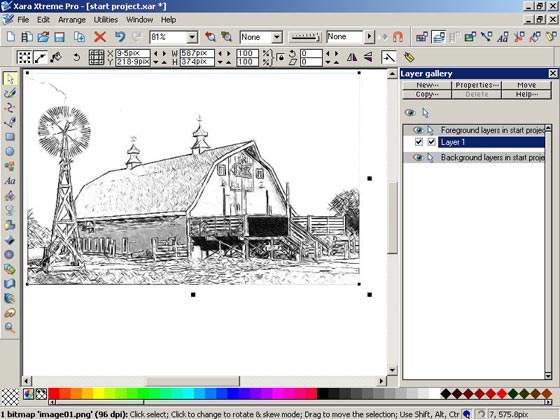
I've changed the color of the strokes from black to light blue.
- Step 7. Select and left click the Transparency Tool. Select the Linear Transparency option. Place the Transparency arrow at the center of the newly created image and drag the arrow head in the direction of the lower right corner. As you drag the arrow head, you will see the blending of the new image and the original image. If you are satisfied with the result, Export the finished image to the desired directory.
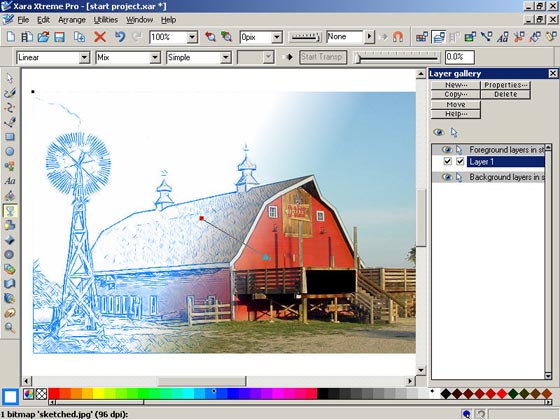
I showed the result to my client, he was very excited.
I honestly feel that AKVIS Sketch is the most amazing program that I have tried. Just look at the image below.
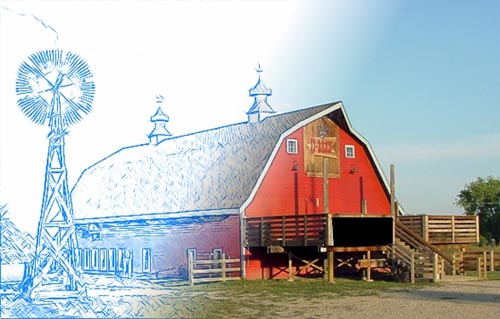
You can achieve such a result using one tool - AKVIS Sketch by itself.
Read how to blend an original photo and a sketch using the features of the Backgound tab of AKVIS Sketch.Sketch v. 28.1 - 10日間の評価期間

- Step 7. Select and left click the Transparency Tool. Select the Linear Transparency option. Place the Transparency arrow at the center of the newly created image and drag the arrow head in the direction of the lower right corner. As you drag the arrow head, you will see the blending of the new image and the original image. If you are satisfied with the result, Export the finished image to the desired directory.