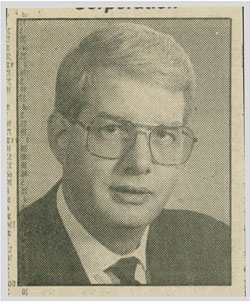
Retrato de um recorte de jornal
Este tutorial para AKVIS Sketch foi criado por Gordon Sisson. Gordon usa o plugin do AKVIS Sketch neste tutorial, mas você pode pegar a versão autônoma e usar os mesmos parâmetros para alcançar este resultado.
O autor escreve: "AKVIS Sketch oferece uma oportunidade única para criar efeitos gráficos deliciosamente incomuns de desenhos e fotos comuns; querendo mostrar um uso do plugin que seja um pouco diferente, fiz a transformação de um recorte de jornal a partir do qual criei um retrato сolorido de um velho amigo".
 |
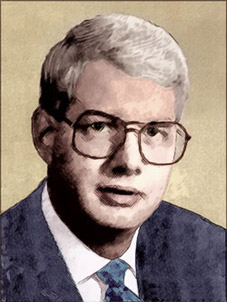 |
| Imagem original | Resultado |
Gordon descreve o processo:
Aqui está uma breve descrição da transformação original antes de obter o retrato colorido, o qual fiz com a mágica de AKVIS Sketch.
Processamento inicial:
- Passo 1. Digitalizei a foto com 2400 dpi e conjunto de filtros para remover moiré - jornal a 85 dpi. Em seguida, apliquei o plugin Kodak Digital GEM para supressão do ruído e de grãos (AKVIS Noise Buster teria sido melhor, mas ainda não tinha sido inventado).
- Passo 2. Então eu ampliei nossa foto para quase quatro polegadas de largura (10cm) e reduzi a resolução para 400 dpi.
- Passo 3. Melhorei um pouco o foco com o plugin do Software Acclaim Focus Magic plugin (ou você pode usar AKVIS Refocus), um pouco de borrão de superfície e maior contraste e eu tive um bom retrato preto e branco.
- Passo 4. Muito mais tarde, colorizei a imagem com o plugin AKVIS Coloriage — esta imagem foi o resultado:
 |
| Clique na imagem para abrir maior em outra janela |
Agora vamos ver o que se pode fazer com Sketch:
-
Passo 1. Chame AKVIS Sketch e leve em consideração usar os controles oferecidos; as explicações detalhadas são muito úteis. Vamos primeiro criar um croquis a carvão.
Escolha um Angulo que sirva para os elementos gráficos da imagem. É melhor seguir as linhas naturais, tal como os cabelos. Para esta imagem, 45 graus foi o ideal.
Ajuste o comprimento, intensidade dos cinzas, hachureado dos traços baseado em sua própria intuição.
Sketch também prove uma característica de aguçamento, o que é tão importante para este tipo de ilustração.
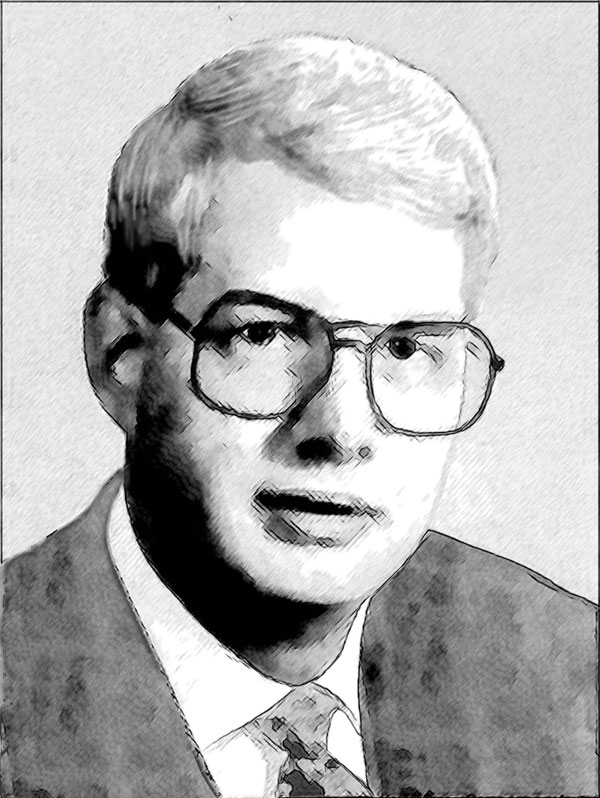
Para o croquis a carvão que estamos buscando, defini o cursor Carvão a 4, Espessura a 5, Comprimento mín/máx a 6 & 10, Intensidade dos cinzas a 8 e Densidade dos cinzas a 100. Anote suas definições para o caso de querer refazer.
-
Passo 2. Aperte o botão
 e você verá o resultado na janela do AKVIS Sketch. Se gostar, aperte o botão
  e você estará de volta ao seu aplicativo gráfico. Salve seu trabalho imediatamente.
Querendo fazer algo diferente, reinicie e refaça suas definições.
Aqui está o que é visto na janela do Akvis Sketch: croquis a carvão resultante. Um resultado clássico a partir de uma fotografia ordinária iniciada com um recorte de jornal.
 |
| Clique na imagem para abrir maior em outra janela |
Voltemos a fotografia colorida chamando AKVIS para um croquis a cores:
-
Passo 1. Chame AKVIS Sketch e leve em consideração usar as definições oferecidas e suas explicações.
Para o croquis colorido, movemos o cursor Carvão acima para 5 e definimos Coloração para 100. Espessura 3, Comprimento mín/máx a 6 & 10 e Densidade dos cinzas.
Anote suas definições para o caso de querer um resultado diferente ou precisar refazer o processo para ajustes.
-
Passo 2. Aperte o botão e verá o resultado na janela do Sketch. Gostando, aplique o resultado e estará de volta ao seu aplicativo gráfico. Salve o seu trabalho imediatamente.
Aqui está o que é visto agora na janela do AKVIS Sketch. Este é um realmente belo resultado, mas ainda não tem a aparência suficiente de esboço requerida para esta arte em particular.
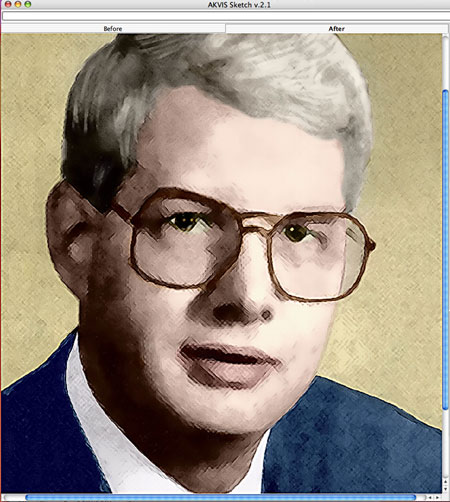
Para dar um aspecto maior de um esboço a cores, vamos tentar um outro plugin: AKVIS Noise Buster.
Usando Noise Buster:
- Passo 1. Chame o plugin AKVIS Noise Buster e ajuste as definições.
Aguçar as bordas é o que queremos para essa tarefa. Definimos Percentagem de aplicação 12%, Ruído de iluminação 4, Ruido de cor 6. Deixamos Nível de suavidade em 0.
-
Passo 2. Rode o processamento com e você verá o resultado na janela do AKVIS. Aplique o resultado com para voltar ao seu aplicativo gráfico. Salve seu trabalho de imediato.
Para acentuar (ou exagerar) a aparência de croquis, repetimos a aplicação da mágica do Noise Buster.
Cá está o croquis acabado, uma grande vitória para o plugin AKVIS Sketch com pequena ajuda de AKVIS Noise Buster:
 |
| Clique na imagem para abrir maior em outra janela |
Sketch v. 28.1 - Teste gratuito 10 dias
