Retrato de un recorte de periódico
Este tutorial de AKVIS Sketch fue creado por Gordon Sisson.
Gordon utiliza el plugin Sketch en este tutorial, pero usted puede elegir la edición independiente y utilizar los mismos parámetros para obtener este resultado.
El autor escribe:
AKVIS Sketch ofrece una oportunidad única para crear efectos gráficos deliciosamente inusual a partir de fotografías y dibujos ordinarios. Quería mostrar un uso del plugin de algo diferente.
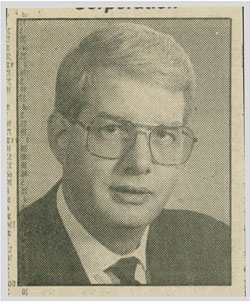
Hice la transformación con un recorte de periódico y he creado un retrato de color de un viejo amigo.
 |
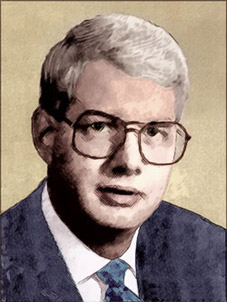 |
| Imagen original | Resultado |
Hay aquí una breve descripción de la transformación original, antes de llegar a la imagen en color a partir de la cual la hice con la magia de AKVIS Sketch.
Procesamiento previo:
- Escaneé la foto en 2400 ppp con el conjunto de filtros destramado para el periódico - 85 dpi. Luego aplicamos el plugin de Kodak Digital GEM para eliminar el ruido y mejorar la supresión de granos (AKVIS Noise Buster, habría sido mejor, pero aún no se ha inventado).
- Entonces pude ampliar la foto a casi cuatro pulgadas de ancho y reduje la resolución a 400 dpi.
- Aplicamos un poco de foco con el plugin de Acclaim Software’s Focus Magic (o puede usar AKVIS Refocus), desenfocando un poco la superficie y a mayor contraste logramos un buen retrato en blanco y negro.
- Más tarde, le di color a la imagen con el plugin de AKVIS Coloriage — esta imagen fue el resultado:
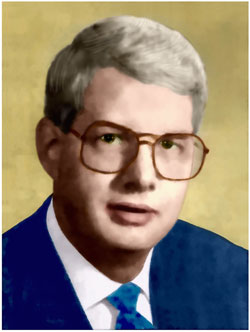
Haga clic en la imagen para abrir una copia más grande en nueva ventana

Ahora voy a ver lo que puedo hacer con Sketch:
-
Paso 1. Llame AKVIS Sketch y considere los controles que ofrecen y las explicaciones detalladas que son muy útiles. Primero voy a crear un dibujo al carboncillo.
Elegí un ángulo que se adaptara a los elementos gráficos de la imagen. Lo mejor es empezar con las líneas naturales, como el pelo. Para esta imagen, 45 grados era lo ideal.
Ajuste el tamaño del trazo, la intensidad y el sombreado basado a mi propia intuición.
Sketch también proporciona una función de nitidez que es muy importante para este tipo de ilustración.
Para el dibujo al carboncillo que buscaba, puse el control deslizante de Carboncillo a 4, Espesor en 5, Longitud en 6-10, Intensidad de tonos medios a 8 y Sombreado de tonos medios en 100. Anote estos ajustes en caso de que tenga que hacerlo de nuevo.
-
Paso 2. Pulse el botón de la flecha Ejecutar
 y verá el resultado en la ventana de AKVIS Sketch. Si te gusta, pulsa el botón Aplicar
  y usted volverá a la aplicación gráfica. Guarde su trabajo inmediatamente.
Si quieres hacer algo diferente, empiece de nuevo y vuelva a rehacer los ajustes.
Aquí está el resultado del dibujo al carboncillo. Una interpretación elegante de una fotografía muy corriente que se inició con un recorte de periódico.
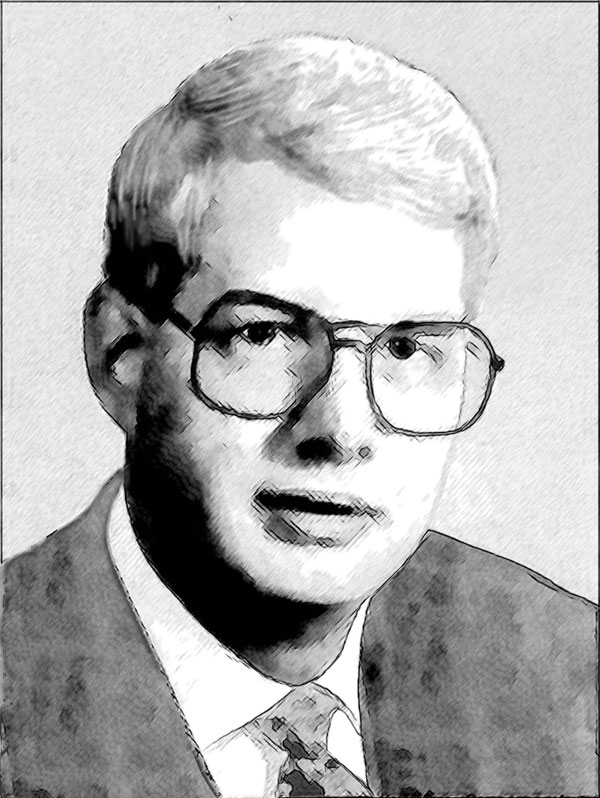 |
| Haga clic en la imagen para abrir la copia más grande en nueva ventana |
Ahora volvemos a la fotografía para hacer un dibujo a color con AKVIS:
-
Paso 1. Llame AKVIS Sketch y considere los controles ofrecidos y sus explicaciones.
Para el dibujo a color movemos el deslizador de Carboncillo hasta 5, la Coloración la establecemos a 100, Espesor a 3, Longitud a 6-10 y Sombreado de tonos medios a 10.
Anote sus ajustes en caso de que quiera otros resultados diferentes y necesitase volver a ejecutar el procedimiento para hacer los ajustes.
-
Paso 2. Pulse el botón de la flecha Ejecutar y verá el resultado en la ventana de AKVIS Sketch. Si te gusta, pulsa el botón Aplicar y usted volverá a la aplicación gráfica. Guarde su trabajo inmediatamente.
Esto es lo que ahora se ve en la ventana de AKVIS Sketch. Este es un resultado bastante bueno. Sin embargo, no es suficiente el dibujo que se busca en el arte, un requisito particular.
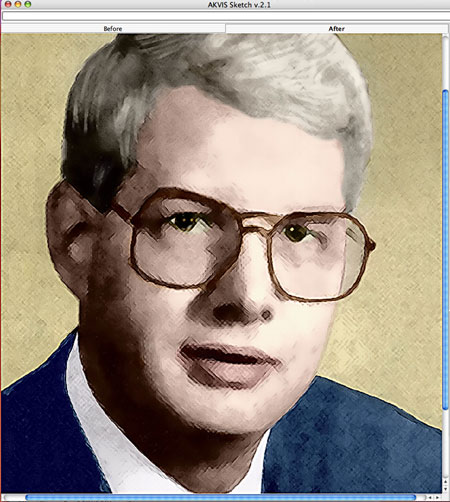
Para mejorar más el aspecto del dibujo, vamos a intentarlo con otro plugin de AKVIS: AKVIS Noise Buster.
El uso de Noise Buster:
-
Paso 1. Llame el plugin de AKVIS Noise Buster y ajuste la configuración.
Queremos para esta tarea enfocar los bordes con Noise Buster. Fijamos Porcentaje de aplicación en 12%, Ruido de luminosidad a 4, Ruido de color a 6, y dejamos los Nivel de suavidad = 0.
-
Paso 2. Pulse el botón de la flecha Ejecutar y verá el resultado en la ventana de AKVIS Sketch. Si te gusta, pulsa el botón Aplicar y usted volverá a la aplicación gráfica. Guarde su trabajo inmediatamente.
Para acentuar (o exagerar) la mirada del dibujo, repetimos la aplicación de la magía de Noise Buster.
Aquí está el diseño final, una gran victoria para el plugin de AKVIS Sketch con una pequeña ayuda de AKVIS Noise Buster.
 |
| Haga clic en la imagen para abrir la copia más grande en nueva ventana |
Sketch v. 28.1 - Prueba gratuita de 10 días
