Transformar un vídeo en un dibujo animado
AKVIS Sketch ofrece el procesamiento por lotes, lo que permite procesar automáticamente una serie de imágenes. Puede ser útil si desea crear un cómic o un dibujo animado a partir de un vídeo.
Si usa la versión standalone de Sketch, haga clic en el botón  y ajustar los parámetros de procesamiento por lotes.
Si utiliza el plugin Sketch en AliveColors, en primer lugar, hay que crear una acción con el comando Archivo -> Automatización -> Procesamiento por lotes y luego aplicarla a una carpeta de fotos. Una acción puede contener más de un comando (AKVIS Sketch) para que pueda procesar una gran cantidad de imágenes de una misma manera.
En este tutorial mostraremos cómo transformar un vídeo corto en dibujos animados en blanco y negro. Es posible hacer dibujos animados a color, eso depende de la configuración del programa.
Hemos utilizado un vídeo a formato MOV como un ejemplo.
- Paso 1. En primer lugar hay que crear dos nuevas carpetas, por ejemplo, "frames-original" y "frames-sketch". Las fotos para editar están en la carpeta "frames-original". Las fotos procesadas serán guardadas en la carpeta "frames-sketch".
- Paso 2. Abra el archivo MOV en Avidemux 2.5 y lo convierten en imágenes separadas (fotogramas). Guarde en la carpeta "frames-original".
-
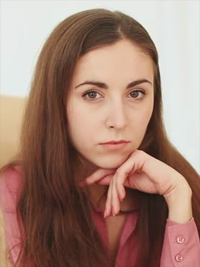
Paso 3. Abra una de las fotogramas originales de la carpeta "frames-original" en AliveColors. Usamos la fotograma #212.

Una de las fotogramas del vídeo -
Paso 4. Llame al plugin AKVIS Sketch (Efectos -> AKVIS -> Sketch).
Este programa ofrece los estilos de conversión de foto a dibujo: Clásico, Artístico, Maestro y Multiestilo: cada uno tiene una serie de presets (ajustes preestablecidos) y con la posibilidad de crear una gran variedad de dibujos a lápiz para todos los gustos.
Nosotros combinaremos los aspectos positivos de estilos Clásico y Artístico: contornos bien definidos en el primer estilo y el excelente sombreado en el segundo.
En primer lugar, seleccione el estilo Clásico de la conversión de foto a dibujo. Guarde los ajustes como predeterminados para usarlos en el futuro (por ejemplo, el preset sketch-classic).
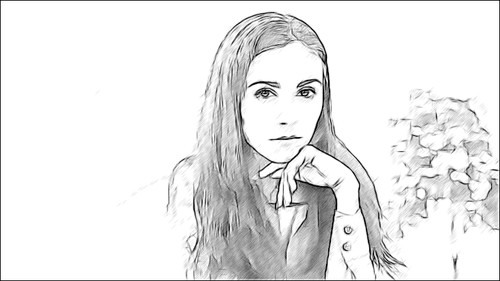
Fig. 1. Estilo ClásicoA continuación, seleccione el estilo Artístico y ajuste los parámetros. Guarde los ajustes como predeterminados (por ejemplo, el preset sketch-artistic). Cierre la ventana de los plugins.
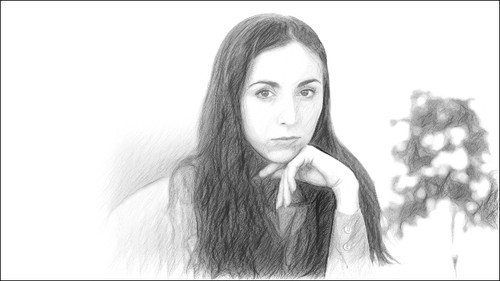
Fig. 2. Estilo Artístico -
Paso 5. Ahora cree una acción en AliveColors.
Abra la paleta Acciones y haga clic en Crear grupo nuevo
 . Introduzca el nombre del grupo en el cuadro de diálogo, por ejemplo, Film.
Haga clic en Crear acción nueva
 y introduzca un nombre a la nueva acción, por ejemplo, sketch-combine.
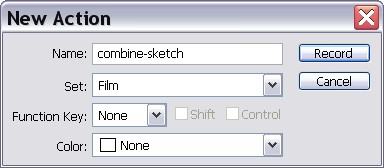
Haga clic en Arrancar
 para iniciar la grabación de las acciones.
Operaciones:
- Duplique la capa.
- Llame el plugin AKVIS Sketch, seleccione el estilo Clásico y el preset sketch-classic. Haga clic en
 para aplicar el resultado (Fig. 1).
- Seleccione la capa de fondo.
- Llame el plugin AKVIS Sketch otra vez, seleccione el estilo Artístico y el preset sketch-artistic. Haga clic en para aplicar el resultado (Fig. 2).
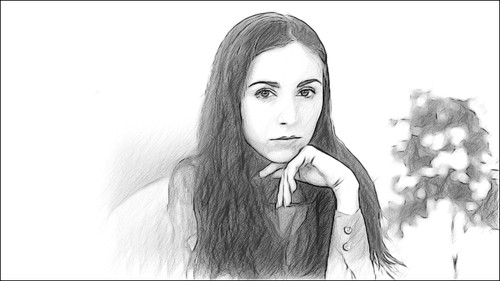
- Active la capa superior, elija Oscurecer en el menú de los modos de fusión, con la Opacidad = 80%.
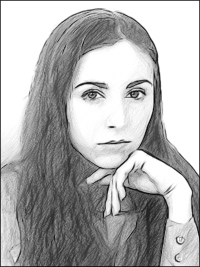
Aquí está el resultado (para fotograma #212).
-
Paso 6. Detenga la grabación haciendo clic en Parar
 en la parte inferior de la paleta Acciones.
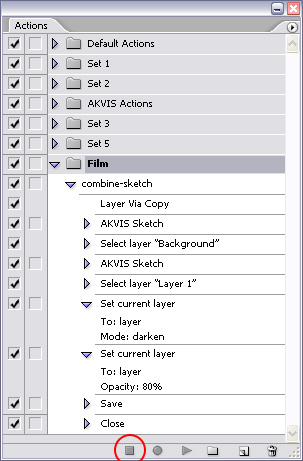
-
Paso 7. La acción se ha creado y podemos proceder al procesamiento por lotes. En el menú Archivo de AliveColors seleccione Automatización -> Procesamiento por lotes. Ajuste los parámetros en el cuadro de diálogo Procesamiento por lotes.
- El campo Carpeta de origen permite seleccionar la carpeta con archivos que requieren procesamiento. Seleccione la carpeta "frames-original".
- En el campo Carpeta de destino seleccione la carpeta "frames-sketch".
- En la lista Guardar como, seleccione un formato de archivo.
- En el campo Nombre de archivo especifique los nombres de los archivos de salida.
- En la lista de acciones seleccione el grupo Film y, luego, la acción sketch-combine.
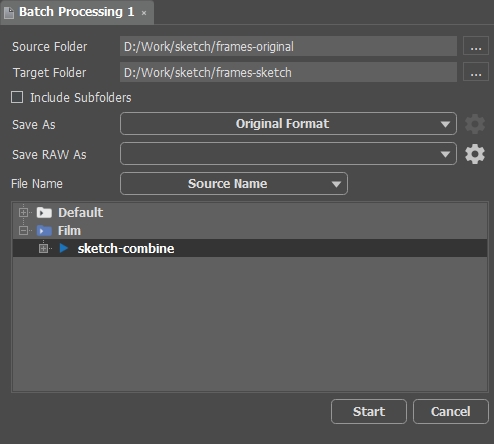
Presione el botón Arrancar en la ventana Procesamiento por lotes y AliveColors comenzará a procesar un cuadro tras otro de la carpeta 'frames-original' y los guardará en la carpeta 'frames-sketch'.
-
Paso 8. Ahora tenemos que montar dibujos separados en un vídeo. Puede ver el dibujo animado blanco y negro resultante.
Puede hacer un film de color, todo depende de los parámetros de AKVIS Sketch.
Sketch v. 28.1 - Prueba gratuita de 10 días
