Bosquejo acuarela desde una foto
El autor de este ejemplo es K.J. Hartmann.
"El dibujo siempre ha sido mi pasión. Empecé a dibujar en los tiempos en que no existían los gráficos de computadora y tuve que pasar mucho tiempo tratando de lograr el "look" que necesitaba. El software moderno permite la creación de una obra de arte de una manera cómodo, sin pasar horas dibujando y de forma divertida.
Me gusta las acuarelas, te mostraré cómo crear un retrato de acuarela de una foto. He utilizado AKVIS Sketch para este tutorial."
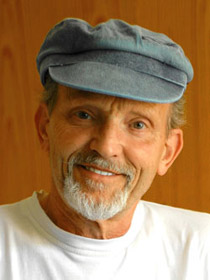 |
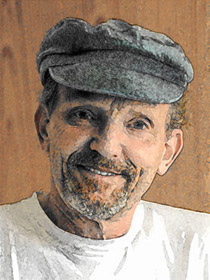 |
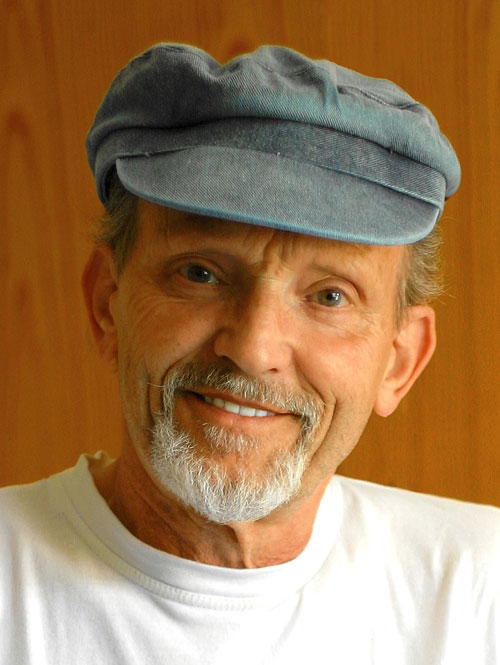
| Fuente fotografía en color | Resultado: retrato a acuarela |
Sigamos los pasos descritos por Sr. Hartmann:
-
Paso 1. Abra una foto en Adobe Photoshop.
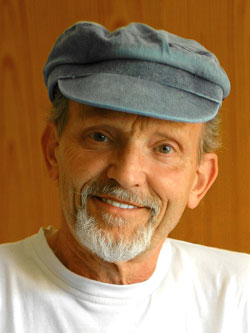
Haga clic en la imagen para abrir una copia grande en una nueva ventana - Paso 2. Copiar la capa. En el menú del editor de fotos elija Capa -> Duplicar capa (Ctrl+J). Por defecto se seleccionará la primera capa. Y vamos a empezar nuestro trabajo con esta capa.
-
Paso 3. Llame AKVIS Sketch. Ejecutar con los parámetros por defecto pulsando el botón
 . La ventana Después mostrará la imagen procesada.
Pulse el botón
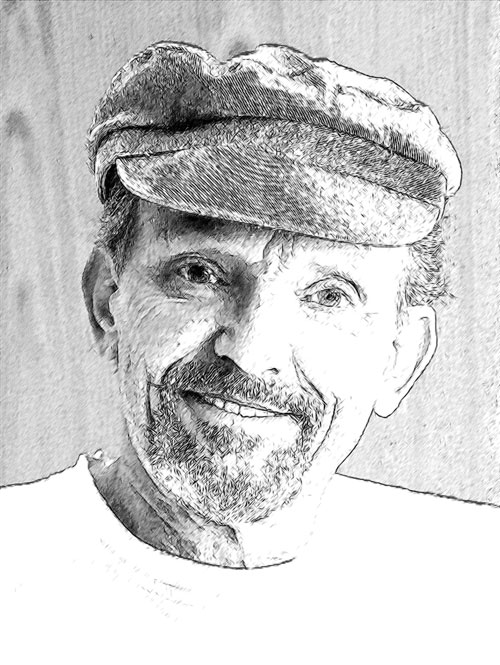
 para aplicar los cambios y cerrar la ventana del plugin. El resultado será similar a la siguiente imagen:
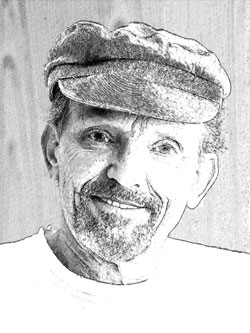
Haga clic en la imagen para abrir una copia grande en una ventana nueva - Paso 4. Ahora trabajo con la segunda capa. Desactivar la visibilidad de la primera capa. Haga doble clic en el icono del ojo (Indica visibilidad capas) en la paleta Capas. A continuación, pulse sobre la segunda capa de la paleta Capas para trabajar con ella.
-
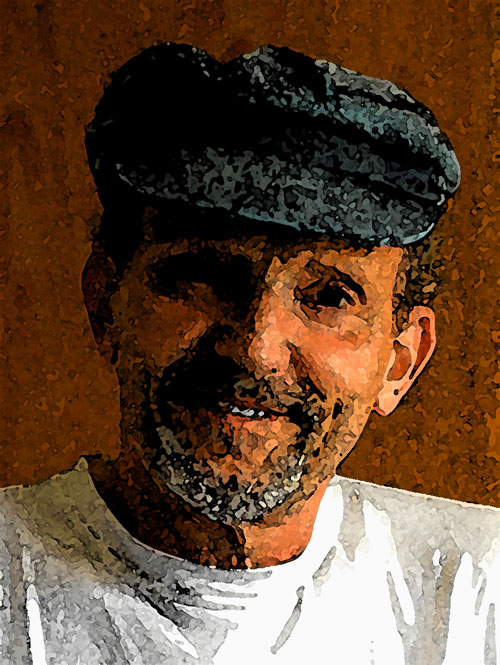
Paso 5. Llame el comando Filtro -> Artístico -> Acuarela desde el menú principal del editor de fotos. Aquí está el resultado.
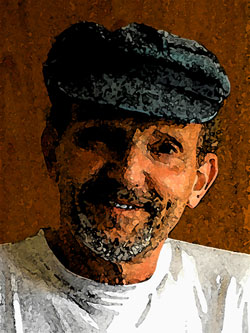
Haga clic en la imagen para abrir una copia grande en una nueva ventana -
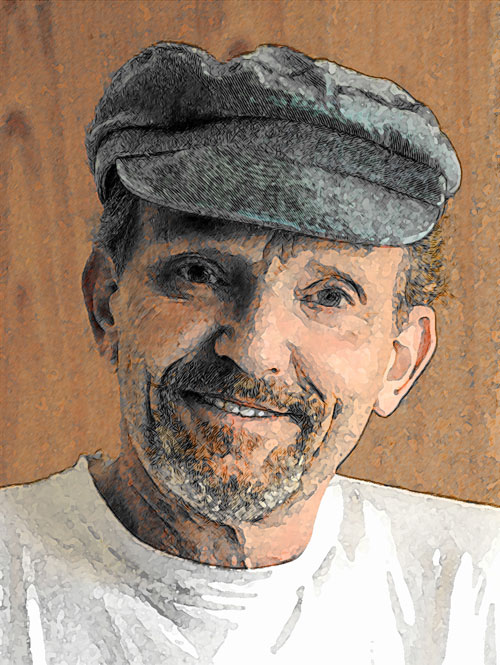
Paso 6. Active la visibilidad de la primera capa (click en el indicador visibilidad de capas en la paleta Capas). Ponga la Opacidad de la primera capa de la ventana Capas con una valor del 50%.
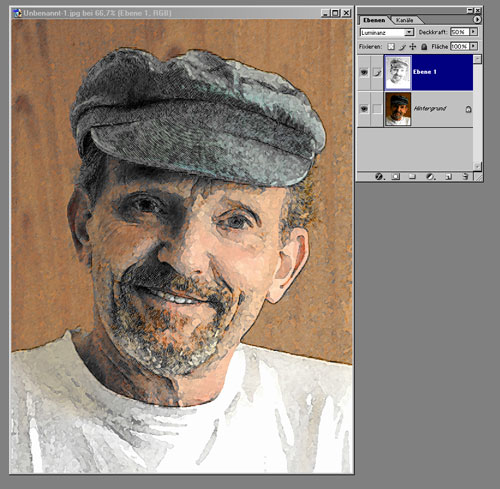
Aquí tenemos la pintura de acuarela.
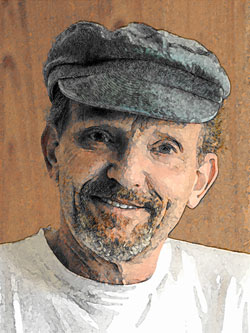
Haga clic en la imagen para abrir una copia grande en una nueva ventana
Sketch v. 28.1 - Prueba gratuita de 10 días
