Procesamiento artístico
El autor de esta tutorial es Jean-Claude Grégoire, que nos cuenta:
Escribí esta tutoría para mostrarles el uso del plugin AKVIS Sketch. Sin embargo, además de Adobe Photoshop, utilicé los plugins AKVIS Enhancer y AKVIS Noise Buster.
A veces la fotografía con la que se trabaja no es de muy buena calidad, por lo que primero se deben realizar mejoramientos utilizando algunos plugins AKVIS. Y sí: si los colores iniciales no son lo suficientemente buenos, los colores finales de la acuarela tampoco lo serán y, si hay demasiado ruido en la fotografía, el dibujo no se verá de forma nítida.
Es por esta razón que elegí una fotografía de mala calidad para mostrarles las extraordinarias maneras de mejorar una fotografía mediante el uso de otros plugins AKVIS: AKVIS Enhancer y AKVIS Noise Buster.
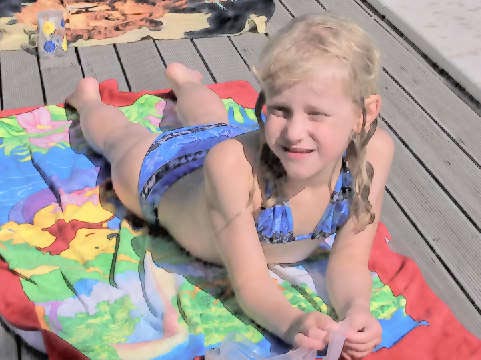
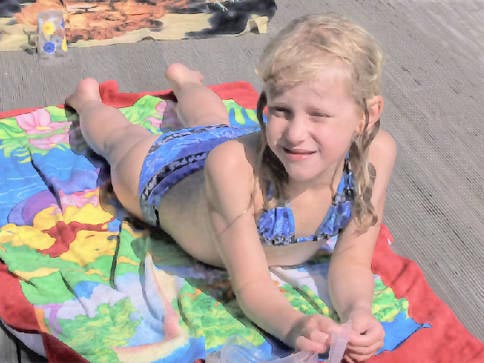
En el verano de 2006, les tomé a mis nietos varias fotografías con mi cámara digital. Por desgracia, una de ellas estaba muy sobreexpuesta. Entonces se me ocurrió que este hecho serviría como el punto de partida ideal para esta tutoría.
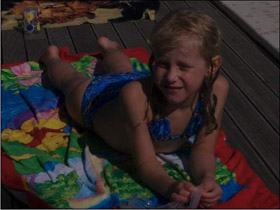
|
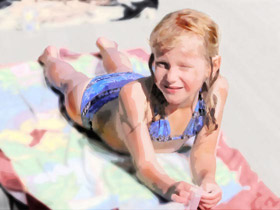
|
| Imagen original | Resultado |
- Paso 1. Abra la fotografía en Adobe Photoshop El tamaño es de 1600x1200 píxeles y la resolución, de 300 ppp.
Ahora un consejo para hacer bien el trabajo: en el menú principal elija el comando Imagen -> Duplicar para obtener una copia de la fotografía, sobre la que se trabajará. Luego cierre la original para que ya no haya riesgo de modificarla.
- Paso 2. Desde el menú principal, abra el plugin AKVIS Enhancer con el comando Filtro -> AKVIS -> Enhancer. Aparecerá una nueva ventana con la configuración predeterminada del plugin. Para este entonces, podrá observar que la imagen ha mejorado pero aún se ve demasiado oscura.
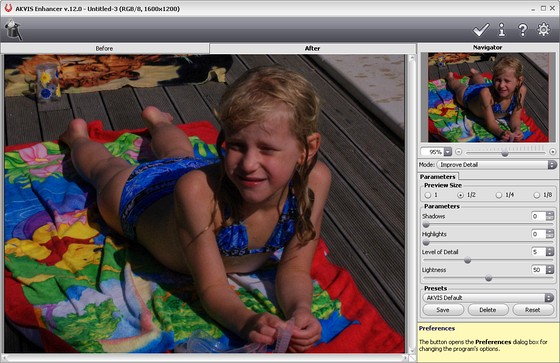
Entonces aumenté las opciones Sombras y Luminosidad al máximo: Sombras = 100, Luz = 0, Nivel de detalle = 5, Luminosidad = 100.
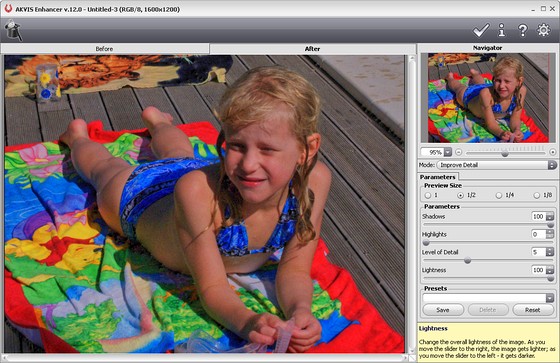
Intenté aumentar Nivel de detalle, pero había demasiado ruido; de modo que no lo hice. Si se aumenta Sombras, la imagen se aclara; si se aumenta Luz, la imagen se oscurece. Por esto que decidí no aumentar Luz.
Como para mí la imagen se veía bien, hice clic en el botón
 , para aplicar la corrección a la imagen y cerrar el plugin.
- Paso 3. Como podrá ver en la ampliación de la figura, hay demasiado ruido en las zonas más oscuras de la imagen.
Es necesario que se lo reduzca. La mejor manera, y la más fácil, de hacerlo es utilizar el plugin AKVIS Noise Buster. Ábralo con el comando Filtro -> AKVIS -> Noise Buster.
- Paso 4. Comience probando la configuración predeterminada (Auto Filtering).
Aún hay demasiado ruido, en especial en la cintura de la joven.
Por esta razón, modifique la configuración las veces que sea necesario hasta que obtenga una imagen que le satisfaga.
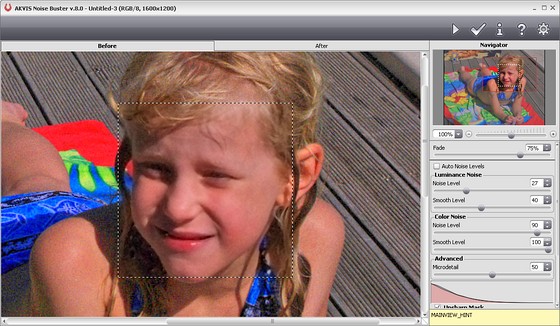
Haga clic en el botón
 y luego presione .
Guarde la imagen con un nombre apropiado. Ésta será la base del trabajo que realizará con el plugin AKVIS Sketch.
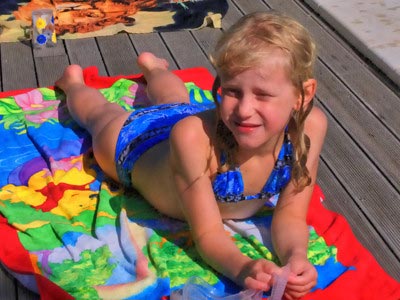
- Paso 5. Como soy un hombre precavido, comencé duplicando la capa "Fondo" presionando las teclas Ctrl+J y activé la capa "Capa 1" en la paleta Capas para poder trabajar sobre el duplicado sin perder la imagen original. Haga lo mismo.
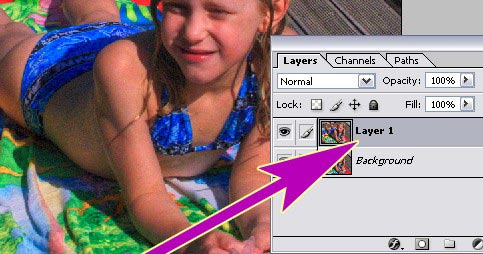
Ahora, abra el plugin AKVIS Sketch utilizando el comando Filtro -> AKVIS -> Sketch.
Se abrirá la ventana de AKVIS Sketch Haga clic en el botón
sin cambiar la configuración predeterminada. Como la imagen es de gran tamaño tardará entre 1 y 2 minutos, dependiendo de la potencia de la computadora, en obtener el resultado del procesamiento.
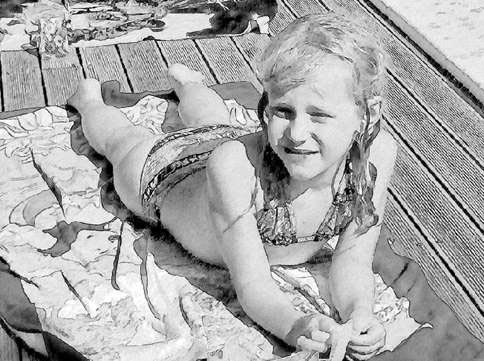
Para comparar el resultado con la imagen original, sólo hay que hacer clic con el botón izquierdo en las pestañas Antes y Después; si no, se puede presionar la tecla tab del teclado. También puede hacer clic en la imagen para desplazarse desde ésta a la otra con más rapidez. En el Navegador, que se encuentra en la parte superior derecha, con esta acción se puede desplazar al lugar que usted desee observar en la imagen. Para aumentar o reducir el zoom, solo debe mover el deslizador Escala que se halla debajo del Navegador (también puede utilizar los comandos del programa Adobe Photoshop: Ctrl++ y Ctrl+-, las teclas + y - del teclado numérico), de modo que podrá examinar con facilidad los detalles de cada parte de la imagen.
La conclusión es que hay demasiados detalles, particularmente en el fondo: lo que imposibilita obtener un buen dibujo. De hecho, con el plugin, no se diferencia lo que es importante (la joven) de lo que no lo es (los detalles del fondo).
- Paso 6. Busque una configuración adecuada para la joven, sin darle demasiada importancia al fondo.
- Para conseguir trazos más finos o más gruesos, reduzca el parámetro Espesor al mínimo.
- Para lograr tonos medios muy claros, también reduzca al mínimo los parámetros Intensidad de tonos medios y Sombreado de tonos medios.
A continuación haga clic en el botón
. Aún hay demasiado ruido, en especial alrededor de la cintura de la joven (1) y en el fondo (2).
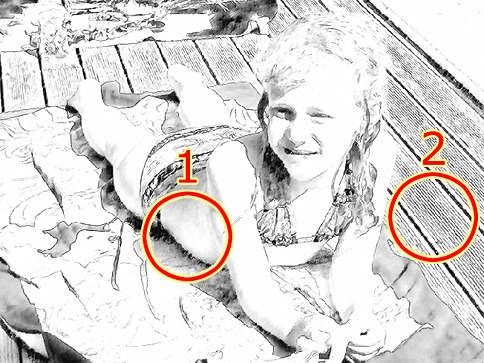
- Paso 7. Para deshacerse de él, es necesario que el dibujo se vea un poco borroso. Puede hacerlo con facilidad utilizando el parámetro Acuarela. Mueva el control deslizante hasta un valor de 11 y obtendrá un mejor resultado.
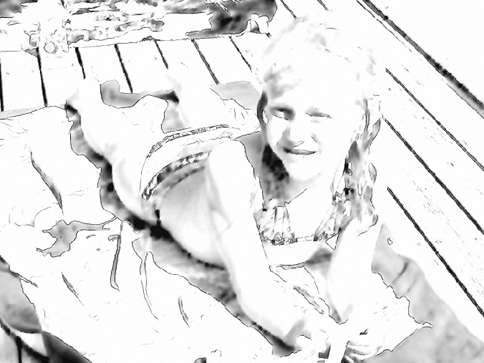
- Paso 8. Por último, determine el valor de la opción Coloración en 80.
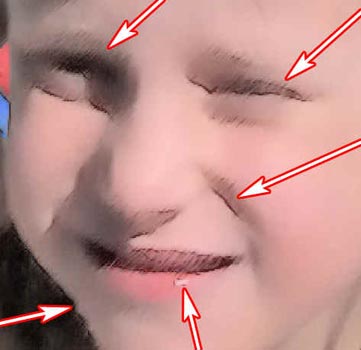
Se dará cuenta de que los trazos principales no se ven bien y que algunas zonas presentan una sombra extraña. En la imagen inferior, se puede ver una mancha marrón poco atractiva en el labio inferior y una sombra, que tampoco es muy agradable, en la mandíbula, el labio superior, los ojos y las cejas.
- Paso 9. Para lograr que los trazos principales luzcan mejor:
- Incremente el parámetro Longitud mínimo/máximo a 10 y 17. Como el dibujo del labio inferior se compone de trazos cortos, ésta puede ser la solución al problema en esta zona.
- Establezca el parámetro Ángulo en 130°.
Aunque el fondo no ha mejorado, con el zoom se puede confirmar que el rostro de la joven sí lo ha hecho.

Aplique el plugin haciendo clic en el botón
.
- Paso 10. Ahora será testigo de la ventaja de haber trabajado solo con el duplicado (recuerde el Paso 5). Para obtener el mejor resultado posible, lleve a cabo en el fondo un trabajo diferente a aquel realizado en la joven. Por lo tanto:
- Dé a la "Capa 1" un nombre evocador: "Configuración adecuada para la joven";
- Vuelva a duplicar la capa "Fondo".
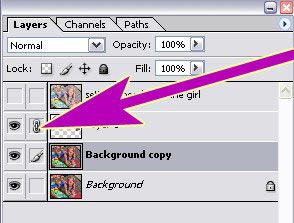
- Paso 11. Ahora se debe volver a trabajar en el fondo un poco más para que el suelo se vea mejor. Por esta razón, cree, sobre la capa duplicada, una capa vacía (flecha derecha), con la que trabajará. Para crear la capa vacía utilice el comando Capa -> Nueva -> Capa.
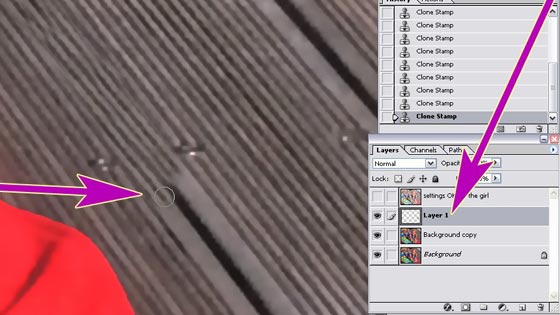
Con la herramienta Tampón de clonar, copie el motivo que se observa en las tablas sobre los espacios entre éstas (flecha izquierda) y en el borde de la piscina, lo que reduce la opacidad de la esquina superior derecha. Tome el motivo por copiar sobre la capa vacía de la capa "Fondo copia". Si el motivo de la madera llegara al hombro o al cabello de la joven, se lo puede corregir con facilidad utilizando la herramienta Borrador, ya que se está trabajando sobre una capa que estaba en blanco.
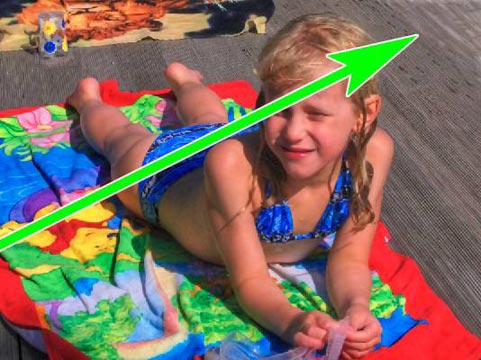
Una vez que se realice la tarea, enlace las dos capas con el comando Capa -> Enlazar capas y combínelas, con las teclas Ctrl+E. Dé a esta nueva capa el nombre evocador "Fondo corregido" y actívela.
- Paso 12. Abra el plugin AKVIS Sketch y utilice la misma configuración que antes: como el último filtro que se utilizó es AKVIS Sketch, presione las teclas Ctrl+F directamente en Photoshop sin abrir el plugin, y el trabajo estará listo. Puede observar el resultado en la figura: la joven aún se ve bien pero el fondo, no. Por esta razón, no aplique el plugin.
- Paso 13. Verifique que la capa "Fondo corregido" aún esté activada y aplique en ella el filtro Desenfoque gaussiano, con un radio de 7 píxeles, con el comando Filtro -> Desenfocar -> Desenfoque gaussiano.
- Paso 14. Abra el plugin AKVIS Sketch una vez más. Pero la configuración será la predeterminada, ya que el último filtro utilizado era otro. No importa. Pruébelo haciendo clic en el botón y finalmente añada algo de color. Ahora, ya no debe prestarle atención a la joven, sino solo al fondo. Verá que aún había mucho ruido. De modo que reduzca al mínimo los deslizadores de Espesor, Intensidad de tonos medios y Sombreado de tonos medios, y establezca Acuarela en 43 para que la imagen se vea más borrosa. Vuelva a hacer clic en el botón . El resultado se ve bien pero será aún mejor si reduce el parámetro Coloración a 29.
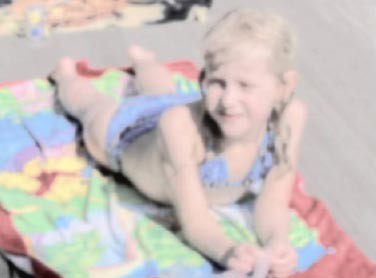
Haga clic en el botón
.
Será conveniente cambiar el nombre de la capa "Configuración adecuada para la joven" por uno más sencillo como "La joven se ve bien".
- Paso 15. Ahora tiene 3 capas: "Fondo", "Fondo corregido" y "La joven se ve bien".
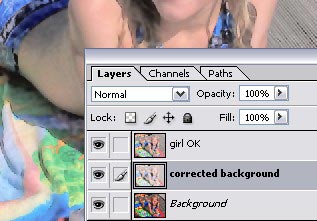
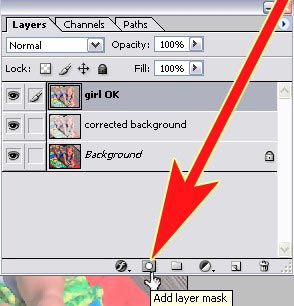
Pero la cuestión es ¿cómo hacer para ubicar a la joven sobre el fondo corregido? En realidad, eso es muy fácil. Presione la tecla D para obtener al negro como color frontal. Luego active la capa "La joven se ve bien" y añada una máscara de capa: haga clic en el botón Añadir máscara de capa, como se observa en la siguiente imagen.
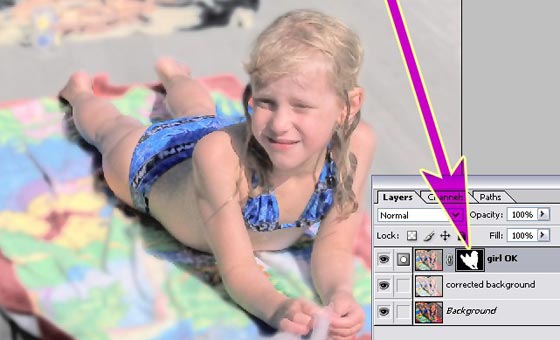
- Paso 16. Presione las teclas Alt+back space y la capa "La joven se ve bien" se volverá transparente, ya que con este comando se activa el color frontal, el negro. Luego, con la herramienta Pincel (el pincel predeterminado, cuya Opacidad es 100%), haga que la joven vuelva a verse, después de presionar la tecla X para que el color blanco aparezca sobre el primer plano. Si llegara demasiado lejos, sería fácil corregir el trabajo presionando la tecla X para borrar con el pincel lo que fuera necesario. Si borrara de más, solo tendría que presionar la tecla X otra vez, y así sucesivamente.
Observe la máscara de la paleta Capas que se ve a continuación:
Una vez que finalice, acople la imagen: Capa -> Acoplar imagen.
- Paso 17. Puede que parezca que el resultado es excelente. Sin embargo, aún se ve artificial y bastante impersonal. Por ello, dé a la imagen un toque más artístico y personal. El truco más sencillo es añadir más color en ciertas zonas.
Entonces, duplique la capa "Fondo" y seleccione el modo de fusión Subexponer color. Establezca Opacidad = 50%.
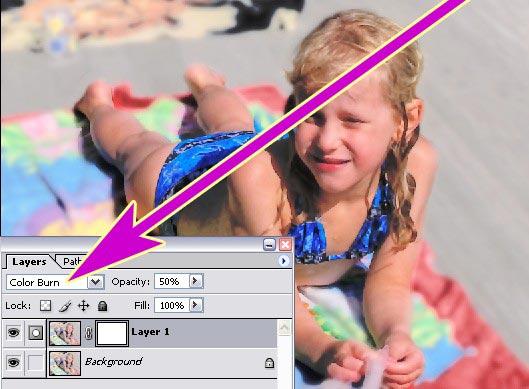
Agregue una máscara de capa a la capa "Fondo copia". Asegúrese que el color frontal se mantenga en negro. Luego presione Alt+back space: el color se desvanecerá y con la herramienta Pincel, después de presionar la tecla X, como en el paso 16, obtendrá más cantidad de zonas coloreadas en el dibujo. Para ello, reduzca la Opacidad a 30% si aún se ven oscuras, presione las teclas X y borre lo que haya hecho (consulte el paso 16). Con esto, se puede lograr casi el mismo efecto que cuando se añade color en una acuarela, con la técnica wet in wet (pintar con acuarela sobre papel húmedo).
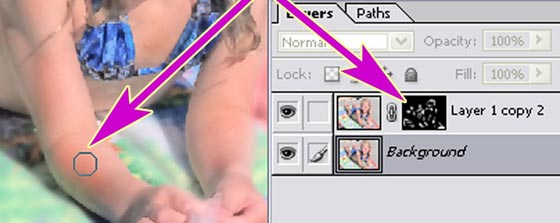
Luego, acople la imagen.
Nota: Se puede obtener el mismo resultado utilizando la herramienta Subexponer en la capa original; pero es más difícil ya que la corrección es más complicada de realizar.
- Paso 18. Por último, la frutilla del postre: duplique la capa "Fondo". Active el duplicado. Desde el menú principal, elija el comando: Filtro -> Artístico -> Cuarteado, y experimente con la configuración hasta que haya conseguido algo hermoso. A continuación, lo que elegí para mi trabajo:
- Número de niveles = 8
- Simplicidad del borde = 7
- Fidelidad del borde = 3
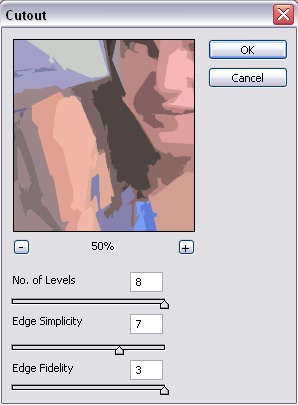
Luego haga clic en el botón OK y nombre a esta capa "Cuarteado".
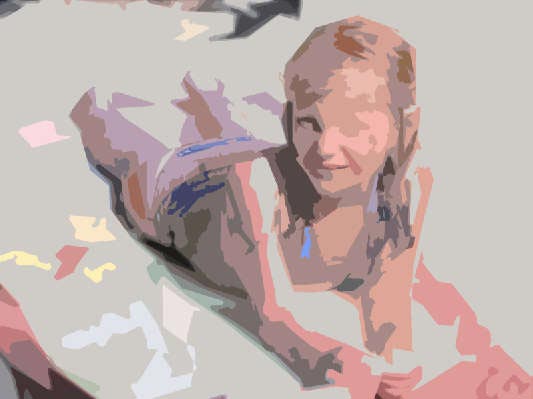
Nota: Si con este filtro no llega a un resultado satisfactorio, deberá probarlo en una imagen de mayor tamaño. Por ejemplo, si la imagen es de 800 x 600 píxeles, tendrá que aumentar el tamaño a 1600 x 1200 píxeles o más. Siempre podrá hacer que la imagen vuelva a su tamaño anterior.
- Paso 19. Ahora, el problema es de combinar esta nueva capa con la anterior. Después de algunas pruebas, yo elegí:
- Modo de fusión = Superponer
- Opacidad = 80%.
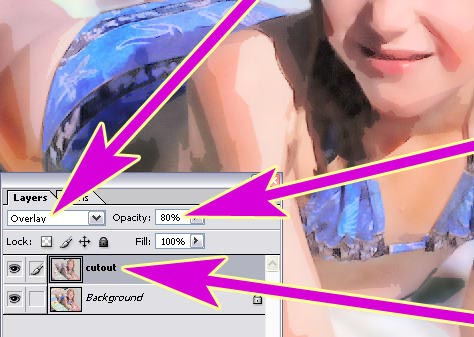
El resultado final es increíblemente hermoso: habrá logrado una auténtica obra de arte que ya no se ve como una fotografía.
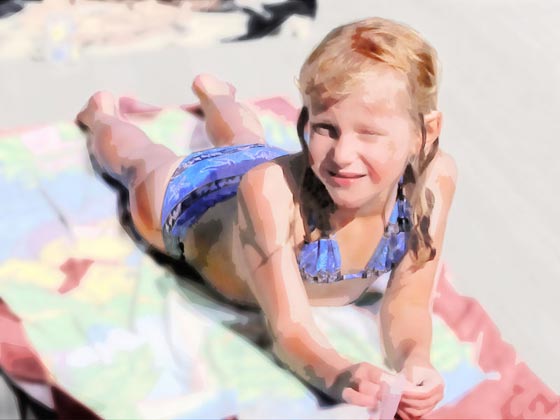
Nota importante: Algunos pesimistas dirán, sin duda alguna: "No se necesita del plugin AKVIS Sketch para conseguir una imagen tan hermosa". Para ser honesto, yo lo intenté sin la ayuda de AKVIS. Partiendo de la imagen mejorada en el Paso 4, probé varios filtros Photoshop y varios modos de fusión en algunas capas, pero no pude lograr que ninguna imagen se viera delicada: todo lo que conseguí fue una imagen muy brillante que parecía haber sido "retocada con Photoshop"... pero aún podía comenzar un arduo trabajo con el pincel. A continuación, las diferencias más significativas entre el plugin AKVIS Sketch y el conjunto inseparable de los filtros Photoshop:
- El plugin procesa los trazos en lápiz de una manera mucho más precisa, para conseguir un dibujo realista hecho a mano.
- El plugin tiene más velocidad, en comparación con los largos y numerosos procesos que son necesarios para lograr un resultado casi similar utilizando las herramientas estándares de Photoshop.
De todos modos, no es necesario que usted sepa dibujar para conseguir un resultado tan bueno como el que logré con el plugin AKVIS Sketch, mientras que con los filtros y pinceles clásicos de Photoshop, es una historia diferente.
Sketch v. 28.1 - Prueba gratuita de 10 días
