A Watercolor Portrait out of a Photo
La version française sera bientôt affichée.
The author of this example is K.J. Hartmann.
"Drawing has always been my passion. I started to draw in the times when computer graphics did not exist and I had to spend much time trying to achieve the "look" I needed. The modern software allows creating a piece of art in a comfortable way - without hours of drawing. And it is fun to realize the ideas quickly!
I like watercolor paintings and I will show you how to create a watercolor portrait out of a photo. I used AKVIS Sketch for this tutorial."
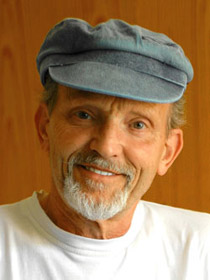 |
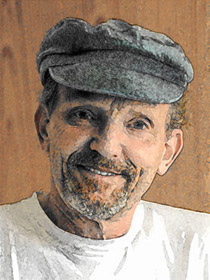 |
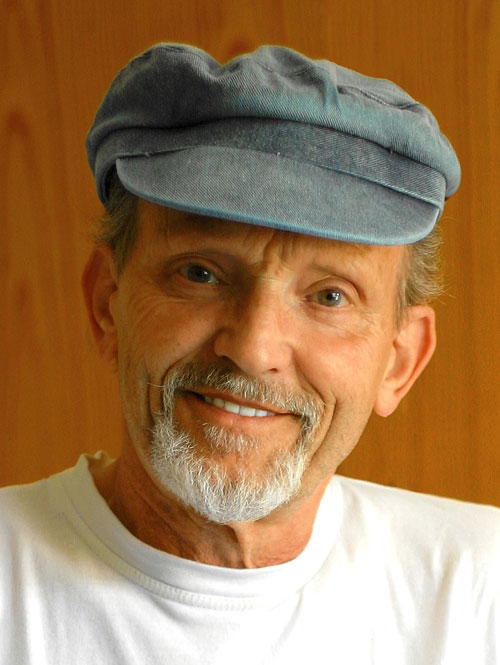
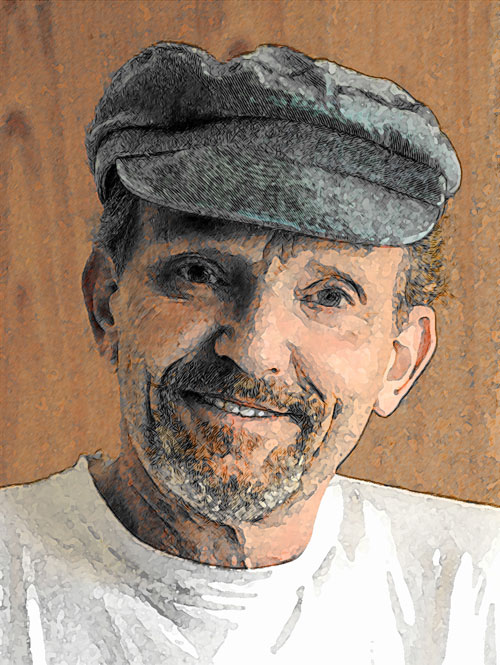
| Source color photograph | Result: watercolor portrait |
Let's follow the steps Mr. Hartmann described:
-
Step 1. Open a photo in Adobe Photoshop.
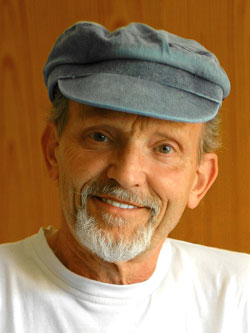
Click the image to open its larger copy in a new window - Step 2. Copy the layer. From the menu of the photo editor choose Layer -> Duplicate layer (Ctrl+J). By default the first layer will be selected. And we’ll start our work with this layer.
-
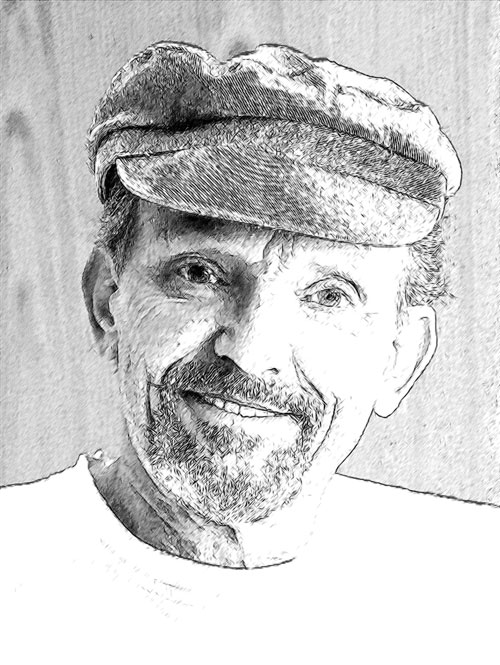
Step 3. Call AKVIS Sketch. Run it with the default parameters by pressing the button
 . The After window will show the resulting pencil sketch.
Press the button
 to apply the changes and close the plugin window. The result will be similar to the following picture:
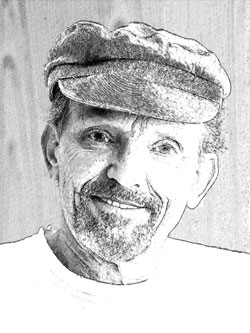
Click the image to open its larger copy in a new window - Step 4. Now work with the second layer. Deactivate the visibility of the first layer. Double click on the eye icon (Indicates layers visibility) in the Layers palette. Then press on the second layer in the Layers palette and work with it.
-
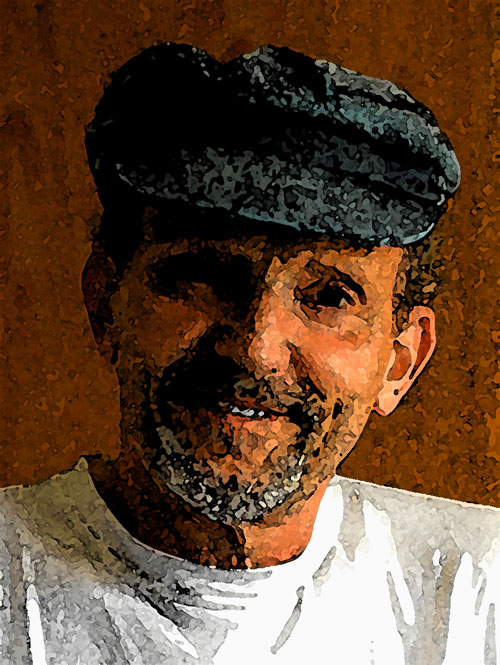
Step 5. Call the command Filter -> Artistic -> Watercolor from the main menu of the photo editor. Here is the result.
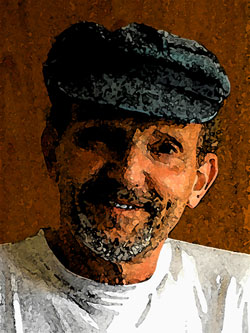
Click the image to open its larger copy in a new window -
Step 6. Activate the visibility of the first layer (click on Indicates layers visibility in the Layers palette). But the first layer “overlays” the second one. So choose the first layer from the Layer palette and set the value of the Opacity parameter to 50%.
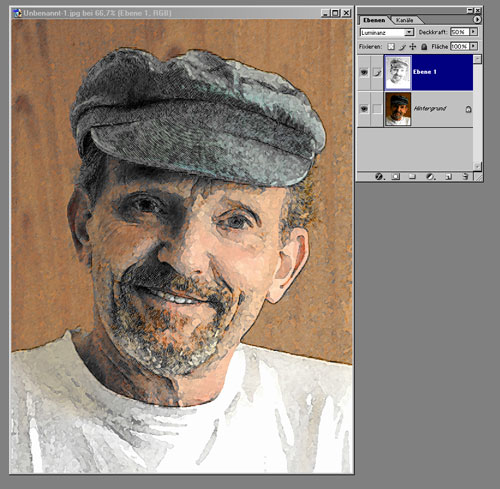
Here we have a watercolor painting.
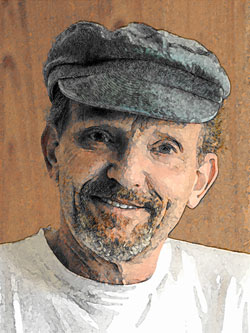
Click the image to open its larger copy in a new window
Sketch v. 28.1 - 10 jours d'essai
